Organizations
Organizations provide multi-workspace management in Zeotap. An organization groups workspaces under a single administrative umbrella, and it is where all access control lives: people, groups, roles and the grants that connect them.
What Is an Organization?
An organization is a container for one or more Zeotap workspaces. Each workspace operates independently with its own warehouses, models, syncs and governance settings; the organization provides the shared layer for:
- People — you are invited to an organization, not to a workspace
- Groups — a group lives here, and is granted a role on each workspace it should reach. This is the only way access is granted
- Roles — a custom role is written once and can be granted in every workspace in the organization
- One set of administrators — the seeded Organization admins group reaches every workspace in the organization, now and in future
Every workspace belongs to an organization. When a new account’s access request is approved, an organization is created for it, named after the person (for example, Jane Doe’s Org), with them as its administrator; they then create its first workspace. Someone who was invited to an organization joins that one instead. There is no such thing as a standalone workspace, because a group is the only thing that grants access to a workspace and a group lives on an organization.
Seeing Your Organizations
Open Your organizations from the user menu or the workspace selector to see every organization you belong to. Each row shows whether you are an Administrator or a Member, how many workspaces and members it has, and links to its Settings and, if you administer it, Create workspace. New organization at the top of the page starts a new one, and Back returns you to where you came from.
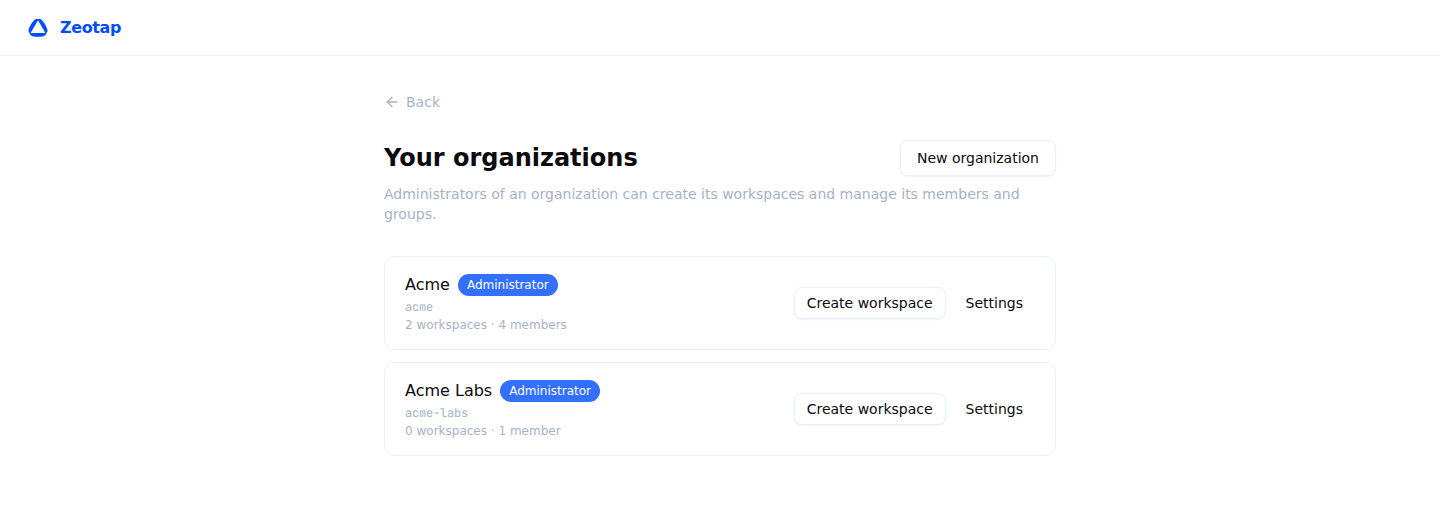
Platform administrators see every organization on the platform here, each marked Administrator.
Organization settings, opened from the user menu or from an organization’s Settings link, edits one organization at a time. If you belong to more than one, switch between them with the Organization picker at the top of the page; with a single organization there is nothing to switch, and the picker is not shown.
When You Need a Second One
Organizations are worth thinking about when:
- Your company runs separate workspaces for different teams, regions or environments — “Production”, “Staging”, “EMEA”, “US” — and the same people should administer them
- You have two genuinely separate tenants who must not see each other’s groups. A group can only be granted workspaces in its own organization, which the database enforces; that boundary is the reason to make a second organization rather than a second group
With a single workspace, the organization created for you at sign-up is already there and the two seeded groups already cover it — nothing more to set up.
Creating an Organization
Via the UI
- Open Your organizations from the user menu and click New organization. If you do not belong to any organization yet, the page offers Set up your organization instead
- If you have pending invitations, they are listed first under You have been invited. Joining the team that invited you is usually what you want — accept the invitation rather than creating a second organization
- Enter its details:
| Field | Description | Example |
|---|---|---|
| Organization name | Organization display name. Its identifier is derived from the name, and must not already be taken by another organization | ”Acme Corp” |
| First workspace name | The workspace created inside the new organization | ”Production” |
- Click Create organization. The organization and its first workspace are created, and the workspace opens
If the organization is created but its workspace is refused, the organization is kept and the button changes to Create workspace, which retries only the workspace.
A new organization is seeded with two groups you cannot rename or delete — Organization admins and Organization viewers — and your account is put in the first one. That is what makes you an administrator: there is no role column on the roster.
Via the API
curl -X POST "$API_BASE_URL/api/v1/organizations" \
  -H "Authorization: Bearer $API_TOKEN" \
  -H "Content-Type: application/json" \
  -d '{
    "name": "Acme Corp"
  }'
The organization’s identifier is derived from its name. A name whose identifier another organization already holds is refused with 409 organization_slug_taken.
Workspaces in an Organization
From inside the organization, a workspace joins it by being created inside it, and this is the only way to create a workspace. Only organization administrators can do it:
- In Organization settings → Workspaces, click Create Workspace, enter a Name and, optionally, a Parent workspace (No parent by default), then click Create
- Use Create a workspace on Select a workspace, or Create workspace on an organization’s row in Your organizations. The Organization picker on that form is searchable (Search organizations…) and lists only the organizations you administer; platform administrators see every organization
- Call
POST /api/v1/organizations/{orgId}/workspaces
Members who are not administrators do not see the control, the create form tells them Only organization admins can create workspaces, and the API refuses them.
Moving a workspace between organizations is a platform-administrator operation rather than an organization one — POST /api/v1/admin/organizations/{orgId}/workspaces moves an existing workspace in, and DELETE /api/v1/admin/organizations/{orgId}/workspaces/{workspaceId}?to_organization_id=… moves it out to another one. There is no detach: the destination is required, because a workspace in no organization is one nobody could ever be granted access to. Ask a platform administrator if you need a workspace moved.
Moving a workspace out revokes every grant this organization’s groups held on it. The groups in the destination organization will have to be granted it again.
The Workspaces tab lists every workspace in the organization with its slug and member count, and lets you Switch to one.
Organization Administration Is a Group
Organizations have no role ladder of their own. Organization admins is an ordinary group with one unusual grant — instead of naming a workspace, it names the whole organization — plus the standing to create groups, invite people and manage grants.
| Group | What it grants | What it lets you administer |
|---|---|---|
| Organization admins | The Owner role on every workspace in the organization, now and in future | Groups, roles, grants, invitations, workspaces, and the organization itself |
| Organization viewers | The Member role on every workspace in the organization | Nothing — it is a read grant, not a standing |
| (any other group) | Whatever its grants say | Nothing |
Neither seeded group can be renamed or deleted, and the API refuses a removal that would leave Organization admins empty. The rule is a transition, not a state: with two administrators either removal is allowed.
Think carefully before adding somebody to Organization admins — it is Owner access to every workspace below it, including ones that do not exist yet. Where a team needs to administer one workspace, give them a group granted Admin on that workspace instead.
| Person | In | Effective in workspace A | Effective in workspace B |
|---|---|---|---|
| Alice | Organization admins | Owner | Owner |
| Bob | Organization viewers | Member | Member |
| Carol | ”Retail builders”, granted Admin on A | Admin | No access |
| Dan | The roster only | No access | No access |
Managing Members
Inviting
Organization settings → Members carries the Invite a new member form: an email address, and the groups the person lands in (leave the groups picker on No groups (add them later) to place them afterwards), then Invite. Pending invites are listed under it with Resend and Cancel, on a seven-day expiry.
curl -X POST "$API_BASE_URL/api/v1/organizations/$ORG_ID/members/invite" \
  -H "Authorization: Bearer $API_TOKEN" \
  -H "Content-Type: application/json" \
  -d '{
    "email": "newmember@acmecorp.com",
    "group_ids": ["7c1f4e2a-9b3d-4f18-a0c6-2d5e8b1f9034"]
  }'
An invitation naming no groups is legal: the person joins the roster and reaches nothing until a group takes them in. Add them afterwards from their row on the Members tab, from the group’s page, or:
curl -X POST "$API_BASE_URL/api/v1/organizations/$ORG_ID/groups/$GROUP_ID/members" \
  -H "Authorization: Bearer $API_TOKEN" \
  -H "Content-Type: application/json" \
  -d '{"account_id": "770e8400-e29b-41d4-a716-446655440000"}'
Changing What Somebody Reaches, and Removing Them
Both are group operations. Organization administrators (and platform administrators) can change a person’s groups directly from their row on Organization settings → Members: the groups picker saves each tick as it is made. Everyone else sees the groups as text. Adding somebody to, or removing them from, Organization admins asks for confirmation first. To change what a whole team can do, change the role on its group’s grant instead; see Managing Members.
Removing somebody from the organization takes them out of every group in it, and therefore out of every workspace those groups reached. There is nothing left over — no workspace membership survives an organization removal, because there is no such record.
Deleting an Organization
Only an organization administrator can delete an organization, from Organization settings → General, with Delete Organization.
An organization holding any workspace cannot be deleted. The refusal names the count. Since every workspace belongs to an organization and there is nowhere to put one that is left behind, deleting an organization would either orphan its workspaces or destroy them — and destroying them is not what “delete this organization” asks for. Move the workspaces to another organization first, and then the delete goes through.
A workspace in a hierarchy blocks it too, with a refusal naming the links; see Workspace Sharing.
API Reference
Organizations sit above workspaces, so their paths are keyed by {orgId} and do not carry a workspace segment. See Base URL for your instance’s API base URL and Authentication for the required Authorization header.
# List the organizations you belong to
GET /api/v1/organizations

# Create an organization
POST /api/v1/organizations

# Get organization details
GET /api/v1/organizations/{orgId}

# Update organization
PUT /api/v1/organizations/{orgId}

# Delete organization
DELETE /api/v1/organizations/{orgId}

# List organization workspaces
GET /api/v1/organizations/{orgId}/workspaces

# Create a new workspace inside the organization
POST /api/v1/organizations/{orgId}/workspaces

# Groups — the only thing that grants access to a workspace
GET    /api/v1/organizations/{orgId}/groups
POST   /api/v1/organizations/{orgId}/groups
GET    /api/v1/organizations/{orgId}/groups/{groupId}
PUT    /api/v1/organizations/{orgId}/groups/{groupId}
DELETE /api/v1/organizations/{orgId}/groups/{groupId}
GET    /api/v1/organizations/{orgId}/groups/{groupId}/members
POST   /api/v1/organizations/{orgId}/groups/{groupId}/members
DELETE /api/v1/organizations/{orgId}/groups/{groupId}/members/{accountId}

# The grant
PUT    /api/v1/organizations/{orgId}/groups/{groupId}/workspaces/{workspaceId}
DELETE /api/v1/organizations/{orgId}/groups/{groupId}/workspaces/{workspaceId}

# Roles, usable in every workspace in the organization
GET    /api/v1/organizations/{orgId}/roles
POST   /api/v1/organizations/{orgId}/roles
PUT    /api/v1/organizations/{orgId}/roles/{roleId}
DELETE /api/v1/organizations/{orgId}/roles/{roleId}

# The roster
GET /api/v1/organizations/{orgId}/members

# Invite a member, naming the groups they land in
POST /api/v1/organizations/{orgId}/members/invite

# Remove a member (from the organization, and so from every group in it)
DELETE /api/v1/organizations/{orgId}/members/{accountId}

# Pending organization invitations
GET    /api/v1/organizations/{orgId}/invites
POST   /api/v1/organizations/{orgId}/invites/{inviteId}/accept
POST   /api/v1/organizations/{orgId}/invites/{inviteId}/resend
DELETE /api/v1/organizations/{orgId}/invites/{inviteId}
POST /api/v1/organizations/{orgId}/workspaces creates a new workspace already inside the organization, and it is the only way to create one — including for a new account, whose approved access request creates its organization first. POST /api/v1/workspaces no longer creates workspaces and answers 410 with the code workspace_creation_moved.
Next Steps
- How RBAC works — groups, grants and roles in one page
- Create groups — the only way access is granted
- Define access policies for row-level data access control
- Managing members — invite people and carry them into workspaces