Sync Modes
The reverse ETL sync mode determines how Zeotap handles data at the destination during each sync run. Choosing the right mode depends on your use case, the destination’s capabilities, and whether you need to create, update, or delete records.
Overview
Zeotap supports five reverse ETL sync modes:
| Mode | Creates | Updates | Deletes | Best For |
|---|---|---|---|---|
| Upsert | Yes | Yes | No | CRM syncs, enrichment, most use cases |
| Insert | Yes | No | No | Event logs, audit trails, lead imports |
| Update | No | Yes | No | Enriching records that must already exist |
| Mirror | Yes | Yes | Yes | Keeping a destination as an exact copy |
| Snapshot | — | — | — | Full point-in-time extracts to file destinations |
Not every destination supports every mode. Each connector declares the modes it accepts, and the sync form offers only those — Snapshot in particular is restricted to file-based destinations.
Audience syncs use a separate set of modes — Add, Remove, Mirror, Upsert and Snapshot. See Audience Syncs.
Upsert Mode
Upsert (update + insert) is the most common reverse ETL sync mode. It creates new records in the destination and updates existing ones, but never deletes records.
How It Works
For each row in the model results:
- Zeotap looks up the row in the destination using the mapped identifier field(s)
- If a matching record exists → Update the record with the new attribute values
- If no matching record exists → Create a new record with all mapped field values
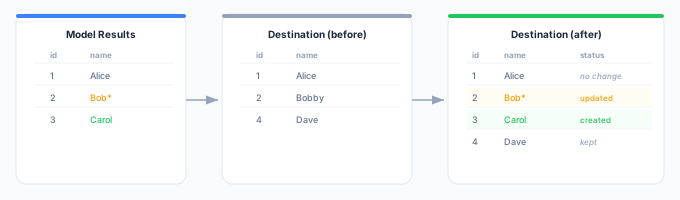
Note: Dave (id=4) exists in the destination but not in the model results. In upsert mode, Dave is not deleted — the record is simply left untouched.
When to Use Upsert
- CRM syncs — Keep contact records up to date without accidentally deleting contacts
- Data enrichment — Add or update attributes on existing records
- Most production reverse ETL syncs — Upsert is the safest default because it never destroys data
Considerations
- Records removed from the model results will remain in the destination indefinitely
- If you need to remove stale records, use mirror mode instead
- Upsert is idempotent — running the same data multiple times produces the same result
Insert Mode
Insert only creates records. Rows that already exist in the destination are left exactly as they are.
How It Works
For each row in the model results:
- Zeotap sends the row to the destination as a create
- If the record is new → It is created
- If a record with that identifier already exists → The destination leaves it unchanged
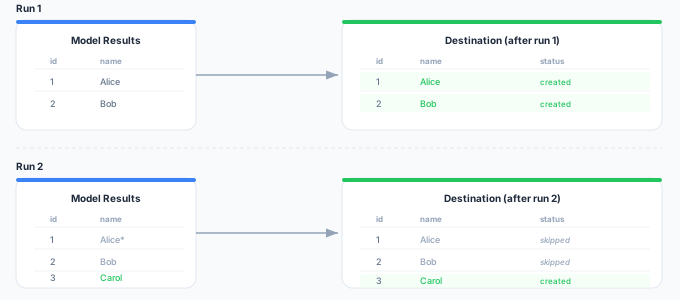
Note: even though Alice’s name changed in run 2, the existing record is not updated. Only Carol — a new identifier — is created.
When to Use Insert
- Event data — Send events or activity records where you want a complete history
- Audit trails — Maintain a historical record rather than a current-state one
- Lead import — Import leads once without overwriting subsequent manual edits in the CRM
Considerations
- Updates to existing records are never sent. If you need to correct data, use upsert mode.
- On Snowflake and Databricks a simple model may be read through the warehouse’s own change tracking, so an insert run does not guarantee a full re-read of the model. If you need every current row delivered on every run regardless of what changed, use snapshot mode.
Update Mode
Update only modifies records that already exist in the destination. It never creates and never deletes.
How It Works
For each row in the model results:
- Zeotap looks up the row in the destination using the mapped identifier field(s)
- If a matching record exists → Update it with the new attribute values
- If no matching record exists → Skip the row
When to Use Update
- Enrichment of a system of record — Where records are created by another process and Zeotap only adds attributes
- Scoring and lifecycle fields — Writing a computed score back onto contacts that must already exist
- Avoiding accidental creates — Where creating a record in the destination would be a data-quality problem
Considerations
- Rows with no matching destination record are silently skipped, so a model that drifts from the destination can produce a run that updates far fewer records than it read
- Check the run summary if the updated count is lower than expected
Mirror Mode
Mirror keeps the destination as an exact copy of the model results. It creates new records, updates existing ones, and deletes records that no longer appear in the model results.
How It Works
For each row in the model results:
- Zeotap looks up the row in the destination using the mapped identifier field(s)
- If a matching record exists → Update the record with the new attribute values
- If no matching record exists → Create a new record
After processing all model rows:
- For every destination record not in the model results → Delete the record
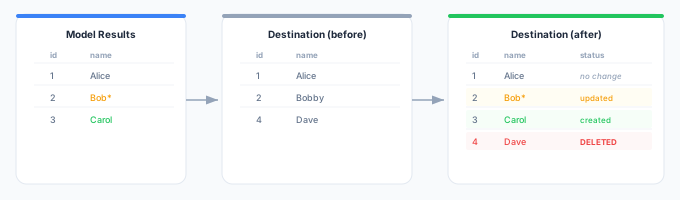
Dave (id=4) exists in the destination but not in the model results, so it is deleted in mirror mode.
When to Use Mirror
- Audience lists — Ad platform audiences that should exactly match your model (e.g., “Active users in the last 30 days”)
- Segment-based syncs — When the model defines a segment and you want the destination list to match
- Data cleanup — When you need to remove stale records from the destination
Considerations
Mirror is the only reverse ETL mode that deletes data, and each run deletes on the basis of what the model returned on that run.
- The model decides what survives. Any record the model stops returning is deleted from the destination — whether it stopped qualifying, or the query returned fewer rows than you expected.
- Prove the model first. Run the sync in upsert mode until you are confident the model returns what you expect, check a run summary, and switch to mirror once it does.
- Watch the first run. On the first mirror run Zeotap has no previous snapshot: every model row is written, and every destination record not in the model is deleted.
- Make the model self-guarding. Write it so it cannot quietly return an empty or near-empty result — for example by filtering on a condition you know always matches something.
Snapshot Mode
Snapshot delivers the complete current model output on every run, with no comparison against the previous run. The destination receives a full point-in-time extract rather than a set of changes.
Snapshot is restricted to file-based destinations. A file destination can express “this file is the data”; a per-row API destination has no equivalent, and would simply receive every record again on every run. Connectors that do not support the mode do not offer it.
How It Works
- Zeotap reads the full current model output
- The whole result is serialized and delivered as one artifact
- No per-row operation is attached — records that have gone away are simply absent from the file
When to Use Snapshot
- Regulatory or archival extracts — Where each delivery must stand alone as a complete picture
- Downstream systems that reload wholesale — Consumers that truncate and reload rather than apply deltas
- Guaranteed completeness — Unlike insert, a snapshot run never adopts the warehouse’s native change tracking, so it always reads the full model
Considerations
- Every run transfers the entire result, so cost and duration scale with the whole model rather than with what changed
- Each delivery is a complete picture rather than a set of changes, so a consumer that needs to know what changed compares successive files itself
Choosing a Reverse ETL Sync Mode
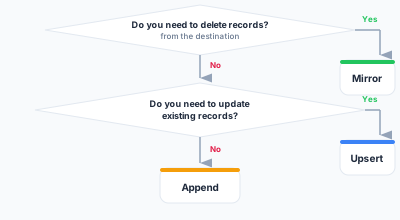
Use this decision tree to choose the right mode:
Mode Comparison by Use Case
| Use Case | Recommended Mode | Reasoning |
|---|---|---|
| CRM contact sync | Upsert | Keep contacts updated without deleting anyone |
| Ad audience list | Mirror | Audience should exactly match the model’s criteria |
| Event forwarding | Insert | Events are immutable — only add new ones |
| Data enrichment | Upsert | Enrich existing records with new attributes |
| Writing a score onto existing contacts | Update | The destination owns record creation |
| Lead import | Insert | Avoid overwriting manual CRM edits |
| Newsletter list | Mirror | List should reflect current subscribers only |
| Archival extract to cloud storage | Snapshot | Each delivery must stand alone as a complete file |
| Segment activation | Mirror | Segment membership changes over time |
Changing Reverse ETL Sync Mode
You can change the sync mode of an existing reverse ETL sync:
- Navigate to the reverse ETL sync detail page
- Click Edit
- Change the sync mode
- Click Save
Important: after switching to mirror, the next run deletes every destination record the model does not return. Confirm the model returns what you expect before saving.
Next Steps
- Create a reverse ETL sync and choose a mode
- Map fields for your reverse ETL sync
- Monitor sync runs to verify the mode behavior