Realtime Audiences
Experimental — in early access. Realtime audiences (and the Realtime Events they react to) are not yet generally available. The feature is turned on per workspace by an administrator, and the behaviour and limits described here may change before general availability.
A realtime audience reacts to what people are doing right now. It combines a person’s recent behaviour — captured from events — with the attributes you already know about them, and it re-evaluates membership live instead of on a fixed schedule.
Realtime audiences are powerful, but to keep membership exact and predictable there are a few rules about how you can combine conditions. This page explains, with concrete examples, which realtime audiences are allowed and which aren’t — and how Zeotap links a person’s recent activity across their devices.
What makes an audience “realtime”
An audience becomes a realtime audience the moment its conditions include at least one condition on a Realtime Event — a live event you’ve made available for realtime evaluation, such as Add to Cart or Checkout Started. For example:
- performed Add to Cart in the last 30 minutes
- performed Checkout Started in the last hour
- has not performed Purchase in the last 7 days
Realtime Events are defined once under Sources → Realtime Events and reused across audiences — see Realtime Events for how to set one up.
Everything else is a batch condition — a warehouse attribute or segment you already build audiences from today, such as:
- is a Gold-tier customer
countryequalsUS- lifetime spend over
$500
You mix both kinds of conditions in the same filter builder you already use. One rule governs how they can be combined.
The rule — keep your realtime conditions grouped together
An audience is served by answering two questions about a person: one about their attributes, and one about their recent behaviour. So your conditions have to group into those two halves — an attribute side and a realtime side — combined with each other however you like (AND, OR, or negated).
Inside each half, nest as freely as you want. What you cannot do is write a definition that needs two different attribute questions, each paired with a different realtime condition.
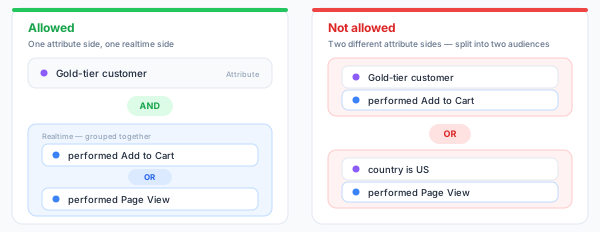
Sometimes a definition means the right thing but is written the wrong way round. (Gold-tier AND Add to Cart) OR (Gold-tier AND Page View) asks the same attribute question twice; written as Gold-tier AND (Add to Cart OR Page View) it means exactly the same and is accepted. The builder tells you when a rewrite like this is what’s needed, and suggests the form to use.
Why: the attribute half is answered from a value Zeotap keeps ready for each person ahead of time — one answer per person, per audience — while the realtime half is worked out live at the moment you ask. A single prepared answer can’t cover two different attribute questions, so the definition has to fall into those two halves.
Filtering on event properties
A realtime event condition can filter on the event’s properties, just like a batch event condition: performed Order Completed where amount is greater than 100, at least 3 times in the last hour. Filters are applied to each event as it arrives, so only matching events count toward the condition.
The comparisons are the same ones you use on a batch event, negations included:
- equals / does not equal
- is any of / is none of
- greater / less than (or equal) and between
- is set / is not set
Negations are fine here because each one is a question about a single event as it lands — product is none of ["shoes"] is decided the moment the event arrives and never re-opens. The comparison a rolling window genuinely can’t invert is a window-level one, which is why not within is absent while is not set is not. Which comparisons a given property offers is narrowed by its type, exactly as for a batch condition.
Text search (contains, starts with, pattern matching) is the one family not available on live events yet.
Counting works the same way: at least, at most, more than, less than, exactly and not equal are all served, from exact counts.
A property filter is part of the condition’s identity: adding or editing one starts a fresh warm-up for that condition (see below), exactly as changing its time window does.
Time windows
Every realtime condition looks back over a time window — “in the last 30 minutes”, “in the last 6 hours”, “in the last 7 days”. Counts are exact: performed Add to Cart at least 3 times in the last 10 minutes flips to true on exactly the third event, even if all three happen within a second of each other.
Windows have per-unit bounds:
| Unit | Up to |
|---|---|
| seconds | 600 (10 minutes) |
| minutes | 720 (12 hours) |
| hours | 48 (2 days) |
| days | 7 |
Each unit is capped close to the precision it’s kept at, so a window you author is always served at a resolution that suits it. Seven days is the overall maximum: anything longer belongs in a batch condition (your warehouse data), not a realtime one — the builder and the API both reject longer windows with a suggestion to that effect.
New and edited conditions start from empty
A realtime condition starts collecting behaviour the moment it goes live — it cannot see events from before then. A newly created condition, or one whose window or property filter you just changed, therefore has less history behind it than its window implies, and it is answered anyway, from what it has so far. Someone qualifies as soon as they do the thing, rather than waiting out the window.
That is what you want for performed conditions. It’s worth knowing what it means for not performed ones: shortly after you save, “hasn’t done it” and “we haven’t been watching long enough to see it” look the same, so a brand-new exclusion can briefly let someone through who did in fact do it. If an exclusion has to be airtight from the first moment, give the condition a full window before you rely on it.
Conditions are shared behind the scenes: if another active audience already uses the same event, filter, and window, a new audience reusing it has that history from the start.
Allowed
| Audience | Why it’s allowed |
|---|---|
| Performed Add to Cart in the last 30 minutes | realtime only — there’s no attribute half to group |
| Performed Add to Cart but has not performed Checkout Started in the last hour | both conditions are realtime; nest them freely |
| Has not performed Add to Cart in the last 30 minutes | realtime only — an audience of people who haven’t done something is fine |
| Is a Gold-tier customer AND performed Add to Cart in the last 30 minutes | one attribute side, one realtime side |
| Is a Gold-tier customer OR performed Add to Cart in the last 30 minutes | still one of each — the two halves may be joined with OR |
| Is not a Gold-tier customer AND performed Add to Cart AND has not performed Purchase (last 24h) | one attribute side, and the realtime conditions grouped together |
| Is a Gold-tier customer AND (performed Add to Cart OR performed Checkout Started) | the realtime conditions are grouped — the form to aim for |
Not allowed
| Audience | Problem | Fix |
|---|---|---|
| (Gold-tier AND Add to Cart) OR (Gold-tier AND Page View) | the same attribute question is asked twice, so the two halves aren’t grouped | Rewrite as Gold-tier AND (Add to Cart OR Page View) — the builder suggests this |
(Gold-tier AND Add to Cart) OR (country = US AND Page View) | two different attribute questions, each with its own realtime condition | Build each group as its own audience |
Tip — unions of groups. Two different attribute groups, each paired with their own recent-behaviour condition, can’t be a single audience. Build each arm as its own audience and branch on both in your application: the Membership API reports every audience a person is in, so a single call answers “in either arm”. You cannot combine them by building a third audience on top of the two — see Nothing can be built on a realtime audience.
Going live
A realtime audience does not start answering the moment you save it. What happens next depends on whether it also uses warehouse conditions.
| Your audience | What saving it as Ready means | How it goes live |
|---|---|---|
| Realtime conditions only | Kept, but not switched on. Nothing is tracked for it yet and the Membership API won’t answer for it. | You press Activate on the audience. |
| Realtime and warehouse conditions | Not switched off — just not rebuilt yet. | It switches itself on the first time a rebuild finishes, whether you run one now or leave it to the schedule. |
The second row is why an audience of that shape, never yet rebuilt, is not offered Activate: until its warehouse half has been worked out once, every attribute condition in it would read as false and the audience would answer “not a member” for everyone. It waits on the rebuild rather than on you — so the audience offers Rebuild now instead, and you are asked the same question when you save it. Declining only chooses when: the next scheduled rebuild switches it on either way.
Going live is not retroactive. Tracking for an audience’s conditions starts when the audience goes live, so membership answers cover activity from that point on. Earlier activity isn’t guaranteed to count — though it sometimes does, because conditions are shared: if another live audience already asks the same question, the history it has built up is there from the start.
An audience that is Ready but not activated says so on its detail page, with the action to switch it on. In the audiences list, the All / Realtime / Batch filter narrows the list to one kind or the other.
How a realtime audience is used
A realtime audience has two ways out, and both work one person at a time.
- Membership API — you read it: ask whether one identifier is in the audience right now, at the moment you need the answer. Meant to be called from the page it personalizes.
- Realtime syncs — it pushes: a destination is told the moment an event shows someone has joined the audience, and — if you choose that mode — when an event shows they have left.
- Playground — run the read check from inside the app before you integrate.
Realtime audiences are not synced on a schedule
A realtime audience can’t be sent to a destination on a schedule. Membership is re-evaluated on every read and can flip either way within seconds, so there is no stable list to push on a timer — the answer only means something at the instant you ask for it. The scheduled sync picker leaves realtime audiences out, and creating a scheduled sync for one is refused with the same explanation.
That is a refusal of the schedule, not of the destination. To get people into a destination as they qualify, use a realtime sync, which pushes the change rather than the list. And if what you actually want is a whole list delivered on a timer, keep the definition free of realtime event conditions and it syncs the way it always has.
Nothing can be built on a realtime audience
A realtime audience can’t be referenced from anywhere else in the product. Referring to one pulls in its live conditions, which only the read-time path can answer, so the reference is refused up front rather than failing later. This applies everywhere an audience can be named:
- an audience condition inside another audience’s filter (realtime or batch — the referencing audience’s own kind makes no difference)
- an audience tile on a Canvas
- the entry audience of an orchestration, and a send step’s audience override
- the source audience of an A/B test
- a member of a priority list
The refusal names the alternative: reference an audience without realtime event conditions, or add the event condition you need directly to the audience you’re building.
How recent behaviour is linked to a person
A realtime audience should see the whole person, not one browser or one device. Zeotap links the identifiers a person uses — the signed-in user_id and the anonymous IDs of the devices and browsers they browse from — whenever it sees an identify or alias event that ties them together. When an audience is evaluated, it merges the recent activity across those linked identifiers, so recent behaviour counts toward the same person no matter where it happened.
Two consequences worth knowing:
- Anonymous activity counts once it’s linked. Behaviour from an anonymous device starts counting toward a person as soon as that device is linked to their
user_id(through anidentifyoraliasevent). Before that link exists, the activity can’t yet be attributed to the person. - Cross-device works when the same user signs in. If someone signs in as the same user on their phone and their laptop, activity from both devices counts toward that one person.
One more behaviour worth knowing: a device follows its latest owner. If two people sign in on the same shared device, the device’s anonymous activity counts toward whichever person signed in most recently — the two people themselves are never merged into one.
Linking limits
Identity linking is bounded so that evaluation stays fast and a single shared or bot-driven device can’t link thousands of identifiers to one person. These are practical recency and volume limits — for real people they sit far above anything anyone reaches:
| Limit | Value | What it means |
|---|---|---|
| Identifiers merged for one person, per evaluation | 10 | When an audience is evaluated, a person’s signed-in identifier plus up to 10 linked identifiers are merged together to represent them. The earliest-linked identifiers are the ones kept, so the merged set is stable — it doesn’t reshuffle as new links appear. |
| New links per identifier | 100 per hour | A single identifier accepts up to 100 new links an hour; a flood beyond that (bots, automated traffic) is simply not linked. |
| Link lifetime | ~90 days | A link ages out about 90 days after it was first made, so the linked set reflects a person’s recent identity rather than their entire history. |
In practice these bounds only matter for shared kiosks, bots, or automated traffic — the kind of activity where a single device is tied to an unusually large number of identifiers. For everyday customers, all of their recent devices and sessions link and merge normally.
Where these rules apply
The same rules apply everywhere you author a realtime audience, so you get consistent guidance:
- Filter builder — shows an inline message with a suggested fix and blocks saving until the audience conforms.
- API — creating or updating an audience rejects a non-conforming definition with the same message.
- Zeotap Agent — when you build an audience with the AI assistant, it follows the same rules and explains them the same way.
Next Steps
- Realtime Events — define the live events realtime audiences react to
- Membership API — the endpoint that serves a realtime audience
- Snapshots — the rebuild cadence behind the warehouse half of every verdict
- Filter Builder — the visual builder for audience conditions
- Audiences — how audiences are defined, evaluated, and activated
- Events — how the behavioural events behind realtime conditions are collected