Folder and Destination Access
You can restrict a folder or a destination to named groups. Use it when a folder belongs to one team, such as “Finance audiences”, or when only one team should send to a destination, such as “only the CRM team may sync to Salesforce”.
This is different from an access policy:
| Controls | Example | |
|---|---|---|
| Access policy | Which rows of data a group’s members see | EMEA team sees only region = 'EMEA' customers |
| Folder and destination access | Whether a folder or destination is there at all for a person | Only the Finance group sees the Finance folder |
The two live together under Governance → User Access Policies, on the Folders and Destinations tabs.
How It Works
Everything is open until you name a group. By default, anyone with the ordinary read permission (folders.read or destinations.read) can see every folder and destination. Nothing is restricted by default, and turning the feature on changes nothing for anyone.
Naming a group restricts the resource. Once a folder or destination names one or more groups, only members of those groups can reach it, each at the level its group was given (see Access Levels). If you name several groups, a member of any of them qualifies.
Removing the last group lifts the restriction. The resource goes back to being open to everyone with the read permission. The same happens if every group it names is deleted, so a restriction can never leave a resource that nobody can reach or repair.
A restriction narrows who can reach a resource, but it does not grant anything. People still need the ordinary permissions, such as destinations.read to see a destination or destinations.write to edit one. Naming a group does not give its members either.
Access Levels
Each group you name has one of two levels. A group you do not name has no access.
| Level | On a folder | On a destination |
|---|---|---|
| Can edit | See the folder and everything filed in it or below it, and change any of it: edit, delete, run, move or tag items, file new items in, and create subfolders. | See the destination, change it, test its connection, and send to it: create, edit, delete and run the syncs and orchestration steps that deliver to it. |
| Can view | See the folder and everything in it, open every item and read its run history, but change nothing. | See the destination and the syncs that send to it and read their run history, but change, test or send to nothing. |
| Not named | Hidden everywhere (see below). | Hidden everywhere (see below). |
A few rules decide which level applies:
- The most generous group wins. Someone in a Can view group and a Can edit group on the same folder can edit.
- A subfolder can narrow access, never widen it. If a folder gives a team Can view, the team has at most Can view in every subfolder, even if a subfolder names the team at Can edit. A subfolder can narrow a Can edit team to Can view.
- Both sides must allow it. An audience sync is editable only by someone who can edit both the folder its audience is in and the destination it sends to. An A/B test is editable only by someone who can edit both its own folder and its audience’s folder.
- Levels never add to a role. A level limits what a person’s role already allows; it never grants more. A Member at Can edit still cannot delete a folder, because only Admins can.
Someone with Can view who tries to change something gets a permission error that names the folder or destination. Someone with no access gets not found, as if it did not exist.
Using something you can view as an input is allowed: you can use an audience you can view as a condition in your own audience, or reference it from a canvas. Sending to a destination you can only view is not allowed.
What a Restriction Covers
A restriction applies everywhere. For people outside the named groups, a restricted resource is absent from every list, picker and builder, and from the API. Opening it directly, by link or by ID, returns not found rather than a permission error, so the response does not even confirm that it exists.
Folders
Restricting a folder restricts everything in it:
- The folder itself, which disappears from the folder tree. People outside the named groups cannot open, rename, move or delete it, or move anything into it.
- Every folder below it. If you cannot reach a folder, you cannot reach the folders inside it either.
- Every audience, orchestration and A/B test filed in it, or in any folder below it. These disappear from their own lists (including All on the Audiences page) and cannot be opened, edited, run, duplicated or deleted.
- What depends on those audiences. The audience syncs of a hidden audience, and any A/B test that splits it, are hidden too, wherever the A/B test itself is filed. A hidden audience cannot be used as a condition in another audience or in an orchestration’s criteria.
- Audience canvases that publish into it. A canvas is treated as being where its audiences are published, so a canvas whose target folder is restricted is hidden too. A canvas cannot reference a hidden audience, and a canvas’s list of published audiences leaves out any that were moved somewhere the viewer cannot reach.
A subfolder can be restricted to a narrower set of groups than its parent, for example a “Finance / Payroll” folder kept to a subset of the finance team. Naming a wider set on a subfolder grants nothing extra: people the parent excludes still cannot reach it. The Folders tab shows each folder’s full path, so you can tell when you are restricting a whole subtree.
Folder restrictions decide whether people can reach audiences and other items at all. They do not narrow the customer records an audience returns. To limit which records a team sees inside the audiences it can reach, use an access policy.
Destinations
Restricting a destination restricts what sends to it:
- The destination disappears from the Destinations page and from the destination pickers in the sync, audience sync and orchestration builders.
- Every sync and audience sync that sends to it disappears for people outside the named groups, together with its run history. They cannot open, edit, run or delete it.
- Saving a sync, an audience sync or an orchestration step that names the destination by ID is refused.
Scheduled work keeps running
Restrictions decide who can see and act on a resource; they never stop work that is already scheduled. A sync or an orchestration on a schedule keeps running on that schedule, even when the person who set it up is outside the groups a folder or destination now names. To stop one, a member of a named group pauses or edits it.
Managing Restrictions
Via the UI
- Navigate to Governance → User Access Policies in the sidebar
- Open the Folders or Destinations tab
- By default the table lists only the restricted folders or destinations. Click Show all folders or Show all destinations to find the one you want to restrict.
- In the Groups that may reach it column, click + Restrict and add the groups that should keep access. A new group starts at Can edit.
- To make a group view-only, choose Can view in the group’s chip. Remove a group with the × on its chip, or remove every group to lift the restriction.
Changes save immediately.
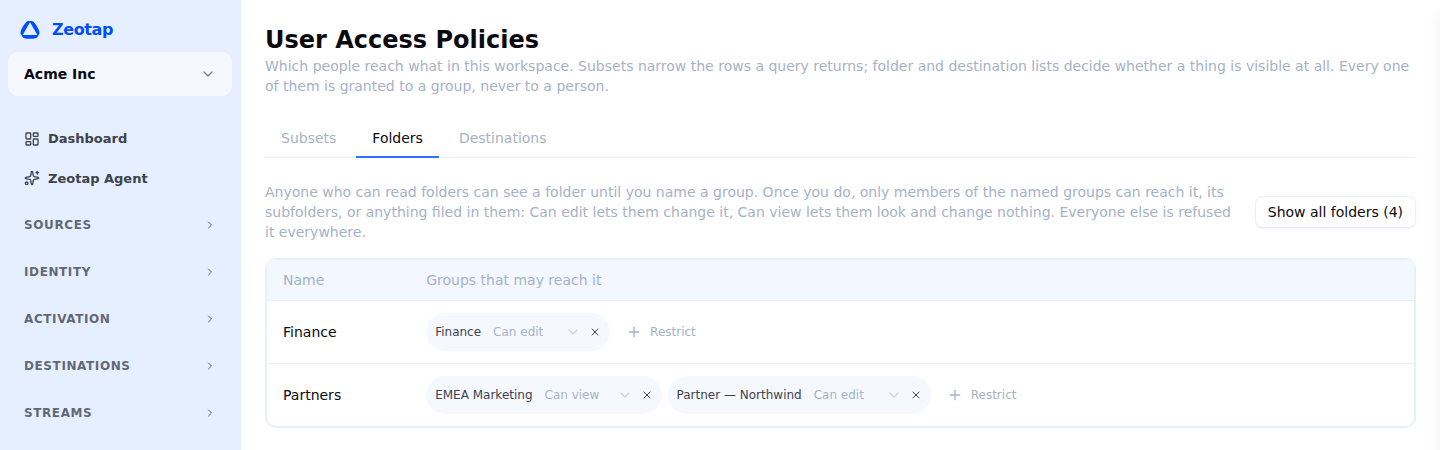
The groups you can name are the groups that have a grant on this workspace; if none do, the picker reads “No groups reach this workspace”. To restrict a resource to a team, first create the group and grant it access to the workspace.
Who can change restrictions. Editing a folder’s groups requires folders.write, and editing a destination’s groups requires destinations.write, the same permissions used to edit the resources themselves. People with those permissions see every restricted resource on these tabs, including ones restricted to groups they are not in, so they can always widen a restriction again.
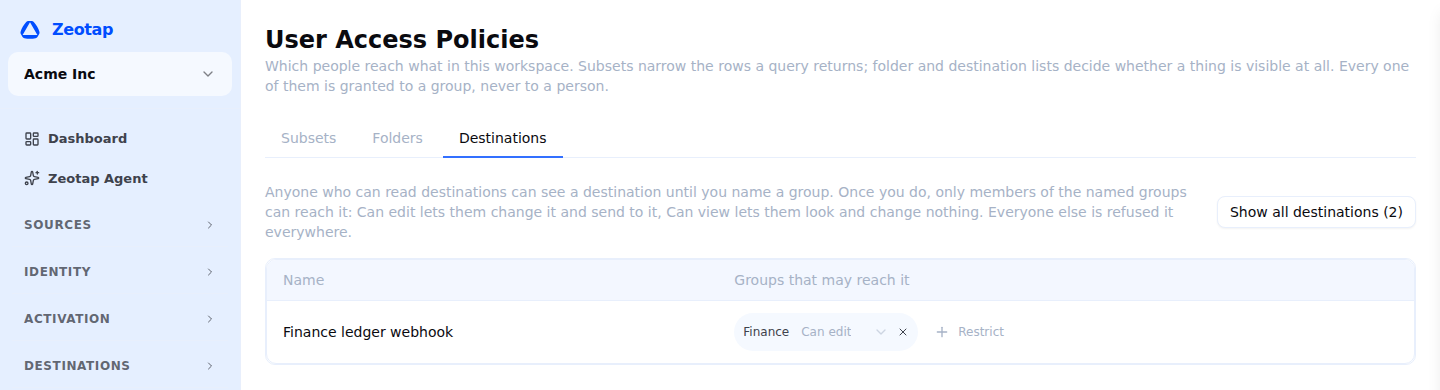
A destination shared into your workspace from another workspace does not appear here. Its access is configured by the workspace that owns it.
Via the API
Read a resource’s access list:
curl "$API_BASE_URL/api/v1/workspaces/$WORKSPACE_ID/destinations/$DESTINATION_ID/groups" \
  -H "Authorization: Bearer $API_TOKEN" \
  -H "X-Workspace-ID: $WORKSPACE_ID"
Set it. The request states the complete list of groups with their levels, and replaces whatever was there before:
curl -X PUT "$API_BASE_URL/api/v1/workspaces/$WORKSPACE_ID/destinations/$DESTINATION_ID/groups" \
  -H "Authorization: Bearer $API_TOKEN" \
  -H "X-Workspace-ID: $WORKSPACE_ID" \
  -H "Content-Type: application/json" \
  -d '{
    "groups": [
      { "group_id": "<crm-team-group-id>", "access_level": "edit" },
      { "group_id": "<analysts-group-id>", "access_level": "view" }
    ]
}'| Field | Values |
|---|---|
groups | The groups that may reach the resource, each with an access_level of edit or view. An empty list lifts the restriction. Naming a group that is already on the list changes its level. |
group_ids | The older form: a list of group IDs, each given edit. Still accepted. If you send both, groups is used. |
The response is the resulting access list:
{
  "groups": [
    { "group_id": "<crm-team-group-id>", "group_name": "CRM team", "access_level": "edit" },
    { "group_id": "<analysts-group-id>", "group_name": "Analysts", "access_level": "view" }
  ]
}
Folders use the same shape:
| Method | Path | Description |
|---|---|---|
GET | /api/v1/workspaces/{id}/folders/{folderId}/groups | The access list of one folder |
PUT | /api/v1/workspaces/{id}/folders/{folderId}/groups | Replace a folder’s access list |
GET | /api/v1/workspaces/{id}/folder-groups | Every restricted folder in the workspace (requires folders.write) |
GET | /api/v1/workspaces/{id}/destinations/{destId}/groups | The access list of one destination |
PUT | /api/v1/workspaces/{id}/destinations/{destId}/groups | Replace a destination’s access list |
GET | /api/v1/workspaces/{id}/destination-groups | Every restricted destination in the workspace (requires destinations.write) |
The two workspace-wide reads return one entry per restricted resource (resource_id, name, groups), including resources restricted to groups the caller is not in.
Common Setups
| Goal | Setup |
|---|---|
| Keep a team’s audiences private | File them in a folder and restrict the folder to the team’s group |
| Keep one sub-project to part of a team | Restrict a subfolder to a narrower group than its parent |
| Let analysts look without changing anything | Name the analysts’ group at Can view next to the owning team at Can edit |
| Let a team watch a destination’s syncs without sending to it | Name the team at Can view on the destination |
| Only one team may send to a destination | Restrict the destination to that team’s group. Its syncs are then visible to that team only |
| Retire a destination that scheduled syncs still use | Restrict it to an admin group. The scheduled syncs keep running; only the admin group can see, edit or pause them |
Next Steps
- Create groups for the teams you want to restrict to
- Set up access policies to restrict which data rows a group sees
- Configure destination policies to restrict which audiences may sync to a destination
- Folders to organize audiences, orchestrations and A/B tests