Field Mapping
Field mapping defines how columns from your model map to fields in your destination. It is the bridge between your warehouse data and the destination’s schema, controlling exactly which data goes where.
How Field Mapping Works
When creating or editing a reverse ETL sync, the field mapping step presents two lists side by side:
- Source columns — The columns from your model (e.g.,
email,first_name,lifetime_value) - Destination fields — The fields available in the destination object (e.g.,
Email,FirstName,LTV__c)
You connect source columns to destination fields to create mappings. During each reverse ETL sync run, Zeotap reads the value from the source column and writes it to the mapped destination field.
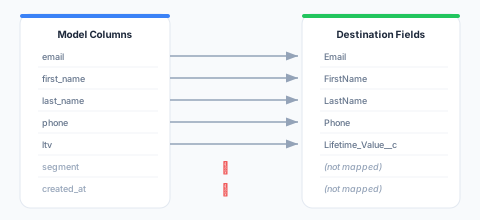
Unmapped source columns are ignored — their data is not sent to the destination. Unmapped destination fields retain their current values in the destination (they are not cleared).
Mapping Sources
The source side of a mapping can be more than a column on the synced model. For audience syncs and orchestration Send to Destination tiles, the source picker offers three kinds of sources:
- Columns — Columns from the audience’s parent model.
- Traits — Computed traits defined on the parent model. Selecting a trait sends its computed value for each member.
- Related models — Columns from models connected to the parent model through relationships (see Relationships).
Related Model Columns
Related model columns let you send values like “latest order amount” or “number of purchased products” without first creating a trait. Open the source picker and choose a column under the Related group; models reachable through further relationships can be browsed with Browse relations… (up to your workspace’s relationship depth limit).
How the value is resolved depends on the relationship’s cardinality:
- One-to-one relationships (e.g., user → profile): the related row’s column value is sent directly.
- One-to-many and many-to-many relationships (e.g., user → orders): many rows can match, so you choose how to reduce them to one value:
- Pick one row — Select the latest or earliest row by an order column (defaults to the related model’s timestamp column; ties are broken deterministically), then take the chosen column from that row. Example: latest order’s
amount, ordered byorder_date. - Aggregate — Apply
SUM,COUNT,AVG,MIN, orMAXacross all matching rows. Example:SUM(amount)across completed orders.COUNTneeds no column.
- Pick one row — Select the latest or earliest row by an order column (defaults to the related model’s timestamp column; ties are broken deterministically), then take the chosen column from that row. Example: latest order’s
Either way, you can add filters — simple conditions on the related model’s columns (for example status equals completed) that narrow the rows considered before picking or aggregating.
Members with no matching related rows receive an empty (null) value for the field — including COUNT, which is null rather than 0 when no rows match. Use a transform with a default value if your destination needs 0 instead.
Notes:
- Sums, averages, and counts always produce numbers; other selections keep the related column’s data type.
- Columns marked Blocked in a model’s column settings cannot be used as the value, order column, or in filters.
- Adding a related column to an existing sync triggers one full refresh on the next run, so every destination record receives the new field. Removing one keeps normal incremental behavior.
- Related model columns are available in audience syncs and orchestration send tiles. Model syncs map only the model’s own columns.
Values That Are Not Columns
A mapping’s value does not have to come from your data. Two other value sources are available on every mapping row, chosen from the source picker:
- System values — information about the run itself: the sync, audience, orchestration, orchestration tile, destination, event-forwarding rule, workspace, or environment that produced the record. Use them to stamp records so you can tell later which activation wrote them.
- Constant values — a fixed literal (text, number, true/false, or empty) sent with every record. Use them for destination fields that expect a tag your data does not carry, such as a source or channel label.
System Values
Open the source picker on a mapping row and choose System value, then pick the value you want. The list is filtered to the values that exist where you are working: an audience sync offers the audience name, an orchestration Send to Destination tile also offers the orchestration and the tile, an event-forwarding rule offers the rule, and every surface offers the workspace, the destination, the environment, and the current timestamp.
| Example value | Sends |
|---|---|
| Sync name | The name of the sync that produced the record |
| Audience name | The name of the audience being activated |
| Journey name / Node name | The orchestration and the Send to Destination tile that sent it |
| Destination name | The destination being written to |
| Current timestamp | When the batch was assembled, in UTC |
| Environment | production, staging, or development |
Values that vary per record — Operation (added, changed, removed) and Current timestamp — are resolved as each batch is prepared. Everything else is fixed for the whole run.
A system value takes a transform like any other mapping row, so you can reshape it before it is sent — upper-case the audience name, or reformat the timestamp.
Current timestamp is sent as an ISO 8601 / RFC 3339 string in UTC, to the second: 2026-08-27T09:05:36Z. It is a formatted timestamp, not an epoch number, so use the Date format transform to change its layout — Epoch convert takes a number of seconds, milliseconds, or microseconds and will fail on this value. Date format needs no input format for it; just give it an output format:
| Output format | Sends |
|---|---|
YYYY-MM-DD HH:mi:SS UTC | 2026-08-27 09:05:36 UTC |
YYYY-MM-DD HH:mi:SS.FF6 UTC | 2026-08-27 09:05:36.000000 UTC |
YYYY-MM-DD | 2026-08-27 |
YYYY/MM/DD HH:mi | 2026/08/27 09:05 |
The fractional digits are real zeros: this field is truncated to the second before any transform sees it, so SS.FF6 prints six zeros rather than the microsecond the clock actually read. Use it when a destination requires that shape, not to imply precision.
Date Format Tokens
The Date format and Epoch convert transforms take a format built from these tokens. The same tokens work whichever warehouse your source is on, and the transform dialog shows this table under the format box — click Format tokens and examples.
Every example below is what Zeotap renders for the instant 2026-08-27T09:05:36.804321Z.
| Token | Means | Example |
|---|---|---|
YYYY | 4-digit year | 2026 |
MM | Month, zero-padded | 08 |
DD | Day of month, zero-padded | 27 |
HH | Hour, 24-hour clock | 09 |
mi | Minutes, zero-padded | 05 |
SS | Seconds, zero-padded | 36 |
SS.FF3 | Seconds with milliseconds | 36.804 |
SS.FF6 | Seconds with microseconds | 36.804321 |
Everything else is literal text: YYYY-MM-DD HH:mi:SS UTC sends the -, the : and the word UTC exactly as written.
Examples
| Format | Sends |
|---|---|
YYYY-MM-DD | 2026-08-27 |
DD/MM/YYYY | 27/08/2026 |
YYYY-MM-DD HH:mi:SS | 2026-08-27 09:05:36 |
YYYY-MM-DDTHH:mi:SSZ | 2026-08-27T09:05:36Z |
YYYY-MM-DD HH:mi:SS UTC | 2026-08-27 09:05:36 UTC |
YYYY-MM-DD HH:mi:SS.FF3 | 2026-08-27 09:05:36.804 |
YYYY-MM-DD HH:mi:SS.FF6 UTC | 2026-08-27 09:05:36.804321 UTC |
Two things to know
Tokens win inside words. admin contains mi, so YYYY admin sends 2026 ad05n. Wrap literal text in single quotes when it contains a token — YYYY 'admin' sends 2026 admin. Use '' for a literal apostrophe.
Fractional seconds include the seconds. Write SS.FF6, not FF6 — the token covers the seconds, the dot and the digits together, because some warehouses have no way to render the fraction on its own. A bare FF3/FF6 is rejected when you save the mapping rather than sent to your destination as the letters “FF6”.
Microseconds are not available on ClickHouse sources, whose timestamps carry milliseconds; use SS.FF3 there. The dialog marks the token as unavailable, and saving a SS.FF6 mapping against a ClickHouse source is rejected with that explanation.
These tokens are Zeotap’s own, not any one warehouse’s. Every engine spells date formats differently — and worse, spells them incompatibly: %M is minutes on BigQuery and the month name on ClickHouse, MM is the month in Spark and the minutes in Snowflake’s format model. One vocabulary, translated per warehouse, is what lets the same mapping mean the same thing whether the transform runs inside your warehouse or inside Zeotap.
If you pick a transform that cannot accept the row’s value — Epoch convert on a timestamp, an array transform on a plain column — the dialog says so when you choose it. It is a warning, not a block: a text column can legitimately hold epoch digits or a JSON array, and only you know whether it does.
Constant Values
Choose Constant in the source picker, pick the value type — text, number, true/false, or empty — and type the value. It is sent unchanged for every record, including records where every other field is empty.
Structured Destination Fields
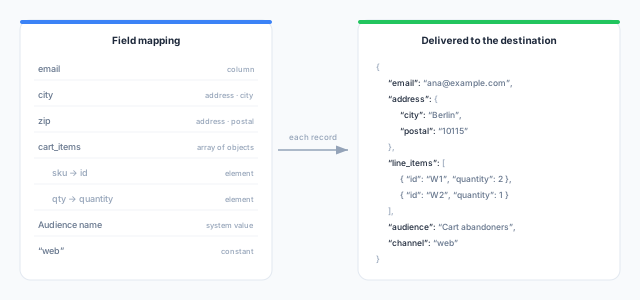
Some destination fields expect more than a single value: a nested object such as an address, or a list of objects such as the line items of a purchase. You can build both directly in the mapping editor, without preparing JSON in your model first.
Mapping an Object Property
To build an object, map several sources to the same destination field and give each one a property name:
- Map a source to the destination field (for example
address). - In the property box on that row, type the property name (
city). - Add another row with the same destination field and a different property (
postal.codenests one level deeper).
Each row contributes one property; together they assemble one object. Property names may nest up to three levels with dots. A destination field can be mapped either as a whole value or as properties — not both — and the editor blocks the mix when you save.
Building an Array of Objects
An array sends a list of objects, one entry per item. Choose Array of objects in the source picker for the destination field, then tell Zeotap two things: where the elements come from and what each element looks like.
Elements can come from:
- A column that already holds a list — a list column in your model, or a column holding a JSON array. Each item in the list becomes one element.
- A trait whose value is a list — a computed trait that gathers rows into a list of objects.
- A related model — items from a to-many relationship (for example a user’s orders). Choose the columns to capture per item, the order (newest or oldest first, by a column of your choice), and how many items to include per record.
- The record itself — sends a one-element array built from the record’s own columns, for destinations that always expect a list.
Then map the element’s properties. Each element property is an ordinary mapping row: it has a source, a destination property name, and it supports transforms and type conversion exactly like a top-level mapping.
Notes:
- Set a limit on how many elements each record may send. Extra items are dropped, not an error — destinations cap payload sizes, and a long list is not a data problem.
- A record with no list at all — the source is missing or empty (null) — omits the field entirely rather than sending an empty list, because several destinations read an empty list as “clear this list”. A source that exists but holds no items does send an empty list.
- Arrays cannot contain other arrays.
Where Structured Fields Are Available
Objects and arrays are offered only on destination fields that accept them, so the picker shows them where the destination can actually read them:
- Fields documented as JSON or object fields accept object properties.
- Arrays of objects are offered on fields the destination declares as lists — for example a conversion API’s contents field, or a marketing platform’s line-items or custom-attributes field — and on destinations whose fields you define yourself, such as HTTP Request, Webhook, and warehouse destinations.
- Everywhere else, a field accepts a single value. If a field you expect to accept a list does not offer the option, that destination has not enabled it yet; map a JSON-typed field or serialize the value in your model instead.
Adding an object property or an array to a sync changes how its values are prepared, which can make a large sync run more slowly than the same sync with only single-value mappings.
Reusing an Existing Mapping
You author field mappings in five places — reverse ETL syncs, audience syncs, orchestration Send to Destination tiles, Store feeds, and event-forwarding rules — and in practice the same identifiers end up mapped to the same destination fields again and again. Every mapping step therefore carries a Load mapping control.
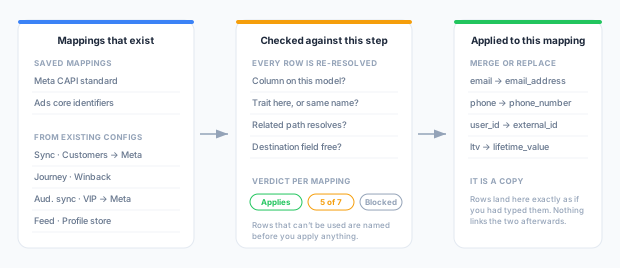
It lists two kinds of mapping:
- Saved mappings — mappings you stored deliberately with Save as reusable mapping. They belong to no single sync and can be loaded anywhere they apply.
- From existing configurations — the mappings already configured on your other syncs, audience syncs, orchestration send tiles, Store feeds and forwarding rules. Nobody had to remember to save these.
Loading a mapping copies it: the rows land in what you are editing exactly as if you had typed them. Nothing links the two afterwards, so editing a saved mapping later does not change the syncs built from it.
Why a mapping doesn’t always apply
A mapping row can point at things that live outside the mapping — a column of one specific model, a trait scoped to one parent model, or a related-model path anchored at one parent model. So each candidate is checked against where you are about to put it, and labelled:
| Label | Meaning |
|---|---|
| Applies | Every mapped field can be used here. |
| 5 of 7 | Some rows can be used; you see exactly which ones cannot, and why, before applying. |
| Doesn’t apply | None of its rows can be used here. It stays in the list, greyed out, with the reason. |
What happens row by row:
| Situation | Outcome |
|---|---|
| The source column exists on this model (including a JSON sub-path whose base column exists) | Kept — column names are matched case-insensitively, so a mapping written against one warehouse still applies on another |
| The source column is not on this model | Dropped |
| The source column is blocked in the model’s column settings | Dropped — a sync strips blocked columns, so the row would save and then send nothing |
| A multi-input transform (concat, coalesce, template) loses any one of its inputs | Dropped whole, rather than silently narrowed |
| The trait exists here — by name if not by identity | Kept, flagged as matched by name |
| The trait has no counterpart on this model | Dropped |
| The related-column path resolves from this parent model | Kept |
| The related-column path doesn’t resolve, or this step doesn’t accept related columns | Dropped |
| The Store field is already owned by another feed or event forwarding rule | Dropped — one writer owns each Store field |
| The destination field isn’t one the destination documents | Kept, with a warning: many destinations accept custom attributes |
| Two rows target the same destination field | The first is kept |
Merge or replace
- Merge (the default once you have mapped something) keeps your rows, adds the loaded mapping’s rows where the destination field is free, fills your empty required rows in place, and names any row it skipped because you had already mapped that destination.
- Replace (the default when the mapping is empty) discards your rows in favour of the loaded mapping. The destination’s required fields always come back — as empty rows if the loaded mapping doesn’t cover them.
Saving a mapping for reuse
Save as reusable mapping stores the rows currently on screen under a name, along with the destination type they were written for and the model they read from. Rows still in progress are not stored. A saved mapping’s destination type is fixed once saved — to point one at a different destination, save it again under a new name. Deleting the model a mapping was written against does not delete the mapping; it still applies to any model with the same columns.
Identifier Mapping
At least one model column marked as an identifier must be mapped to the destination’s primary identifier field. This mapping tells Zeotap how to match source records to destination records.
How Identifier Matching Works
When a reverse ETL sync runs in upsert or mirror mode:
- Zeotap reads the identifier value from the source column (e.g.,
email = "john@example.com") - It looks up the matching record in the destination using the mapped identifier field (e.g.,
Email = "john@example.com") - If a match is found, the record is updated with the new attribute values
- If no match is found, a new record is created
Common Identifier Mappings
| Model Column | Destination Field | Destination Type |
|---|---|---|
email | Email | Salesforce Contact |
email | email | HubSpot Contact |
customer_id | External_ID__c | Salesforce (custom external ID) |
email | email_address | Mailchimp Member |
phone | phone | Google Ads Customer Match |
External ID Mapping
Many CRM destinations support external ID fields that let you match records by your own identifier (rather than email):
Model: customer_id → Salesforce: External_ID__cThis is useful when:
- Multiple records may share the same email
- You want deterministic matching based on your own IDs
- The destination supports external ID upsert operations
Required Fields
Some destinations require certain fields to be mapped for record creation to succeed. Required fields are marked with an asterisk (*) in the mapping interface.
Common required fields by destination:
| Destination | Required Fields |
|---|---|
| Salesforce Contact | LastName |
| Salesforce Lead | LastName, Company |
| Salesforce Account | Name |
| HubSpot Contact | email |
| Google Ads Customer Match | At least one of: email, phone, mobile_id |
| Meta Custom Audience | At least one of: email, phone, mobile_advertiser_id |
If a required field is not mapped, the reverse ETL sync will fail during validation when saving.
Default Destination Fields
Some destinations have pre-configured default fields that are automatically available for mapping. These are standard fields defined by the destination platform:
| Destination | Default Fields Examples |
|---|---|
| Salesforce | FirstName, LastName, Email, Phone, Title, Department |
| HubSpot | email, firstname, lastname, phone, company, jobtitle |
| Google Ads | email, phone, first_name, last_name, country_code, postal_code |
Custom fields (e.g., Salesforce custom fields ending in __c) are also available if they exist in the destination.
Data Type Compatibility
When mapping fields, the data types of the source column and destination field should be compatible:
| Source Type | Compatible Destination Types |
|---|---|
| Text | Text, Email, Phone, URL, Picklist |
| Number | Number, Currency, Percent, Integer |
| Boolean | Boolean, Checkbox |
| Date | Date, DateTime |
| Datetime | DateTime, Date (time is dropped) |
| JSON | Text (serialized), JSON (if supported) |
Zeotap performs automatic type conversion where possible:
- Numbers to text:
42becomes"42" - Booleans to text:
truebecomes"true" - Dates to text:
2025-01-15becomes"2025-01-15" - Text to numbers:
"42"becomes42(fails if not a valid number)
If a type conversion fails for a specific row, that row is recorded as an error in the reverse ETL sync run results.
Mapping Strategies
Full Mapping
Map every model column to a destination field. Best when:
- You want to sync all available data
- The destination fields exist for every column
- You need complete data in the destination
Selective Mapping
Map only a subset of model columns. Best when:
- Not all model columns are relevant to the destination
- You want to minimize API calls (fewer fields = smaller payloads)
- Some columns contain sensitive data that shouldn’t be sent to the destination
Identifier-Only Mapping
Map only identifier columns (no attributes). Useful for:
- Match-only reverse ETL syncs where you just need to identify records (e.g., Google Ads Customer Match)
- Building destination-side lists without updating record data
Mapping Interface Features
Auto-Mapping
The mapping interface offers an Auto-Map feature that automatically maps source columns to destination fields with matching names. It uses fuzzy matching to handle common naming differences:
| Source Column | Auto-Mapped Destination Field |
|---|---|
email | Email |
first_name | FirstName |
last_name | LastName |
phone_number | Phone |
Auto-mapping is a starting point — review and adjust the suggestions before saving.
Search and Filter
For destinations with many fields (e.g., Salesforce objects with 100+ fields):
- Use the search bar to filter destination fields by name
- Filter by field type (text, number, date, etc.)
- Toggle between showing all fields or only unmapped fields
Mapping Validation
Before saving, the mapping interface validates:
- At least one identifier is mapped (for upsert and mirror modes)
- All required destination fields are mapped
- Data types are compatible (warnings for potential conversion issues)
- No duplicate mappings (one source column to multiple destination fields is not allowed)
Example Mappings
Salesforce Contact Sync
{
  "field_mappings": [
    {"source": "email", "destination": "Email", "is_identifier": true},
    {"source": "first_name", "destination": "FirstName"},
    {"source": "last_name", "destination": "LastName"},
    {"source": "phone", "destination": "Phone"},
    {"source": "title", "destination": "Title"},
    {"source": "company", "destination": "Account.Name"},
    {"source": "lifetime_value", "destination": "LTV__c"},
    {"source": "segment", "destination": "Segment__c"}
  ]
}
HubSpot Contact Sync
{
  "field_mappings": [
    {"source": "email", "destination": "email", "is_identifier": true},
    {"source": "first_name", "destination": "firstname"},
    {"source": "last_name", "destination": "lastname"},
    {"source": "phone", "destination": "phone"},
    {"source": "company_name", "destination": "company"},
    {"source": "lifecycle_stage", "destination": "lifecyclestage"}
  ]
}
Google Ads Customer Match
{
  "field_mappings": [
    {"source": "email", "destination": "email", "is_identifier": true},
    {"source": "phone", "destination": "phone"},
    {"source": "first_name", "destination": "first_name"},
    {"source": "last_name", "destination": "last_name"},
    {"source": "country", "destination": "country_code"},
    {"source": "zip", "destination": "postal_code"}
  ]
}
Next Steps
- Create a reverse ETL sync with field mapping
- Set a schedule for your reverse ETL sync
- Monitor sync runs to verify mappings work correctly
- Troubleshoot errors from mapping issues