Google Ads (Partner)
Upload Customer Match audiences to Google Ads without signing in to Google. Zeotap is a Google data partner: once your Google Ads account links Zeotap’s data partner account, Zeotap creates your Customer Match lists and uploads hashed members through the Google Data Manager API on your behalf. You enter only your Google Ads customer ID — no OAuth connection, developer token or Google Cloud project.
Use this destination when you want Zeotap to manage the Google connection. Use Google Ads or Google Data Manager when you would rather connect with your own Google account.
Prerequisites
- A Google Ads account with Customer Match available, and the Customer Match terms of service accepted in that account. Zeotap affirms acceptance on every upload; if the account has not accepted them, Google rejects the upload.
- Your Google Ads account (or a manager account above it) has linked the data partner, listed in Google Ads as Zeotap. See Link the data partner in Google Ads.
- Admin access to that Google Ads account, to make the link.
Link the data partner in Google Ads
Make the link in Google Ads before you create the destination; creating it runs a connection test that fails until the link exists.
- Sign in to Google Ads with admin access to the account you will upload to.
- Click Tools, then Data manager.
- Click Connect a product.
- Under Choose a data source, search for Zeotap and select it.
- Follow the prompts to finish connecting.
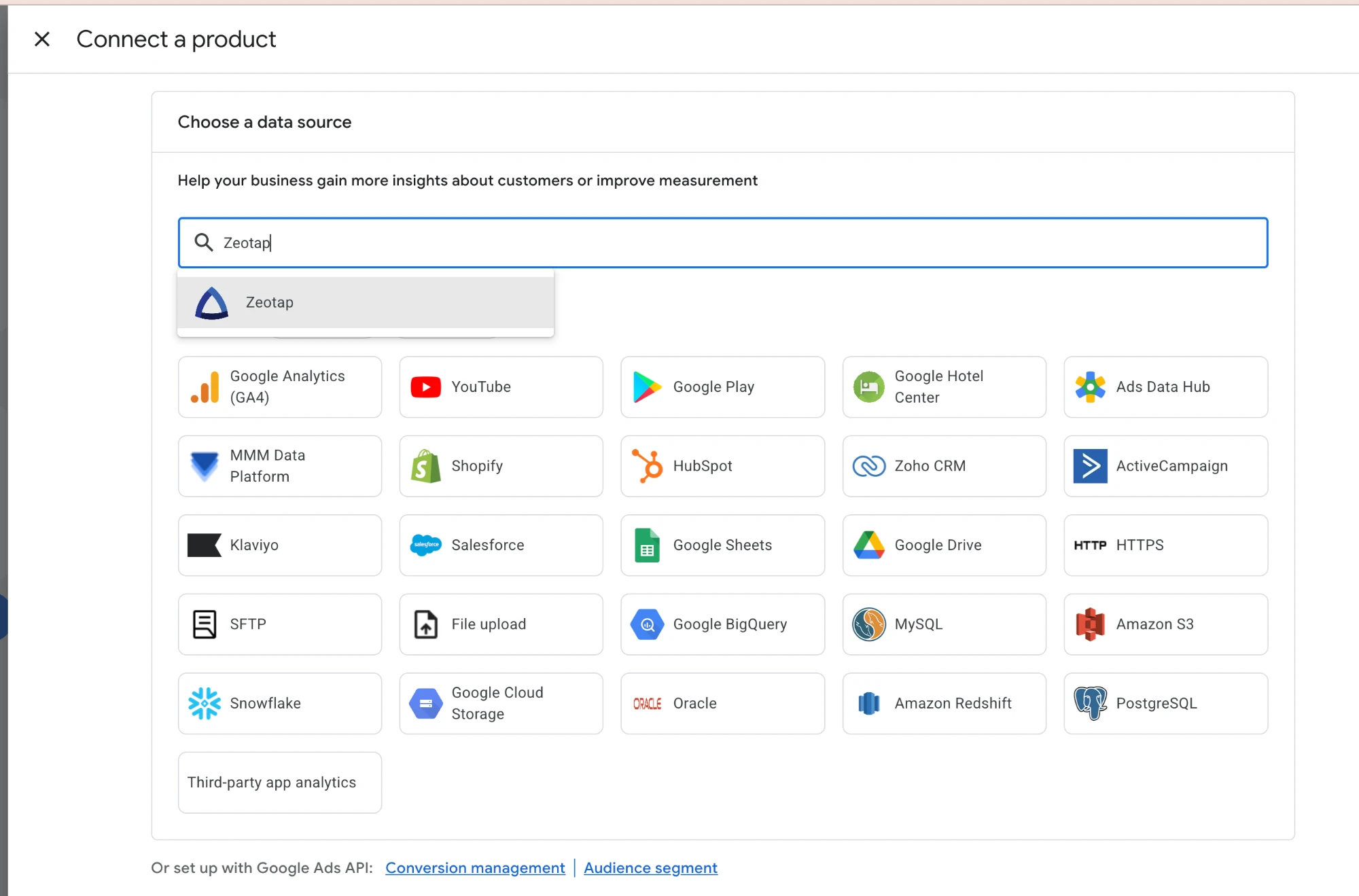
If the link is on a manager (MCC) account above the customer rather than on the customer itself, set Manager Customer ID when you create the destination. The data partner account ID is also shown in the destination’s description when you choose Google Ads (Partner) in Zeotap.
Authentication
There is nothing to authenticate. Zeotap signs every request as its data partner account and names your Google Ads account as the account the data is for. Google allows this only while your account links the data partner, so removing the link in Google Ads stops all uploads immediately.
When you create the destination, Zeotap tests the connection by listing one Customer Match list in your account as the data partner. If the link is missing, the test names the data partner account and the Google Ads account to link.
Configuration
| Field | Type | Required | Description |
|---|---|---|---|
| Customer ID | Text | Yes | The Google Ads customer ID to upload to, as shown in Google Ads (123-456-7890; dashes optional). |
| Manager Customer ID (MCC) | Text | No | Set this when the data partner account is linked to a manager (MCC) account above the customer rather than to the customer itself. Leave blank when the customer linked it directly. |
| iOS App ID (for IDFAs) | Text | No | The App Store ID of the app your IDFAs come from — the digits at the end of its App Store URL. When set, IDFAs go to a separate list named <audience name>_ios. |
| Android App ID (for GAIDs) | Text | No | The package name of the app your GAIDs come from, as in its Google Play URL. When set, GAIDs go to a separate list named <audience name>_android. |
| Consent — Ad User Data | Select | No | Consent for using the uploaded data for advertising, sent with every upload. Required for EEA users. Default: Granted. |
| Consent — Ad Personalization | Select | No | Consent for ad personalization, sent with every upload. Required for EEA users. Default: Granted. |
Target Settings
| Field | Type | Required | Description |
|---|---|---|---|
| Audience Name | Text | Yes | Name of the Customer Match list. Zeotap reuses a list with this name in your account, or creates it. |
| Audience ID | Text | No | The numeric ID of an existing Customer Match contact list to upload to instead of resolving one by name. Zeotap checks before each run that the list is in your account and takes contact data. |
Supported Operations
Sync Modes
| Mode | Supported |
|---|---|
| Upsert | Yes |
| Mirror | Yes |
Audience Sync Modes
| Mode | Supported |
|---|---|
| Add | Yes |
| Remove | Yes |
| Mirror | Yes |
| Upsert | Yes |
Features
- Field Mapping: Yes
- Schema Introspection: No
- Creates lists: Yes — contact and mobile Customer Match lists are created on first use
Required Mapping Fields
| Field | Description |
|---|---|
email | Primary match key. Alternatively map hashed_email, phone, hashed_phone, or — for a mobile-only audience — idfa or gaid. |
Default Destination Fields
| Field | Type | Description |
|---|---|---|
email | string | Email address — lowercased, trimmed and SHA-256 hashed before upload |
hashed_email | string | SHA-256 hex of the lowercase, trimmed email |
phone | string | Phone number — normalized to E.164 and SHA-256 hashed |
hashed_phone | string | SHA-256 hex of the E.164 phone number |
first_name | string | First name — lowercased and SHA-256 hashed |
hashed_first_name | string | SHA-256 hex of the lowercase, trimmed first name |
last_name | string | Last name — lowercased and SHA-256 hashed |
hashed_last_name | string | SHA-256 hex of the lowercase, trimmed last name |
country_code | string | ISO 3166-1 alpha-2 country code, e.g. DE |
postal_code | string | Postal code |
idfa | string | Apple advertising ID, uploaded as-is to the <audience name>_ios list. Needs iOS App ID. |
gaid | string | Google advertising ID, uploaded as-is to the <audience name>_android list. Needs Android App ID. |
When a raw field and its pre-hashed counterpart are both mapped, the pre-hashed value wins.
Google matches on name and address only as a set: first name, last name, country code and postal code together. A row missing any of the four is uploaded without them, on its email or phone. See Match Keys & Identifier Hashing for the normalization and validation rules.
Mobile advertising IDs
Google takes mobile advertising IDs only into a Customer Match list tied to one app, so IDFAs and GAIDs never go into the contact list. Each platform gets its own list, created the first time a batch carries one of its IDs, and only when that platform’s app ID is set. A sync that maps only idfa or gaid creates no contact list at all.
How It Works
- List resolution: before the first batch, Zeotap looks up the contact list named Audience Name in your account and creates it if it does not exist. A list of that name keyed on something other than contact data is reported as an error rather than replaced.
- Normalization and hashing: contact fields are normalized and SHA-256 hashed; mobile IDs are sent as they are.
- Batching: rows are sent in requests of up to 10,000 members.
- Upload: each request goes to the Data Manager API’s
audienceMembers:ingestendpoint (oraudienceMembers:removefor removals), naming your account as the operating account and Zeotap’s data partner account as the login account — plus your manager account when one is set. - Consent: every ingest carries the configured consent signals.
In mirror mode, Zeotap adds new members and removes members who left the audience since the previous run.
Rate Limits
| Limit | Value |
|---|---|
| Members per request | 10,000 |
| Identifiers per member | 10 |
| Requests per minute | 300 (shared by all of Zeotap’s data partner uploads) |
| Requests per day | 100,000 (shared) |
A request Google throttles (429) or fails with a server error is retried with backoff before its rows are reported as failed. Google accepts an upload and then processes it in the background, so matched members can take several hours to appear in the list.
Best Practices
- Link the data partner before creating the destination — connect Zeotap in Google Ads’ Data manager first; creation runs the connection test, which fails until the link exists.
- Send several match keys — email, phone and name with country and postal code each raise the match rate.
- Set consent accurately — for EEA users, the consent values must reflect what you actually collected.
- Keep audiences above 100 members — Google does not target a Customer Match list with fewer matched members.
- Use one destination per Google Ads account — each destination uploads to exactly one customer ID.
Troubleshooting
”cannot reach Google Ads account … link … data partner account”
Google refused Zeotap’s data partner on your account. In the Google Ads account the message names, connect Zeotap under Tools → Data manager → Connect a product (see Link the data partner in Google Ads), then test again. If the link is on a manager account, set Manager Customer ID to that manager’s ID. Check the Customer ID too: Google gives the same answer for an account that does not exist.
”Google Ads partner uploads are not configured on this deployment”
The Zeotap deployment you are using has no data partner set up. Contact Zeotap support.
User list “exists but is keyed on …”
A list with your audience name already exists in the account but holds a different kind of data (for example a mobile list with a contact list’s name). Rename or remove that list in Google Ads, or choose a different Audience Name.
User list “exists for … app …”
The <audience name>_ios or _android list exists but is tied to a different app than the one configured. Set the app ID the list was created for, or rename the list in Google Ads.
IDFAs or GAIDs are not uploaded
Set the matching iOS App ID or Android App ID. Without it the IDs are skipped, and a mobile-only sync refuses to start.
Rate limited (429)
Zeotap’s data partner has used its request quota, which every account uploading through it shares. Zeotap retries throttled requests with backoff; rows still refused are reported as failed on the run. Reduce sync frequency if this persists.
User list ”… is keyed on …, not CONTACT_ID” or “not found on Google Ads account”
Audience ID names a list that takes mobile IDs rather than contact data, or that Zeotap’s data partner cannot see in the account. Set it to a contact list’s ID, or clear it so Zeotap uses the list named by Audience Name.
Uploads to a list you created in Google Ads are refused
Google can refuse a data partner’s uploads to a list the advertiser created itself (DATA_PARTNER_USER_LIST_MUTATE_NOT_ALLOWED). Leave Audience ID blank and choose an Audience Name no existing list uses, so Zeotap creates the list as the data partner.
Customer Match terms not accepted
Google rejects uploads to an account that has not accepted the Customer Match terms of service. Accept them in Google Ads and run the sync again.
Low match rate
Map more identifier types, make sure phone numbers include a country code, and check that pre-hashed values are SHA-256 digests of normalized input.