Sites
A Site is how you personalize a website. It lists exactly which realtime audiences, realtime attributes and profile fields a page may read about its visitor, each under a label the page branches on, and decides where on the page that answer is delivered. Your developer installs the browser SDK once with the Site’s key; everything else is set here and reaches the page with every read, so a change is a publish rather than a deploy.
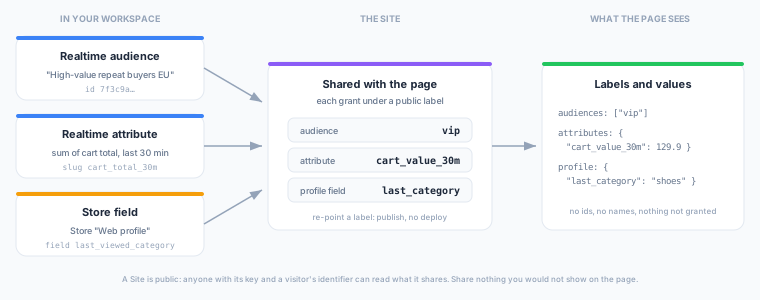
Labels: what the page sees
Every audience, attribute and profile field you share on a Site gets a label, such as vip, cart_abandoner or cart_value_30m. The page reads labels, never audience ids or names:
{
  "audiences":  ["vip", "cart_abandoner"],
  "attributes": { "cart_value_30m": 129.9 },
  "profile":    { "last_category": "shoes" }
}- The page’s code does not change when the audience does. Point
vipat a different audience and publish; the page keeps branching onvip. - A label is public by design. It appears in page source, in your data layer and in your tag manager. An audience’s name is internal vocabulary that can change at any time and may say more than you meant to say, so it is never sent to a page. Choose labels you are happy for anyone to read.
- The rules. A label starts with a lowercase letter and uses only lowercase letters, digits and underscores, at most 64 characters. Labels are unique within a Site across all three kinds, which is what lets a page use them as flat data-layer keys (
zeotap_vip). - Audiences are positives only. The page gets the labels of the audiences the visitor is in. An audience the visitor is not in is simply absent from the list.
The app suggests a label from the name when you add something, and shows each label’s binding — which audience or attribute it currently points at — in the Site’s editor and in its real-customer lookup.
A Site is public
A Site is public: anyone holding one of its keys and a visitor’s identifier can read what it exposes. Expose nothing you would not show on the page itself.
A Site key is meant to be in page source, so treat everything a Site shares as visible to anyone who looks. A last-viewed category, a cart value or a membership verdict is no more disclosure than the page itself makes; a name, an email address or a score that stands in for one is. For profile fields, a field whose column is marked sensitive in the model’s column configuration, or whose name looks like personal data, can still be shared, but the editor warns you about it, and publishing lists it again (see Profile fields).
What a Site can share
| Kind | What qualifies | Limit per Site |
|---|---|---|
| Audiences | Realtime audiences that can be served — active, with a realtime condition, in a folder you can see | 100 |
| Attributes | Realtime attributes that are active | 100 |
| Profile fields | Fields of one Store, added one at a time; a sensitive one is shared with a warning | 100 |
On top of the counts, a Site cannot be published if its largest possible answer would exceed 16 KB. The check runs at publish, so a live Site never sends an oversized answer. Profile fields with string values count the most toward it: a Site with 100 string fields reaches the 16 KB bound before the 100-field limit, and publishing says so. Any single value longer than 128 bytes when encoded is left out of the answer.
Batch audiences cannot be shared. A page is answered from what the realtime plane holds, and a batch audience is not held there. To bring a batch audience’s rule to a page, add its condition to a realtime audience — the warehouse half of a realtime audience is exactly that — and share the realtime audience.
Audiences
Each shared audience shows its readiness and the same warm-up notes the audience builder shows: a realtime audience that started tracking recently answers from partial history until its lookback has filled. Picking an audience needs permission to read audiences, and folder access applies: an audience in a folder you cannot see cannot be added, and a Site is never a way round a hidden folder.
Attributes
Only active realtime attributes can be shared. The page gets the attribute’s current value under its label, as fresh as the visitor’s last event. A visitor with no value for an attribute gets no key for it.
Profile fields
Fields come from one Store. For each, the editor shows its type, what writes it (a feed or a forwarding rule) and how fresh it is (“Refreshed 3h ago”, “Written per event”). Three rules apply:
- Per field. There is no “all fields” option. Each field is added by name and given a label.
- Sensitive fields carry a warning. A field is marked May be sensitive, with the reason, when its model column is marked sensitive or carries a personal-data type in the column configuration, or when the field’s or the column’s name looks like personal data (an email, a phone number, a national identifier). You can still share it: the warning shows in the field picker, in the list of what the Site shares and on the board, and the publish review lists every such field before you publish. Anyone holding the Site key and a visitor’s identifier can read it, so share it only if the page needs it.
- Only for a visitor who resolves to a profile. A visitor known by
user_idis read directly. An anonymous visitor is read through the lastuser_idthey were linked to. A visitor with no link, or whose profile has no entry, gets an emptyprofile— nothing exists for them, and nothing failed.
Sharing profile fields needs Stores to be enabled for the workspace.
Prerequisites
- Realtime audiences enabled for your workspace (Sites appear under Personalize only when they are).
- At least one realtime audience or active realtime attribute to share. For profile fields, a Store and Stores enabled for the workspace.
- The Sites permissions:
sites.readto view a Site,sites.writeto edit, publish and pause one. Owners and Admins hold both; Members can view. - To mint and revoke Site keys, the same permissions as other API keys (
api_keys.write,api_keys.delete).
Create and publish a Site
- Navigate to Personalize → Sites in the left sidebar and click Create site. Give it a name and, optionally, a description.
- Open the Console and click Shared with the site. Search for the audiences, attributes and Store fields to add, and check or edit each label.
- Open Domains and add your domains, then open Site keys and create a key.
- Open Where the site gets it and switch on the places your tools read — the data layer, a JavaScript variable, a browser event or browser storage. See On your website.
- Your edits save to the draft by themselves ten seconds after the last one. Click Publish: the publish review lists, one sentence each, what changes for your pages. Confirm it.
- On the Site’s Overview, choose the event source whose write key the snippet should carry, and give the snippet, or the Google Tag Manager or Adobe Launch steps, to whoever maintains your site.
You can also ask Zeotap Agent: “Share the VIP and cart-abandoner audiences with our website as vip and cart_abandoner.” The agent creates and edits Sites as drafts and asks before it publishes.
The Console
A Site has four tabs. It opens on Overview, which holds the install instructions and the version history. The Console is where it is set up, Insights shows how it is doing (see Insights), and the Playground shows what a visitor gets (see Check what a visitor gets). The Console shows a card for each part of the setup. Each card opens an editor with the list on the left and the detail on the right.
The header shows the Site’s name, its status and its version number; the number opens the version history. The Site’s description is behind the information button beside them.
| Card | What it holds |
|---|---|
| Shared with the site | One list of the audiences, attributes and profile fields your site may read, each under its label and switched on or off, with one search to add more. Choose one to see where it comes from, where the page finds it, its flat data-layer key and, for an audience, how often it was sent to pages |
| Domains | The domains allowed to read |
| Site keys | The keys your pages read with |
| Where the site gets it | The places on the page the answer arrives: data layer, JavaScript variable, browser event, browser storage — each with a preview of exactly what lands there |
| Integrations | Tools on your page that receive the visitor’s audiences directly, through their own JavaScript |
| Triggers | What makes the site read again: the Default triggers (page load, sign in with identify(), sign out with reset(), and an identity change with alias() or setUserIdentities()), which are always on; page change; and the events you add, each with its wait |
| Consent and timing | The consent category the read needs, the first-page wait, and how often the page may read |
Switching a label off
Each label in Shared with the site has a switch. A label switched off stays in the Site, under the same label, and once you publish it is left out of every read, as if it were not shared. Switching it back on needs no change on your pages. The publish review says which labels stop or start being served.
A Site shares at most 100 audiences, 100 attributes and 100 profile fields, counting labels that are off. The list shows a count against a limit only once you are near it.
Draft, live and versions
Every edit goes to the Site’s draft. Pages keep getting the published version until you publish again, so you can work on a live Site without touching what visitors see.
| Action | What happens |
|---|---|
| Auto-save | On by default: your draft is saved ten seconds after your last edit. Switch it off to save by hand; your browser remembers the choice. |
| Save draft / Discard | Save or throw away your unsaved edits. Nothing on your pages changes. |
| Publish | Checks the draft, makes it what pages get, and gives it the next version number. Visitors get it on their next read; nothing on your site needs to change. |
| Pause | Pages stop being answered (the read is refused as not live) and fall back to what they already hold for the rest of the session. Publishing again resumes the Site at the next version. |
| Delete | Revokes the Site’s keys and removes the Site. |
A Site that has never been published sends nothing. While you look at a published Site the top bar offers Live and Draft: Live shows what pages get, and changing anything switches you to the draft.
Version history
Every publish is kept. The Site’s Overview lists each version, who published it and when, and which one is live now. The version number beside the Site’s name opens the latest three, with Open in Overview for the rest. Open a version to see two lists: what restoring it would change in your draft, and what rolling back to it would change for your pages.
- Restore to draft copies the version into your draft for review. Publish it like any other edit.
- Roll back publishes the version straight away, after you confirm.
Either way the result goes live as a new version number, never the old one, because pages hold what they received by version. A version covers what pages are served — domains, what is shared, delivery, consent, triggers and timing — not the Site’s keys, its status or its name. If something a version shares has since been deleted or paused, restoring or rolling back is refused and points at the grant. A field marked sensitive since is restored with its warning.
Domains
Under Domains, list the origins that may present the Site’s keys, for example https://www.example.com or https://*.example.com. An empty list means any origin.
A read whose Origin or Referer header names a domain outside the list is refused, and counted on the Site’s activity as a refusal with its remedy. A read with neither header — a server, a test — is served, and counted as a read from no web page.
The list is there so a key copied to another site, such as a staging domain, fails with a clear reason, and so traffic is attributed. It is not a security control: a browser’s origin is advisory, and anything outside a browser can claim any origin. What keeps data safe is what you choose to share.
Check what a visitor gets
The Playground shows what the Site delivers to one visitor, in a browser frame that stands in for a page. It loads no page, yours or any other. Read (the refresh button left of the address) asks for that visitor’s answer from the draft you are editing, saved or not, exactly as a page would get it once the draft is published. It works before the Site’s first publish and while it is paused. Nothing is published, and nothing is written to the visitor’s profile.
The page starts with Trigger an event as this visitor, which opens Activity so you can send an event and watch the answer change. On the page, What the API answered lists every label the Site shares with this visitor’s value from the latest read. Lines join it to Delivered to: one pill for each place the Site can deliver to (the data layer, the JavaScript variable, browser storage and the browser event) and one for each integration. Each pill says what that place holds: Off, Waiting, how many pushes the data layer has received, or Received and then Updated. A place that is off is drawn with a dashed line.
Click a pill to open that place’s own panel. It has the place’s switch, so you can turn it on or off there, its name, and what it holds after the reads so far, written exactly as the SDK writes it. The data layer keeps every push, with the latest marked. Storage, the window variable and the browser event hold the latest value. An integration’s panel shows what it was given, under the vendor’s own name for it. Switch it to API call to see the exact call the SDK makes on the page for this visitor and its body, such as optimizely.push({ type: "user", attributes: … }) or gtag("set", "user_properties", …), with the vendor’s formatting and limits applied. Anything the call depends on that only the page knows, such as LaunchDarkly’s current context, is shown as a placeholder with a note.
Response, in the browser bar, shows the raw answer from the latest read, exactly as the API returns it to a page. Switch it to curl or JavaScript fetch to see the request a page makes for this visitor, with the Site’s key filled in, and copy it.
The bar at the bottom opens two more panels:
- Visitor says who the page is read for: an identifier, picked from your workspace’s identity keys such as
anonymous_idoruser_id(or typed in), and its value. It starts as a new anonymous visitor, like a first visit, and New anonymous visitor starts over with another. Read (or Enter in the value) reads. Below it is the latest answer: each label’s value, the identifiers this visitor is linked to, what could not be answered and why, and how long the read took on our side. Audiences in folders you cannot see are marked hidden and left out of the answer shown.- This visitor across the platform shows, at each read, what the Membership API answers for the visitor (their realtime audiences and realtime attribute values) and what the Profile API holds for them in the Store the Site shares fields from, whatever the Site itself shares. The Store is read by its own identifier: when the visitor has another, the identifier the read linked them to is used, and if there is none yet the panel says so.
- Earlier visitors lists every visitor you have read or sent events as. Click one to switch back to it, with its reads and log.
- Activity sends events as this visitor, so you can see how the answer changes. Send as names the visitor, as in the event debugger: change the identifier or its value there and the page is for that visitor, in Visitor too. Pick one of the workspace’s event sources (the Site’s own by default) and send a Track, Page or Identify event, with properties or traits as JSON. The event carries the visitor’s identifier, and an Identify from an anonymous visitor links it to the user id you enter. Events are sent for real, through that source. With Read after sending on (the default), the page is read again a few seconds after each send. The log lists every send and read, newest first: each send with its message id or the reason it was refused, and each read with what changed since the one before, such as
joined viporcart_value: 150 → 300.
The Playground does not run the SDK on a page. Triggers, holds and consent are not simulated: the page is read when you press Read or send an event. It keeps its visitor, reads and log while you switch to the Console and back.
A label, the address and the consent pill open their setting in place, with Open in Console for the full editor.
Insights
The Insights tab shows the Site’s reads over the last 7, 30 or 90 days. A dot on the tab means more than 5 % of the last week’s reads were refused.
| Figure | What it counts |
|---|---|
| Reads | Every read that presented one of the Site’s keys, with a daily line and how many came from no web page |
| Answered | Reads that returned an answer, including ones where a part could not be answered; Failed counts errors |
| Refused | Reads turned away, for example from a domain outside the list. Shown in red above 5 %, and the Sites list marks the Site too. See why lists the reasons |
| Answer time | The median server-side time, and the time for the slowest 5 %. Measured on our side, not how long the page waits |
| Consented | Reads whose visitor had granted the consent category the Site needs |
Refusals are listed, not shown as alerts. See why, under the Refused figure, lists each kind of refusal with its count and what to do about it, with a button to the setting that fixes it where there is one:
| Refusal | What to do |
|---|---|
| Domain not allowed | The page’s origin is not one of the Site’s domains: add the domain to the Site, or install the key on the right site. |
| Site not live | The Site was a draft or paused when the page asked: publish it, or resume it if it is paused. |
| Not entitled | The workspace’s realtime entitlement is off: ask a platform administrator to enable realtime audiences. |
| Error | The read failed on our side or the request was malformed: if it persists, contact support with the Site id. |
For each shared audience, Shared with the site shows how many times it was sent to pages in the window — how often its label was returned true. The Sites list shows each Site’s reads yesterday.
What a live Site protects
While a live Site shares something, the platform will not quietly take it away from the page:
- Deleting, archiving or pausing an audience, attribute, Store or Store feed that a live Site serves is refused with
in_use_by_site, naming the Site. Pause the Site or remove the grant first. - Renaming an attribute or a Store field a Site shares is allowed, but the next publish stops and asks you to accept the new names. The labels your page reads do not change.
- Marking a shared field sensitive after publishing leaves the published version serving. The Site shows the field’s warning, and the next publish goes through and lists it.
Sites and the direct APIs
A Site does not replace the Membership API or the Profile API. Those are direct access: a membership key reads every realtime audience and attribute in the workspace by id, and a serving key reads a Store entry with its raw field names, for integrators and servers that want the whole answer. A Site is curated delivery to a public page: a chosen, labelled slice on its own key, with domains, delivery and versions. Each key is refused on the other’s routes, so the two never blur. Use whichever fits the caller; many workspaces use both.
Next Steps
- On your website — install the SDK with a Site key, and what the page receives.
- Site keys — the
psk_key, rotation and revocation. - Realtime Audiences — what a Site’s audiences are built from.
- Realtime Attributes — live per-person values to share.