Folders
Folders organize audiences, orchestrations and A/B tests into a nested hierarchy, so a workspace with dozens of campaigns stops being one long, name-sorted table. Putting something in a folder changes nothing about what it does — no effect on execution, scheduling or query results. The one exception is visibility: a folder can be restricted to named groups, which hides the folder, every folder below it, and everything filed in them from everyone else.
One tree per workspace
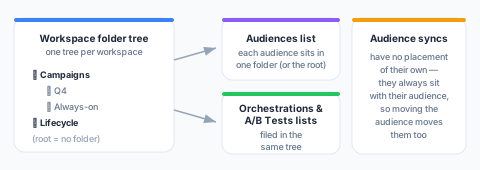
Every workspace has a single folder tree, shared by every page that shows it. A folder created next to the Audiences list is the same folder that appears next to the Orchestrations and A/B Tests lists. Folders can nest up to 50 levels deep, and two sibling folders can never share a name (the same name under different parents is fine).
Where items live
- An audience, orchestration or A/B test lives in exactly one folder, or at the root (“no folder”). New items and clones start at the root until someone files them.
- An audience sync has no placement of its own: it always sits wherever its audience sits. Moving the audience moves its syncs with it — the hierarchy is shared, so the two can never point at different places.
Creating items straight into a folder
- The audience creation flow offers an optional folder dropdown, so an audience can be born already filed.
- An audience canvas can name a folder for published audiences when it is created: every audience the canvas publishes is filed there from birth. This is configuration for what the canvas produces (a duplicated canvas keeps it, like its identity settings), not the canvas’s own placement — audiences moved afterwards keep wherever you moved them.
Using the tree
The folder tree sits beside the Audiences, Orchestrations and A/B Tests lists (and the audience-syncs list, where placement is derived from each sync’s audience) with an All items entry on top:
- Filtering — selecting a folder narrows the list to everything in that folder and its subfolders.
- Counts — each folder shows how many items its whole subtree holds.
- Moving items — use the row’s Move to folder… action and pick the target folder (or No folder to return the item to the root).
Who can do what
Two different questions with two different answers:
| Action | Who |
|---|---|
| See the tree and filter by it | Everyone in the workspace, except for folders restricted to groups they are not in, and what is filed in them |
| Move an audience or sync into a folder | Anyone who can edit that audience or sync |
| Create, rename, move, or delete folders | Workspace owners and admins only |
Reshaping the tree is governed by a dedicated permission (folders.write), granted to the owner and admin roles. Filing an item is simply an edit to that item, so it follows the item’s own edit permission. Members with read-only access can browse and filter, but move nothing.
Deleting a folder
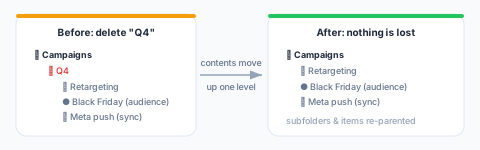
Deleting a folder never deletes what it holds. Its subfolders, audiences, and syncs move up one level — into the deleted folder’s parent, or to the root when the folder was itself at the top level.
Guardrails
- A folder cannot be moved into itself or one of its own subfolders.
- Sibling names must be unique, including at the root level.
- Nesting is capped at 50 levels, counted to the deepest subfolder — a move that would push any descendant past the limit is rejected.
- Every folder change and every item move is recorded in the workspace audit log.