Gemini Enterprise
You can buy Zeotap Agent on Google Cloud Marketplace and use it inside Gemini Enterprise, so the people in your company can discover data, build and size audiences, and activate them without leaving the assistant they already work in. This page walks through buying it, getting the purchase approved, adding it to Gemini Enterprise, and what each person sees the first time they use it.
Zeotap Agent in Gemini Enterprise is the same agent as the one inside Zeotap. It follows the same guardrails, plans every change before making it, and acts as the person who signed in, with that person’s permissions.
Prerequisites
- A Google Cloud billing account, and someone allowed to place Marketplace orders on it: the
consumerprocurement.orders.placepermission, which a Billing Account Administrator has - A Gemini Enterprise app for your company, and an administrator who can add agents to it
- A Zeotap organization with at least one workspace. If your company is not a Zeotap customer yet, talk to Zeotap sales before you buy
- A Zeotap account for each person who will use the agent, as a member of a workspace where Zeotap Agent is turned on
How It Works
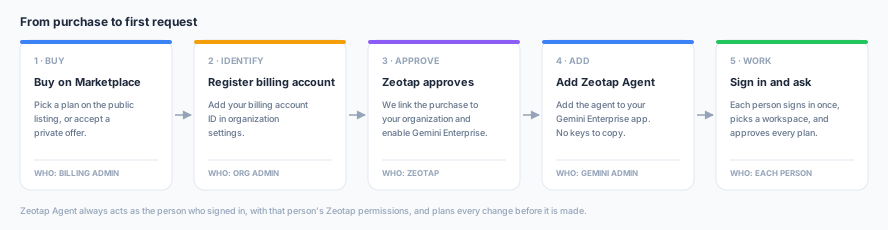
| Step | Who does it | What happens |
|---|---|---|
| 1. Buy | A billing account administrator | Buys a plan on Google Cloud Marketplace, or accepts a private offer |
| 2. Identify | Your Zeotap organization admin | Registers your Google Cloud billing account under Organization settings → Billing accounts, or asks your account manager to do it |
| 3. Approve | Zeotap | Links the purchase to your Zeotap organization, approves it with Google, and enables Gemini Enterprise for your organization |
| 4. Add | Your Gemini Enterprise administrator | Adds Zeotap Agent to your Gemini Enterprise app |
| 5. Work | Each person | Signs in with their own Zeotap account the first time, then asks for what they need |
Step 1: Buy on Google Cloud Marketplace
Zeotap Agent has a public listing on Google Cloud Marketplace, so you can buy a plan straight from the listing. If you have agreed custom pricing with Zeotap, your account team sends a private offer to your billing account instead, and you accept it on Marketplace.
- In the Google Cloud console, open Marketplace, choose the AI Agent category and search for
zeotap. Open Agent Zeotap (type AI Agent as a Service, compatible with A2A and Gemini Enterprise). If you have a private offer, open it from the link your account team sent you instead - Click Subscribe, choose the billing account to charge, and complete the purchase

If Google answers Missing required permission consumerprocurement.orders.place, the account you are signed in with cannot place orders on that billing account. Ask a Billing Account Administrator to buy it, or to grant you that permission.
Once the purchase goes through, the listing shows Last purchased on with the date, and a Go to Gemini Enterprise button. Manage Orders on the listing (or Your orders in Marketplace) shows the order.

This is a managed service: Zeotap runs the agent, and Google handles the billing, monthly, on the billing account you chose.
Step 2: Get Your Purchase Approved
A purchase is not activated automatically. Zeotap Agent is enabled only for known Zeotap customers, so Zeotap reviews each purchase and links it to the customer’s Zeotap organization before approving it with Google.
Google Cloud Marketplace tells Zeotap that a purchase was made, but not who made it. What it can confirm is which billing account the purchase was made on, so register yours with your Zeotap organization, ideally before you buy:
- Find your Google Cloud billing account ID in the Billing section of the Google Cloud console. It looks like
XXXXXX-XXXXXX-XXXXXX - In Zeotap, an organization admin opens Organization settings → Billing accounts
- Click Add, paste the billing account ID, optionally add a note (for example, which team owns it), and save
If you are not an organization admin, or you would rather not do it yourself, ask your Zeotap account manager to add it for you.
A purchase made on a registered billing account is recognised as your organization’s, so Zeotap can approve it quickly. Your purchase is then active. A billing account can be registered to one organization only; if Zeotap says it is already registered elsewhere, contact your account manager.
Bought through a private offer? Accepting the offer is enough. The offer was made out to your company, so Zeotap already knows whose purchase it is and approves it without anything more from you. Accept it on the billing account your account team made it out to; if you buy on a different billing account, register that one too, as above.
Approval has a deadline. Google gives each purchase a date by which it must be approved, and rejects a purchase that is still unapproved by then. A purchase Zeotap cannot match to a customer may also be rejected. Register your billing account before you buy, or as soon as you can afterwards, so your purchase does not lapse.
Gemini Enterprise access for your organization
Approving the purchase and turning on Gemini Enterprise are separate steps. Once the purchase is approved, Zeotap enables Gemini Enterprise for your organization. Ask your account team to confirm both before your Gemini Enterprise administrator adds the agent in the next step.
Step 3: Add Zeotap Agent to Gemini Enterprise
Your Gemini Enterprise administrator adds the agent to your company’s Gemini Enterprise app, in the Google Cloud project that holds the app.
- Confirm with your account team that your purchase is approved and Gemini Enterprise is enabled for your organization. Adding the agent before then fails
- Click Go to Gemini Enterprise on the listing, or open Gemini Enterprise in the Google Cloud console. Under Apps, open your app
- Open Agents and click Add agent
- Under Choose an agent that has been procured by your organization, select Zeotap by Zeotap and click Next
- Go through Review info and Authorizations to finish
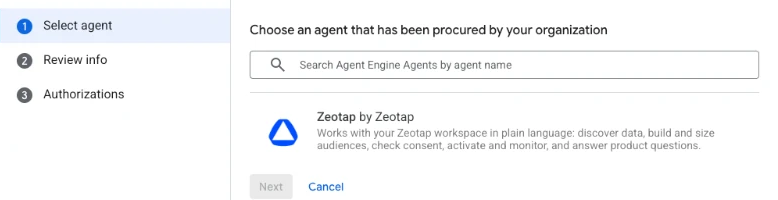
Gemini Enterprise connects itself to Zeotap using your purchase. There is no client ID, secret or address to copy between the two. The agent then appears in the Agents table as Zeotap, of type A2A (Marketplace), Enabled.

In the Gemini Enterprise app itself, people find it under Agents → From your organization.
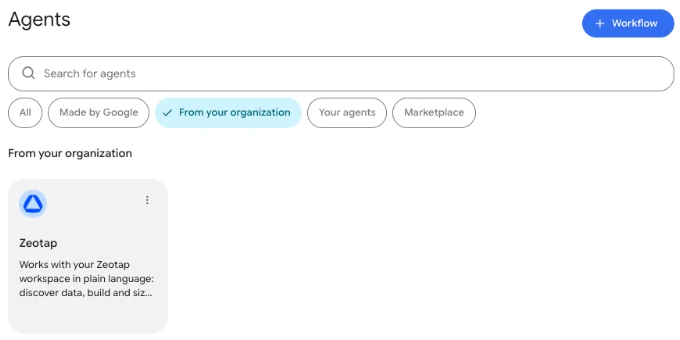
Only your organization’s members can sign in. A Gemini Enterprise app connected through your purchase belongs to your Zeotap organization. Only members of that organization can sign in through it, and conversations run only in your organization’s workspaces.
Step 4: Sign In and Start Working
Signing in the first time
The first time someone uses Zeotap Agent in Gemini Enterprise, they sign in with their own Zeotap account:
- In the Gemini Enterprise app, open Agents → From your organization, choose Zeotap, and ask for something. It asks you to sign in
- Sign in to Zeotap the way you normally do: email and password, Sign in with Google, or Sign in with SSO
- A consent screen says that Gemini Enterprise (with your order number) wants to work in your account and will act as you, set up by your organization. It shows the account you are continuing as, with Use a different account if that is the wrong one, and what the app can do: Use the AI agent as you, and Stay signed in until you remove access. Only members of your organization can allow it
- Click Allow to return to Gemini Enterprise. Click Don’t allow to stop, and nothing is granted
You sign in once. Gemini Enterprise keeps you signed in until you remove its access. The consent screen links to your Connected apps page in Zeotap, where you can see which apps can act as you and remove access at any time.
Signing in connects Gemini Enterprise to you, and nothing more. What you can do is checked against your current Zeotap permissions on every request, so if your access changes in Zeotap, it changes in Gemini Enterprise straight away.
Choosing a workspace
Every conversation runs in one Zeotap workspace.
- If you can use the agent in only one workspace, that workspace is used and you are not asked
- If you can use it in several, Zeotap Agent shows a Choose a workspace card before it does any work. Pick one and click Use this workspace, or reply with the workspace’s name
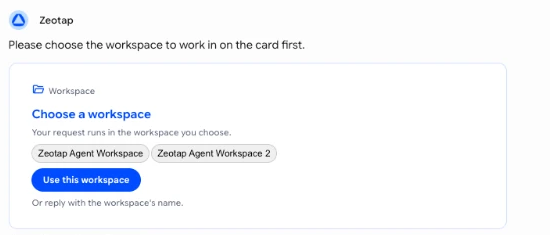
- A conversation stays in the workspace it started in. To work in another workspace, start a new conversation
Plans and approvals
Zeotap Agent answers questions and looks things up straight away. For anything that would change your workspace, it first comes back with a plan: the steps it will take, the assumptions it made, and what will change. In Gemini Enterprise the plan appears as a card.
- Click Approve plan to let Zeotap Agent carry it out
- Or reply with what you would like to change. Zeotap Agent revises the plan, and the revised plan needs its own approval
Gemini Enterprise never approves anything on your behalf. Approving the plan lets Zeotap Agent start, and steps that act on live data (sends, journey activations, deletions, syncs and warehouse writes) then wait for a workspace administrator to approve them in Zeotap, under AI Policies → Pending Approvals. A reply in Gemini Enterprise never counts as that approval. Once the step is approved in Zeotap, it runs by itself. Stopping something, such as pausing or cancelling, runs straight away. See Guardrails for how holds and approvals work.
Everything Zeotap Agent does is attributed to you. Your Gemini Enterprise conversations also appear under your sessions in Zeotap, and in the workspace audit log under your name.
What you can ask
Zeotap Agent in Gemini Enterprise can do what it does inside Zeotap: explore your data model, build and size audiences, define computed attributes, look up a customer profile, check event tracking, activate audiences to destinations, design journeys, and report on syncs. It also answers “how does this work” questions from the Zeotap documentation, with links.
Brief it like a colleague. One complete request works better than a string of small ones.
Building an audience:
“Build an audience of lapsing high-value shoppers in Germany for a winback email and Meta campaign. High value means the top 20% by 12-month order value; lapsing means no purchase in the last 90 to 180 days. Exclude the Loyalty VIP audience. Give me the size and the reachable count for email and Meta, and don’t create anything yet.”
Refining it:
“Widen the lapsing window to 365 days and show me how the size changes.”
Looking up a customer:
“Look up the customer with the email jane@example.com and show me their consent state and recent events.”
Checking on activation:
“How did the last sync of my winback audience go? How many records were matched and rejected?”
Asking about the product:
“What is a computed attribute, and which ones do I have?”
Managing Your Subscription
Changing plans and renewing
Talk to your Zeotap account team about changing plans or renewing. A renewal, or a change to custom pricing, arrives as a new private offer, which you accept on Google Cloud Marketplace. Your Gemini Enterprise setup and your people’s sign-ins carry over.
Cancelling
Cancel your subscription on Google Cloud Marketplace. Zeotap Agent keeps working in Gemini Enterprise until the end of the term you have paid for. When the term ends, access ends: Gemini Enterprise’s connection to Zeotap is switched off, and people can no longer use Zeotap Agent there.
If you buy again later, your Gemini Enterprise administrator needs to add Zeotap Agent again after the new purchase is approved.
Removing access
| Who | How |
|---|---|
| One person | Removes Gemini Enterprise on their Connected apps page in Zeotap. It stops acting as them immediately |
| Your company | Your Gemini Enterprise administrator removes the agent from the Gemini Enterprise app |
| A workspace | A workspace admin turns the agent off under Settings → General, which stops it in that workspace whichever app is used |
Troubleshooting
My purchase has not been approved yet
Zeotap has probably not been able to tell whose purchase it is. Check that the billing account you bought on is registered under Organization settings → Billing accounts (see Step 2), or ask your account manager to add it. Do this promptly: Google rejects a purchase that is not approved by its deadline.
We bought it, but we do not have a Zeotap account yet
Contact Zeotap sales. Zeotap Agent works with your data in Zeotap, so your company needs a Zeotap organization and workspace first. Once that is set up, Zeotap links your purchase to the organization and approves it. Each person who uses the agent also needs their own Zeotap account; a workspace admin invites them. Signing in from Gemini Enterprise does not create an account.
Zeotap Agent does not appear in Gemini Enterprise, or adding it fails
- Check with your account team that your purchase is approved and that Gemini Enterprise is enabled for your organization. Adding the agent fails until both are done
- If the agent was working and stopped for everybody at once, the subscription may have ended or Gemini Enterprise access may have been turned off for your organization. Once it is back on, your Gemini Enterprise administrator needs to add Zeotap Agent again
- If the agent is in your company’s app but you cannot see it, ask your Gemini Enterprise administrator to make it available to you
I signed in, but every request is refused with “you are not a member of any workspace where the agent is available”
You signed in successfully, but there is no workspace you can use the agent in. Either:
- You are not a member of a workspace in your company’s Zeotap organization. Ask a workspace admin to invite you
- Your role in the workspace does not include the AI agent. Ask a workspace admin to check your role
- You signed in with an account outside your company’s Zeotap organization. Sign in with your work account instead
Once this is fixed, your next message works without signing in again.
Zeotap Agent says “The agent is disabled for this workspace”
A workspace admin has turned Zeotap Agent off for that workspace under Settings → General. Ask them to turn it back on, or start a new conversation in another workspace.
Sign-in shows “This link has expired”
The sign-in took too long or was already used. Go back to Gemini Enterprise and send your request again to start a fresh sign-in.
A step is waiting for approval
A guardrail is holding that step until a workspace administrator approves it in Zeotap under AI Policies → Pending Approvals. Nobody can approve it from Gemini Enterprise. Once it is approved, it runs by itself; ask Zeotap Agent to check on it whenever you like. Requests nobody reviews expire after 24 hours.
Next Steps
- AI Agent: what Zeotap Agent can do, and how plans work
- Guardrails: what the agent may do without a person’s approval
- Roles and permissions: what each role can do in a workspace