Stores
A Store is a low-latency, serve-by-key layer that exposes selected attributes from your warehouse models for direct key lookups. Instead of running a warehouse query at request time, your application reads a Store Entry by its key and gets the attributes back in milliseconds.
Stores are the “what are this person’s values?” surface: give the Profile API a key (for example a user_id) and it returns that key’s current attributes as a JSON object. A Store is not a sync — a sync moves data to an external destination, whereas a Store is an addressable read layer you query directly.
Stores are enabled per workspace. A platform administrator turns Stores on for your workspace before anyone can create one or read from one. If Personalize → Profile is not in your sidebar, Stores are not enabled yet — ask a platform administrator to enable them.
When to Use a Store
Reach for a Store when a decisioning system needs attribute lookups faster than a warehouse round-trip:
- Web and app personalization — read a visitor’s plan, tier, or last-seen attributes to tailor the experience on page load.
- Edge and serverless functions — enrich a request at the edge without a connection back to the warehouse.
- Ad bidders and real-time decisioning — fetch a person’s attributes within a tight latency budget.
A Store holds attributes addressed by a key. A Store stores values, not membership — nothing writes audience flags into an Entry.
Reading membership is a separate matter from storing it. If you want to answer “is this person in an audience?”, either ask Membership directly, or add ?include=audiences to a Profile API read and get both in one response — the audiences are computed as you ask, not read out of the Store.
How Stores Work
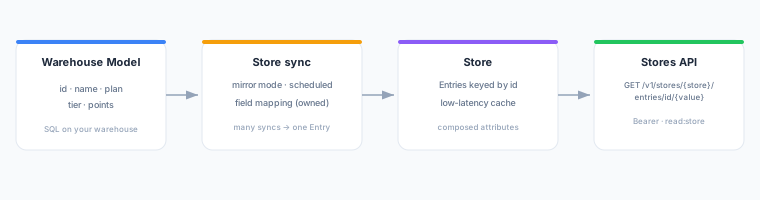
A Store is populated from your warehouse and served by key:
- You attach one or more feeds to a named Store. Each feed points at a warehouse Model and maps which of its columns become Entry fields.
- On the feed’s schedule, the mapped fields are written into the Store as Entries, each keyed by the model row’s primary key.
- Your application queries the Profile API by key and reads the merged attributes for that key in low-tens-of-milliseconds.
The Store is a cache: the warehouse remains the system of record, and the Store holds a refreshable copy of the attributes you chose to serve.
Entries and Composition
An Entry is a single row in a Store, addressed by its key. An Entry’s shape is defined by the field mappings that populate it. Multiple feeds can compose one Entry — each owns a disjoint set of fields — so the Profile API returns the union of all owned fields as a single JSON object.
Feeds
A feed is one model’s contribution to a Store. It owns a named set of fields, refreshes on its own schedule, and decides for itself what happens when a source row disappears. Because each feed owns a disjoint set of fields, you can add, edit, or remove one feed without disturbing the fields another feed publishes into the same Entry.
Filling a Store from events
A feed is not the only writer. An event forwarding rule can target a Store and write its mapped fields as each event arrives, which is how a live value such as last-viewed product or last-seen time reaches the serving layer without waiting for a refresh. Those fields are owned by the rule exactly as a feed owns its own, so a field a feed fills cannot also be written by a rule, and the Store’s schema lists which rule writes what. A Store can even be populated by event rules alone, with no feed attached.
Freshness and Deletion
Each feed refreshes on its own schedule, so served attributes reflect the warehouse as of that feed’s last refresh rather than live values. When a row leaves a feed’s source model, the fields that feed owned are handled according to its On removed source row setting:
| Setting | Behavior |
|---|---|
| Clear my fields, delete Entry if empty (default) | The feed’s fields are removed; if no fields remain from any feed, the whole Entry is deleted and subsequent lookups return 404. |
| Clear my fields, keep the Entry | The feed’s fields are removed, but the Entry stays even if it is left empty. Use this when another feed composes the same Entry. |
| Do nothing | The feed’s fields are left in the Store untouched, and will serve stale values. |
Setting Up a Store
- Navigate to Personalize → Profile in the left sidebar, then open the Stores tab.
- Click Create store.
- Enter a Name — lowercase, starting with a letter, using only letters, numbers, underscores, and hyphens (for example
user_profiles). Maximum 63 characters. - Click Create store. The new Store appears in the list with no feeds yet.
- Open the Store and go to its Feeds tab, then click Attach a feed.
- Choose the Model to populate from and its Primary key — the column whose value becomes the Entry key.
- Optionally set a Feed name. It defaults to the store name, and is what identifies this feed’s contribution in the Store’s schema.
- Configure the Field mapping — the data fields this feed owns. The primary key is the Entry key and is not remapped.
- Set On removed source row and the Refresh frequency (Manual, or Scheduled with a schedule you pick).
- Save. The Store populates on the feed’s next refresh, or immediately if you click Refresh now on the feed.
Prerequisites
- A configured warehouse and at least one Model with a primary key column.
- A serving key to query the Profile API — see below.
Watching Refreshes
A Store’s Refreshes tab lists every refresh run across all of its feeds — which feed it belonged to, its status, when it started, how long it took, its impact, and any errors. You can filter by status, expand a run for its detail, and cancel one that is still running. Start here when served attributes look stale or a field never appears.
To start a refresh outside its schedule, use Refresh now on the feed itself, on the Feeds tab.
A feed that fails repeatedly is paused automatically to stop it retrying against a broken source. A paused feed shows its state on the Feeds tab, where you can resume it once the underlying problem is fixed.
API Keys
Reads are authenticated with a serving key — prefix svk_, carrying the serve:profile scope. Keys are workspace-level, not per-store: one key can read entries from any store in the workspace, which is the reason it belongs on a server rather than in a page.
- Navigate to Personalize → Profile → API keys.
- Click Create key and give it a name, and optionally an expiry.
- Copy the key immediately — it is shown only once.
Revoke keys from the same tab. See the Profile API for how to use one, and for which credentials this endpoint refuses.
A serving key is not an MCP key. read:store still exists and still gates the store MCP tools, but it no longer authorises a Profile API read — an sk_ key that used to work on this endpoint now answers 401.
Next Steps
- Profile API — the read-by-key endpoint reference.
- Playground — test a read against a real Store.
- Models — define the warehouse queries that populate a Store.
- Membership — the is-member surface, for audience checks rather than attributes.