Version History
Audiences, orchestrations, models, relationships and syncs are edited in place. Version history keeps every earlier definition, so you can see what a resource used to be, compare it with what it is now, and restore an earlier version in one step.
It works like audience canvas versions, for everything that has no publish step.
Where to Find It
| Resource | Where |
|---|---|
| Audience | The History tab on the audience |
| Orchestration | The History tab on the orchestration |
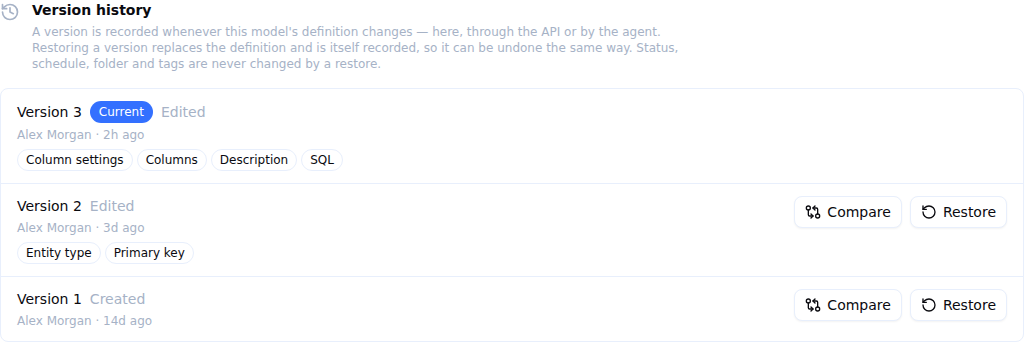
| Model | Show version history at the bottom of the model page |
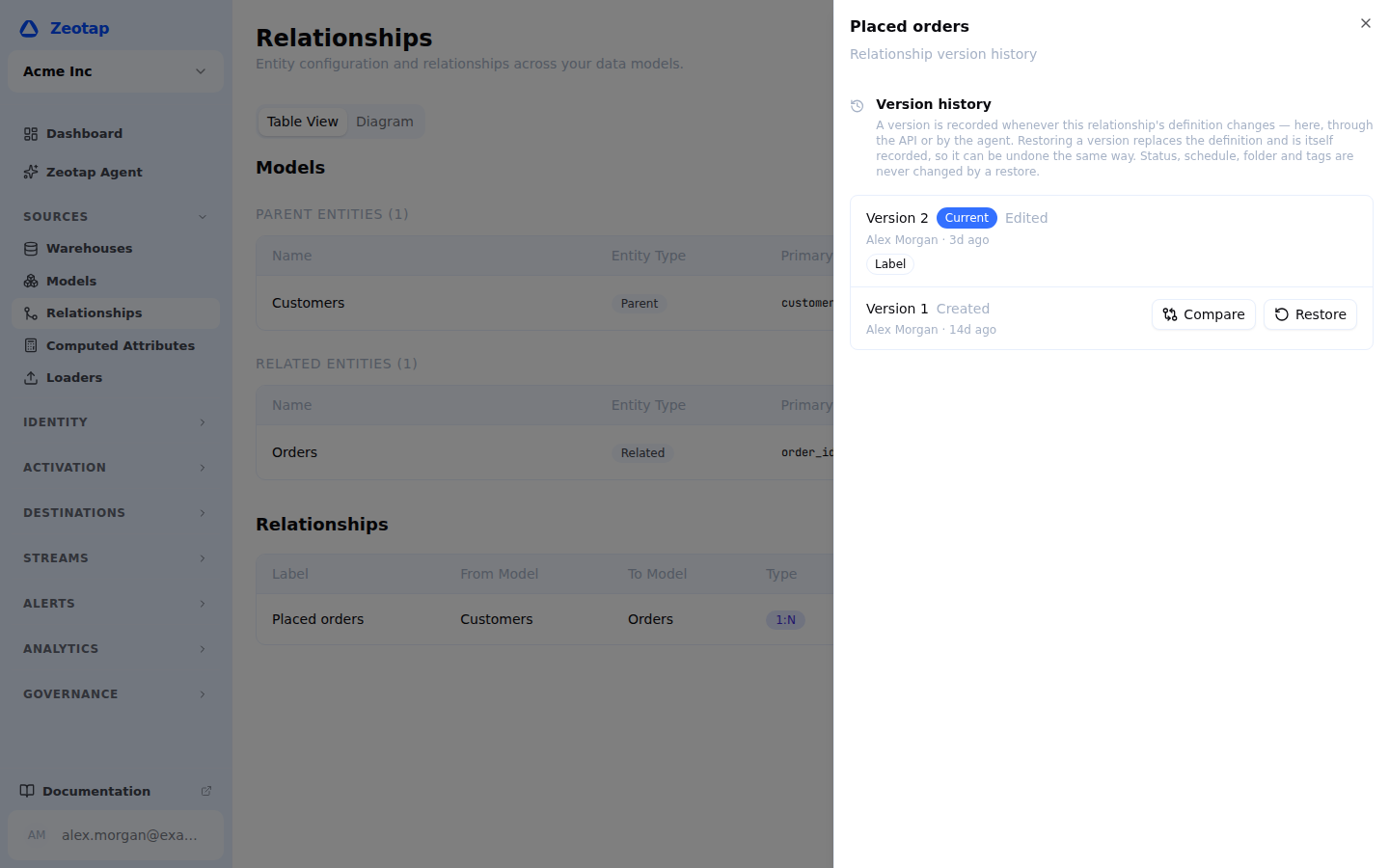
| Relationship | The history icon on the relationship’s row in Schema → Table View |
| Sync and Reverse ETL sync | The History tab on the sync |
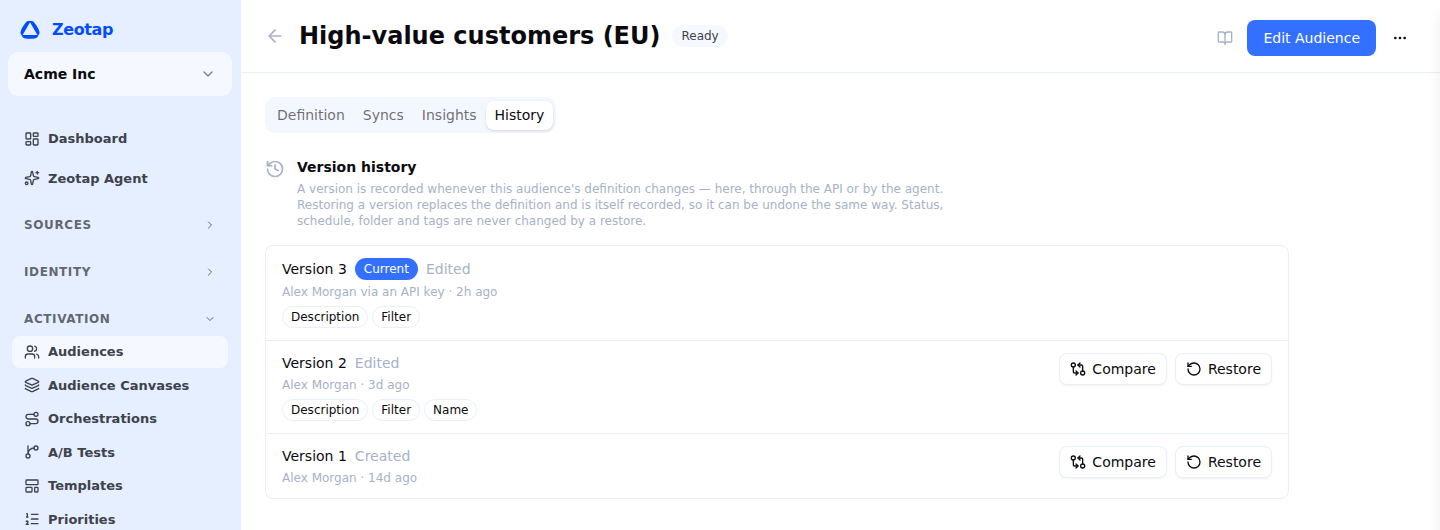
A model’s history opens at the foot of the model page, and a relationship’s in a panel beside the Schema table:
What a Version Is
A version is the resource’s definition: what it selects, transforms and sends.
| Resource | Included in a version |
|---|---|
| Audience | Name, description, filter, identity graph, minimum confidence, time zone settings |
| Orchestration | Name, description, entry and exit criteria, tiles and connections |
| Model | Name, description, SQL or table selection, columns, column transforms, primary key, entity type, timestamp column, column settings |
| Relationship | Relationship type, join keys, bridge model and keys, label |
| Sync | Name, description, field mapping, sync mode, primary key, destination settings (and minimum confidence for audience syncs) |
A version does not include a resource’s lifecycle: its status (draft, active, paused), its schedule, its folder or its tags. Restoring a version never pauses, resumes, reschedules or moves anything. A sync you restore keeps syncing on the schedule it has now.
When a Version Is Recorded
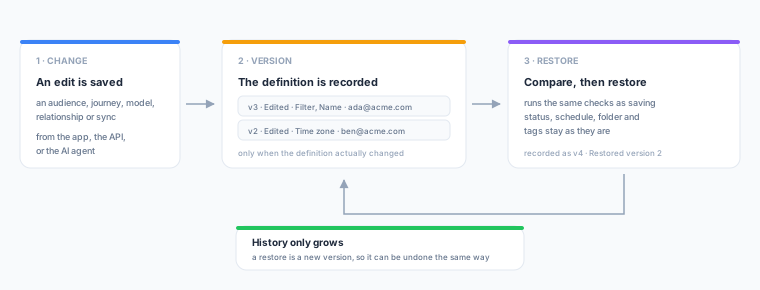
Whenever a resource’s definition changes, however it changed: in the app, through the REST API, or by the AI agent. Each version records who made the change, when, and which fields changed.
A change that leaves the definition as it was records nothing. Activating an audience, tagging it or moving it to a folder does not add a version, and neither does saving it without edits.
Two kinds of version have no author:
| Label | Meaning |
|---|---|
| Earliest recorded | How the resource was defined before version history existed. It is recorded the first time the resource changes after the feature was switched on, so that change has something to go back to. |
| Changed outside the editor | The definition was changed by something other than an edit, for example a platform repair. It is recorded the next time the resource is seen, so the next person’s edit is not credited with it. |
Each resource keeps its 500 most recent versions.
Compare and Restore
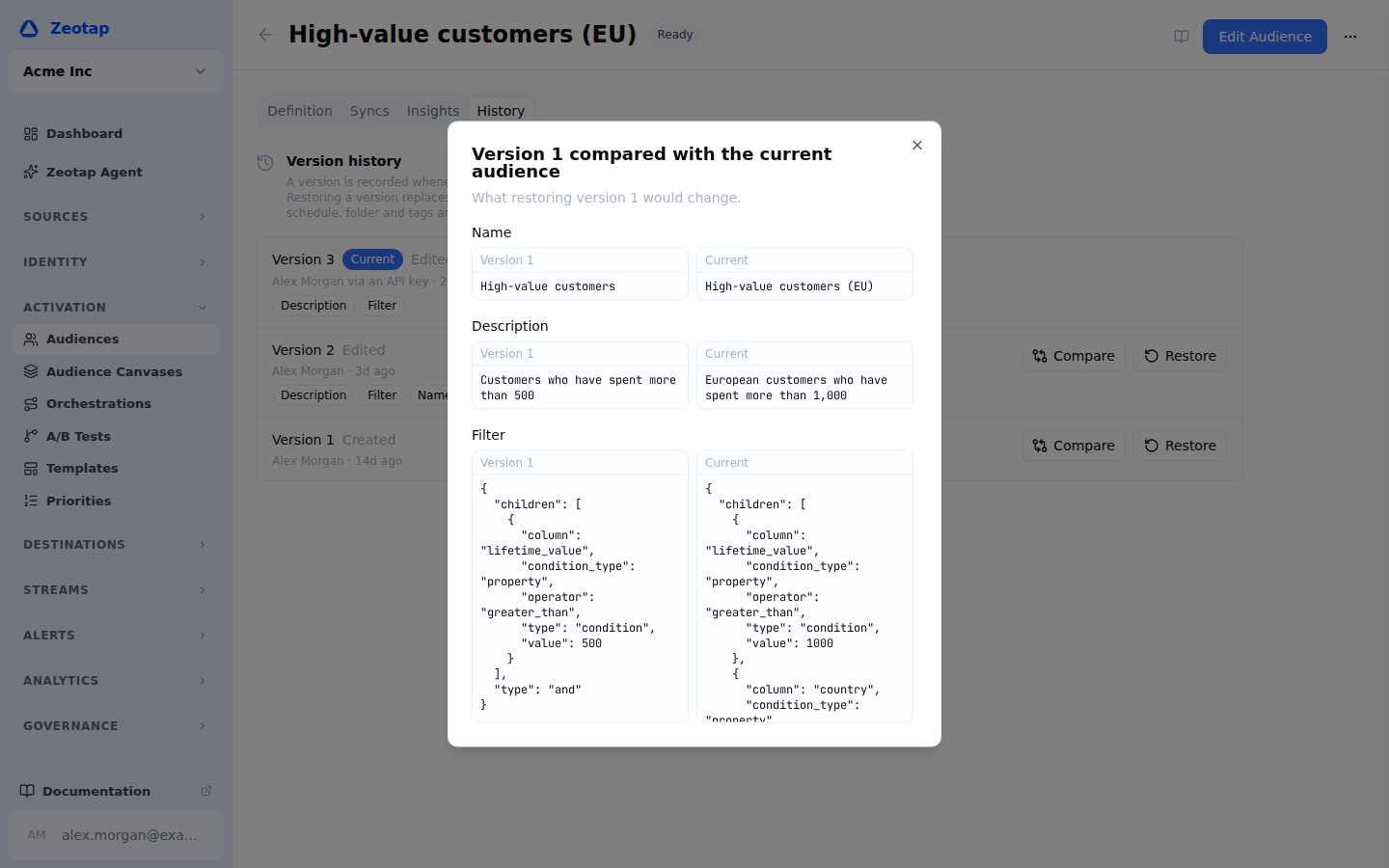
Compare shows each field that restoring the version would change, with the version’s value beside the current one.
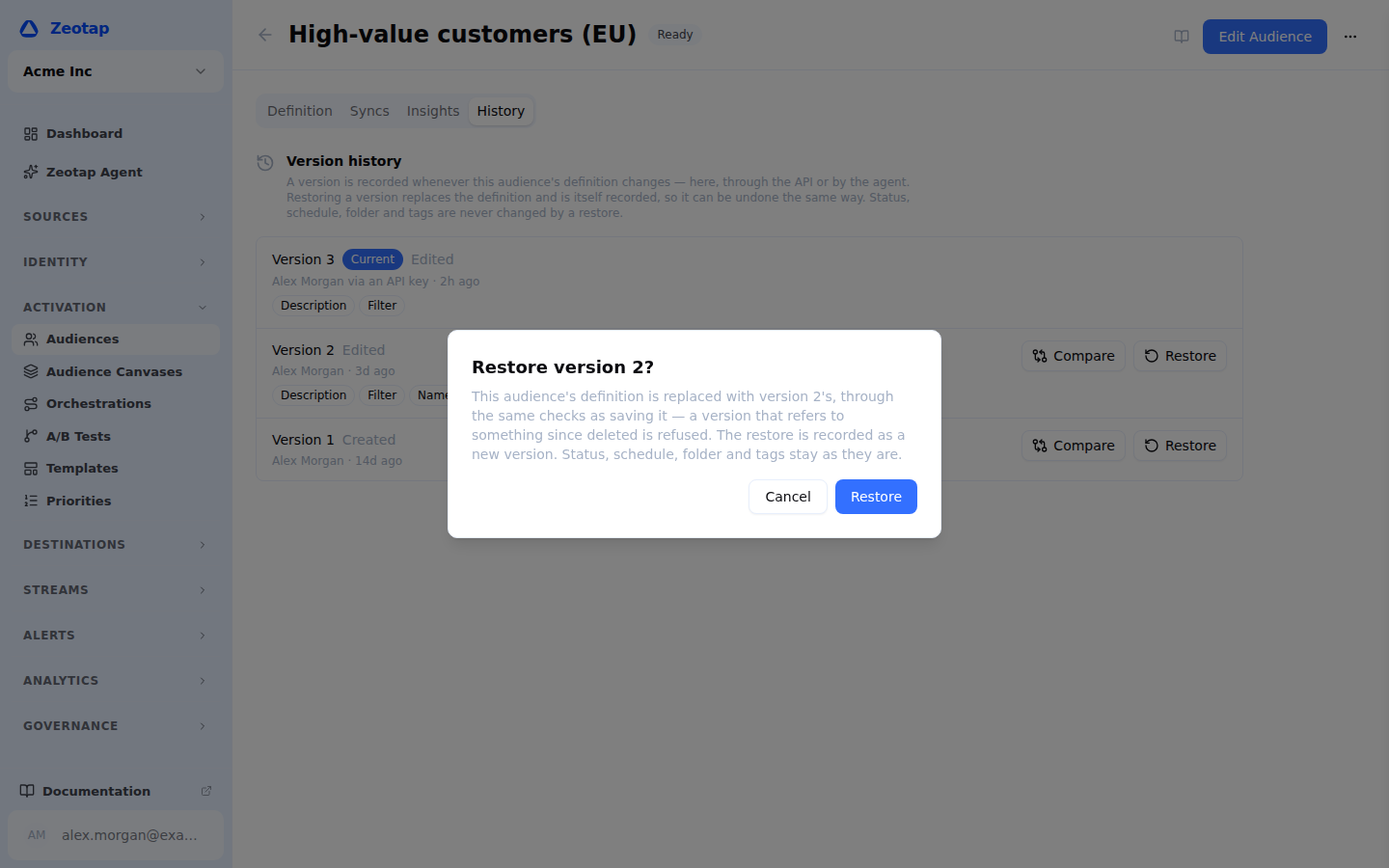
Restore replaces the current definition with the version’s, through the same checks as saving it by hand. If the version refers to something that has since been deleted, such as a trait in an audience filter or a column in a relationship key, the restore is refused with the same message an edit would get.
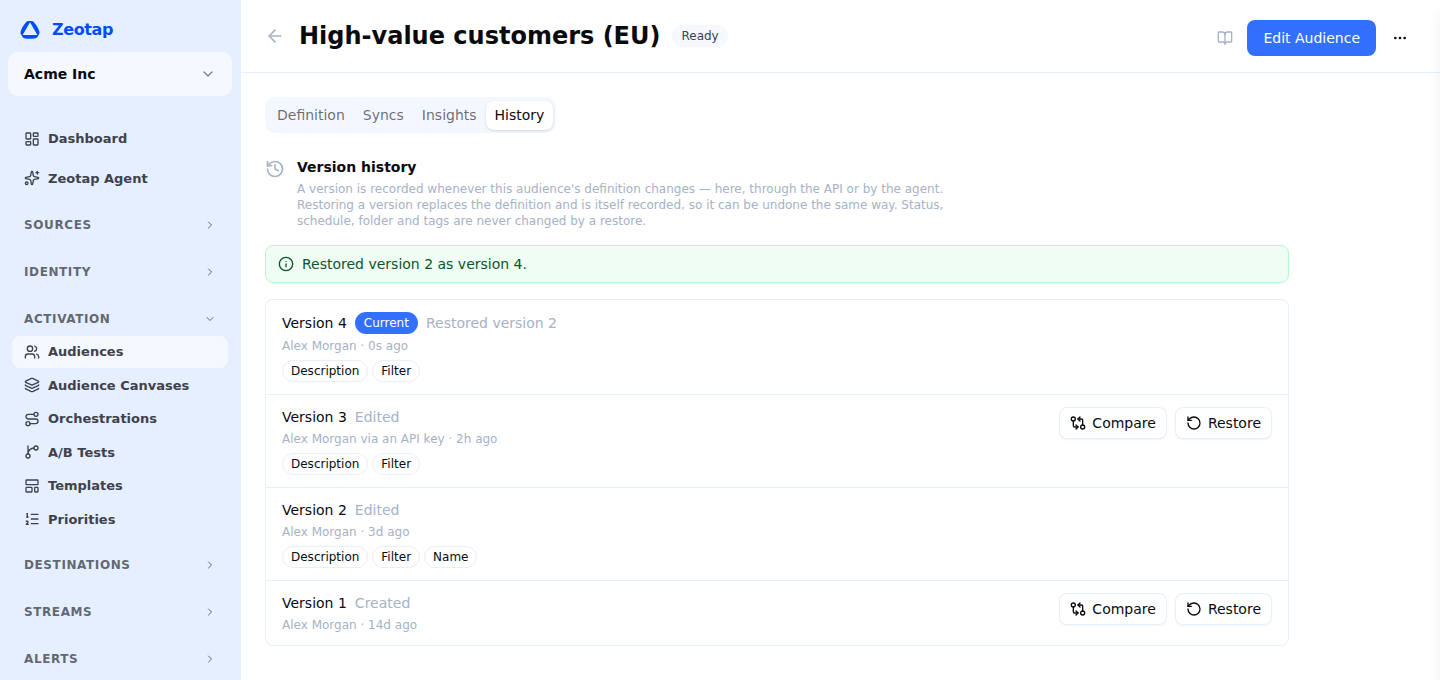
A restore is recorded as a new version (“Restored version 2”), so history only grows and a restore can be undone the same way. It needs the same permission as editing the resource, and it appears in the audit log as a rollback on the resource.
Models keep their current column protection. Restoring a model version never loosens how a column is protected: each column keeps its current sensitivity and PII classification. Change those on the model if they should differ.
When a Restore Is Refused or Partial
| Situation | What happens |
|---|---|
| The version is already the current definition | Nothing to restore; the button is hidden and the API answers 409 |
| The model reads from a prepared table now, or the version was saved while it did | Refused. Dematerialize the model, or materialize it again, instead |
| An audience is defined by a canvas | It has no history of its own. Use the canvas’s version history |
| A field cannot be set back by a save (for example, clearing an audience’s identity graph) | The rest is restored, and the result names the fields that were not |
For an active orchestration, members waiting at a tile that the restored version does not have stay where they are, exactly as they would after the same edit.
API
Every versioned resource has the same three routes beside its own:
GET  /api/v1/workspaces/{id}/{resource}/{resourceId}/versions?before=&limit=
GET  /api/v1/workspaces/{id}/{resource}/{resourceId}/versions/{v}
POST /api/v1/workspaces/{id}/{resource}/{resourceId}/versions/{v}/rollback
{resource} is audiences, journeys, models, relationships, syncs or audience-syncs. Reading a history needs read access to the resource; restoring needs write access. The list is newest first and names the current_version. A single version carries its snapshot beside the resource’s current definition. A rollback returns the version it recorded and any unrestored_fields.