User Access Policies
Governance → User Access Policies decides which people reach what in a workspace. Every policy on it is granted to a group, never to a person, and the page has three tabs:
| Tab | What it controls | Covered on |
|---|---|---|
| Subsets | The rows a query returns — members see only the data that matches the policies their groups hold | This page |
| Folders | Whether a folder (and every folder inside it) is visible at all | Folder and Destination Access |
| Destinations | Whether a destination is visible and usable at all | Folder and Destination Access |
Each tab is shown only to people who can read what it governs (subsets.read, folders.read, destinations.read). The rest of this page covers subsets — row-level access policies. The UI and the API call them subsets; this documentation uses “access policy” and “subset” interchangeably.
Row-Level Access Policies (Subsets)
A subset provides row-level access control in Zeotap. An access policy defines filter criteria that are automatically applied to all queries when a member of a specific group accesses data. This ensures that team members only see the data they are authorized to see — without requiring separate models or warehouse views.
How Access Policies Work
When an access policy is active for a user (via their group membership), Zeotap automatically narrows every query that runs on behalf of that user to the rows its criteria permit. This applies to:
- Audience builder — Filter counts, estimation, and preview
- Audience canvases — Estimates on each node of a canvas
- Audience syncs — Only rows matching the access policy are synced to destinations
Model previews, model syncs and computed attribute evaluation do not apply access policies yet.
The filtering is transparent and automatic. Users do not need to add anything to their queries — the platform applies the policy’s criteria before the query runs, so restricted rows are never read out of the warehouse.
Use Cases
| Use Case | Access Policy Criteria | Assigned To |
|---|---|---|
| Regional data access | region equals EMEA | EMEA team group |
| Country-specific compliance | country_code equals DE | Germany operations group |
| Partner data isolation | partner_id equals partner_abc | Partner ABC group |
| Business unit separation | business_unit equals enterprise | Enterprise sales group |
| Test data isolation | environment equals staging | QA team group |
| Customer tier restriction | tier in ["gold", "platinum"] | Premium support group |
Creating an Access Policy
Via the UI
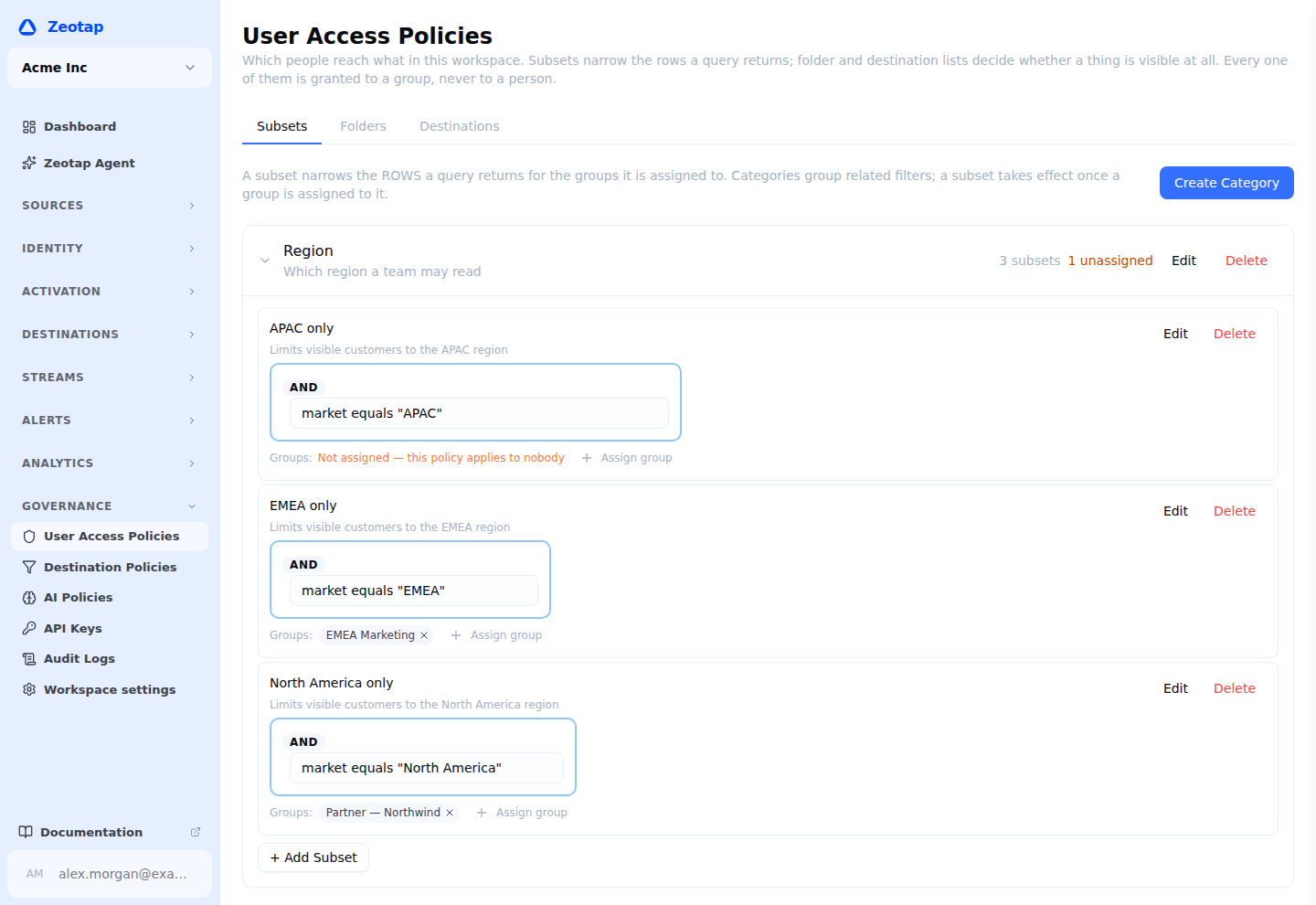
- Navigate to Governance → User Access Policies in the sidebar. The Subsets tab opens by default.
- If the workspace has no category yet, click Create Category, give it a name and an optional description, tick Required if members must hold a policy from it (see Required Categories), and click Create
- Expand the category and click + Add Subset
- Fill in the New Subset form:
| Field | Description | Example |
|---|---|---|
| Name | Descriptive name for the access policy | ”EMEA Region Only” |
| Description | Explanation of what the access policy restricts | ”Limits data access to EMEA region customers” |
| Parent model this access filter applies to | The model the policy applies to. A policy only affects queries against this model. | ”Customers” |
| Filter conditions | The criteria a row must match to be visible, built with the same filter builder as an audience | region equals EMEA |
- Click Create. The new policy appears in its category, ready to assign to a group — until it is assigned it applies to nobody.
Via the API
A policy belongs to a category and a model, and its condition is a filter tree in the same format as an audience filter:
curl -X POST "$API_BASE_URL/api/v1/workspaces/$WORKSPACE_ID/subsets" \
  -H "Authorization: Bearer $API_TOKEN" \
  -H "X-Workspace-ID: $WORKSPACE_ID" \
  -H "Content-Type: application/json" \
  -d '{
    "name": "EMEA Region Only",
    "description": "Limits data access to EMEA region customers",
    "category_id": "880e8400-e29b-41d4-a716-446655440000",
    "parent_model_id": "770e8400-e29b-41d4-a716-446655440000",
    "filter_tree": {
      "type": "condition",
      "condition_type": "property",
      "column": "region",
      "operator": "equals",
      "value": "EMEA"
    }
  }'
Category IDs come from GET /api/v1/workspaces/{id}/subset-categories.
On a model shared from a parent workspace
In a child workspace of a workspace hierarchy, you can choose a parent model shared from the parent workspace when you create an access policy, just like one of your own models. The policy belongs to your workspace:
- It narrows queries only for members of your groups, in your workspace. The parent workspace and your sibling workspaces never see it and are not affected by it.
- Only models your workspace owns or can see through a share are offered. A model that has not been shared with you is reported as not found.
- The parent workspace cannot write policies that your workspace must follow. A child that creates no policy sees everything the share exposes.
If the parent later stops sharing the model, the policy stays in your list but no longer applies to anything, because the model can no longer be queried from your workspace. As with any access policy, workspace owners and admins who hold no policies see every row.
The same coverage applies as for any access policy: audience estimates and previews, canvas estimates and audience syncs are narrowed; model previews, model syncs and computed attribute evaluation are not yet.
Filter Criteria
Access policy criteria are filter trees, not SQL text. You build them with the same visual filter builder used for audiences, and over the API they use the same filter tree structure. This is what lets a policy reach beyond simple column comparisons — a condition can traverse a relationship or reference a computed attribute, which a raw WHERE fragment could not express.
| Intent | Condition |
|---|---|
| Simple equality | region equals EMEA |
| One of several values | country_code in ["US", "CA", "MX"] |
| Range | created_at on or after 2024-01-01 |
| Combined | region equals EMEA and customer_type equals enterprise |
| Presence | partner_id is not null |
| Pattern | email ends with @mycompany.com |
Important Notes on Filter Criteria
- A policy names the parent model it applies to, and only affects queries against that model. A policy on the Customers model does not restrict queries against Orders, even for the same user.
- Criteria must reference columns available on that model. Because the policy is bound to a specific model, the builder only offers columns that model actually exposes.
- Criteria are combined into the query as an additional
ANDclause. They narrow what a query returns and never widen it, and they do not replace conditions the query already has. - A policy whose filter is empty contributes nothing and is skipped.
Categories
Categories group related access policies, and determine how multiple policies combine. A category is a resource in its own right — created, renamed and deleted like anything else — with a name, an optional description, and a Required flag.
| Category | Example Access Policies | Description |
|---|---|---|
| Region | North America, EMEA, APAC | Restrict data by geography |
| Partner | Partner A, Partner B | Isolate data for external partners |
| Compliance | GDPR, CCPA, HIPAA | Enforce regulatory requirements |
| Business Unit | Marketing, Sales, Support | Separate data by internal teams |
| Testing | Staging, QA | Isolate test or staging data |
You define whatever categories make sense for your organization. Manage them on the Subsets tab of Governance → User Access Policies, or over the API at /api/v1/workspaces/{id}/subset-categories.
Required Categories
Marking a category Required changes the default for anyone it does not cover: a member who has no policy from a required category sees no rows at all, rather than seeing everything.
This is the difference between an opt-in and an opt-out model, and it is the setting that makes access policies a real boundary:
- No required categories — a member with no policies assigned has unrestricted access. Policies only ever narrow access for the people who have them.
- At least one required category — a member must hold a policy in every required category to see anything. Someone who is added to the workspace but not yet placed in the right group sees an empty result rather than the whole table.
The same rule applies per model: if a member holds policies but none of them apply to the model being queried, and any category is required, the query returns nothing.
Turn on Required only once the groups and policies that grant access are in place. Marking a category required takes effect immediately, and anyone not yet covered by a policy in it will find previews, audience counts and sync results empty until they are.
How Categories Affect Access Policy Combination
When a member has multiple access policies from the same category, they are combined with OR logic (they see data matching any of the policies in that category).
When a member has access policies from different categories, the categories are combined with AND logic (they see data matching policies from all categories).
Example:
A member has:
- “EMEA” and “APAC” access policies in the Region category
- “Marketing” access policy in the Business Unit category
The effective filter is:
(region = 'EMEA' OR region = 'APAC')
AND (business_unit = 'marketing')
This means the member sees EMEA and APAC marketing data only.
Assigning Access Policies to Groups
Access policies are assigned to groups, not individual users. This makes management scalable — instead of assigning access policies to each user, you assign them to groups, and all members of the group inherit the access policy.
There are two places to make the assignment. They act on the same data, so use whichever matches the question you are answering.
From the access policy (policy-first)
Use this when you are authoring policies and want to see, at a glance, which groups each one reaches.
- Navigate to Governance → User Access Policies (the Subsets tab)
- Expand the category containing the policy
- Each policy lists its assigned groups as chips. Click Assign group to grant it to another group, or the × on a chip to revoke it — changes save immediately.
A policy assigned to no group applies to nobody. The category header shows an unassigned count so a policy that was created but never granted does not sit unnoticed — a newly created policy appears in its category with the picker ready, so granting it is the next click.
From the group (group-first)
Use this when you are onboarding a team and want to review everything one group can see.
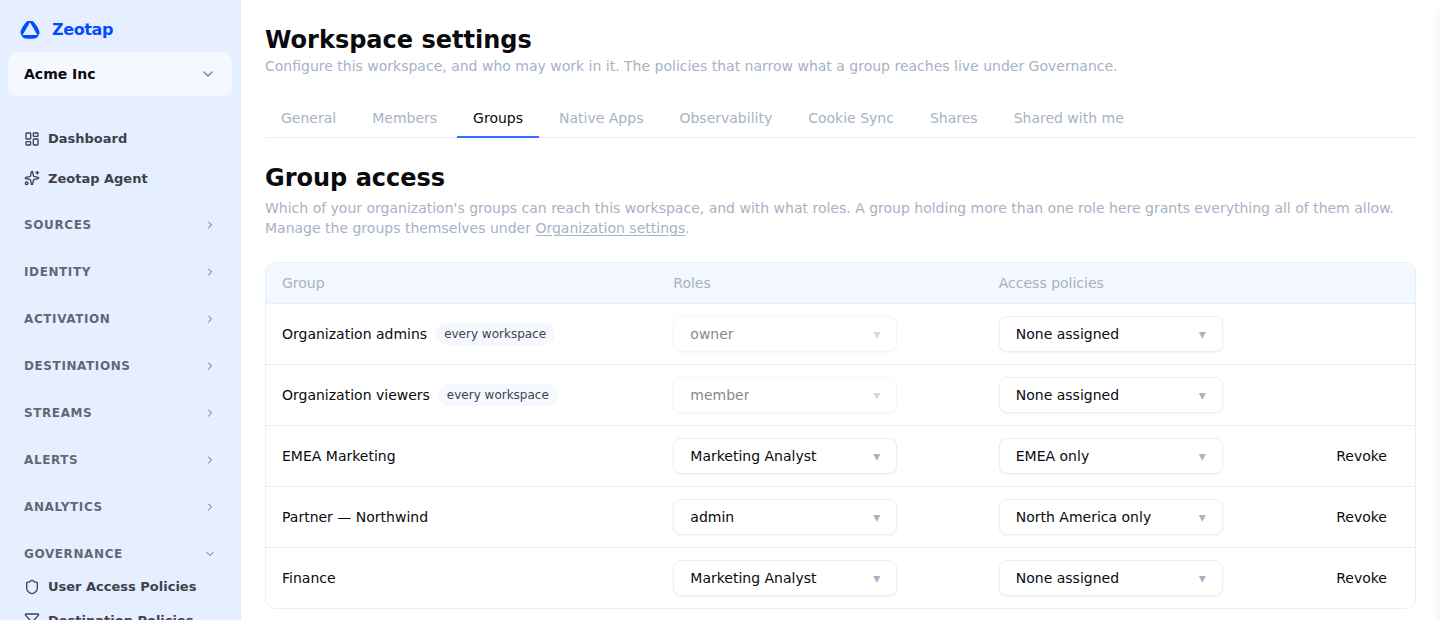
- Navigate to Governance → Workspace settings and open the Groups tab
- Find the group’s row — the table lists every group that reaches this workspace
- Open its Access policies picker
- Tick the policies to assign; the change saves as you tick
Policies are per workspace, so this is the workspace’s own Groups page rather than the organization’s group list. A group with none assigned is unrestricted, unless a category is marked required — then it sees nothing until a policy from that category is assigned.
Via the API
Replace the full set of policies on a group:
curl -X PUT "$API_BASE_URL/api/v1/workspaces/$WORKSPACE_ID/groups/$GROUP_ID/subsets" \
  -H "Authorization: Bearer $API_TOKEN" \
  -H "X-Workspace-ID: $WORKSPACE_ID" \
  -H "Content-Type: application/json" \
  -d '{
    "subset_ids": ["sub_abc123", "sub_def456"]
  }'
Or grant and revoke one group at a time, from the policy’s side:
# List the groups a policy is granted to
curl "$API_BASE_URL/api/v1/workspaces/$WORKSPACE_ID/subsets/$SUBSET_ID/assignments" \
  -H "Authorization: Bearer $API_TOKEN" \
  -H "X-Workspace-ID: $WORKSPACE_ID"

# Grant the policy to a group
curl -X POST "$API_BASE_URL/api/v1/workspaces/$WORKSPACE_ID/subsets/$SUBSET_ID/assignments" \
  -H "Authorization: Bearer $API_TOKEN" \
  -H "X-Workspace-ID: $WORKSPACE_ID" \
  -H "Content-Type: application/json" \
  -d '{"entity_type": "group", "entity_id": "grp_abc123"}'

# Revoke it (assignment_id comes from the list call above)
curl -X DELETE "$API_BASE_URL/api/v1/workspaces/$WORKSPACE_ID/subsets/$SUBSET_ID/assignments/$ASSIGNMENT_ID?type=group" \
  -H "Authorization: Bearer $API_TOKEN" \
  -H "X-Workspace-ID: $WORKSPACE_ID"
Every group assignment in a workspace, across all policies, is available in one call — this is what the Subsets tab uses to render its chips:
curl "$API_BASE_URL/api/v1/workspaces/$WORKSPACE_ID/subset-assignments" \
  -H "Authorization: Bearer $API_TOKEN" \
  -H "X-Workspace-ID: $WORKSPACE_ID"
Multiple Groups
When a user belongs to multiple groups with different access policies, the access policies from all groups are merged:
- Access policies within the same category (across groups) are combined with
OR - Access policies across different categories are combined with
AND
Example:
- Group “EMEA Team” has access policy:
region = 'EMEA' - Group “APAC Team” has access policy:
region = 'APAC' - A user in both groups sees data where
region = 'EMEA' OR region = 'APAC'
Role Exemptions
Members with the Owner or Admin role are exempt from access policy filtering — but only while they have no access policies of their own. The exemption is a default for unrestricted roles, not an override:
- An Owner or Admin in no group carrying access policies sees all data, and is not blocked by a required category.
- An Owner or Admin who is in a group carrying access policies is filtered by them like anyone else. If you need an administrator to see everything, keep them out of the groups that carry policies rather than relying on their role.
There is no workspace setting that changes this behaviour.
How Access Policies Are Applied
When a query is executed on behalf of a user:
- Zeotap resolves the user’s group memberships
- All access policies assigned to those groups are collected
- Policies that do not apply to the model being queried are discarded
- The remainder are grouped by category and combined (OR within category, AND across categories)
- If any category is required and the user holds no applicable policy in it, the query is restricted to no rows
- Otherwise the combined criteria are applied as an
ANDclause to the query
The SQL below shows the effect. The criteria themselves are filter trees, not text you write — Zeotap compiles them into your warehouse’s dialect.
Before access policy:
SELECT customer_id, email, region
FROM customers
WHERE lifetime_value > 100
After access policy (region = 'EMEA'):
SELECT customer_id, email, region
FROM customers
WHERE lifetime_value > 100
  AND (region = 'EMEA')
After access policy (two categories):
SELECT customer_id, email, region, business_unit
FROM customers
WHERE lifetime_value > 100
  AND (region = 'EMEA' OR region = 'APAC')
  AND (business_unit = 'marketing')
Managing Access Policies
Editing an Access Policy
Changes to an access policy’s criteria take effect immediately. All subsequent queries from members of groups holding that policy use the updated criteria. Results already computed — a stored audience size, a completed sync run — are not recalculated retroactively.
Suspending an Access Policy
An access policy has no enabled/disabled switch. To stop one applying, revoke it from the groups it is assigned to — a policy assigned to no group applies to nobody, while remaining available to re-assign later. The chips on the policy in Governance → User Access Policies → Subsets are the quickest way to do this.
Deleting an Access Policy
Deleting an access policy removes it from all groups. This action cannot be undone.
Check the effect before deleting when the policy’s category is required: removing someone’s only policy in a required category does not widen their access, it removes it entirely. Reassign the affected groups to another policy in that category first.
Reviewing Who Can See What
There is no per-query audit trail — Zeotap does not record each query a policy narrowed, or the before-and-after SQL. Review access by inspecting the assignments instead:
- By policy — Governance → User Access Policies → Subsets lists each policy with the groups it is granted to, and flags policies granted to nobody.
- By group — the Groups tab of Workspace settings shows, in each group’s Access policies column, every access policy it carries, which is the full picture of what its members can see.
- By API —
GET /api/v1/workspaces/{id}/subset-assignmentsreturns every group assignment in the workspace in one call, which is the easiest form to snapshot for a periodic review. - As yourself —
GET /api/v1/workspaces/{id}/subsets/mereturns the policies in force for the calling user, which is the quickest way to confirm what a given account is actually subject to.
API Reference
Every path below is workspace-scoped — {id} is your workspace ID. See Base URL for your instance’s API base URL and Authentication for the required Authorization and X-Workspace-ID headers.
# List all access policies
GET /api/v1/workspaces/{id}/subsets

# Get a single access policy
GET /api/v1/workspaces/{id}/subsets/{subsetId}

# Create an access policy
POST /api/v1/workspaces/{id}/subsets

# Update an access policy
PUT /api/v1/workspaces/{id}/subsets/{subsetId}

# Delete an access policy
DELETE /api/v1/workspaces/{id}/subsets/{subsetId}

# The policies that apply to you in this workspace
GET /api/v1/workspaces/{id}/subsets/me

# Categories
GET    /api/v1/workspaces/{id}/subset-categories
POST   /api/v1/workspaces/{id}/subset-categories
GET    /api/v1/workspaces/{id}/subset-categories/{catId}
PUT    /api/v1/workspaces/{id}/subset-categories/{catId}
DELETE /api/v1/workspaces/{id}/subset-categories/{catId}
Common Patterns
| Pattern | Configuration |
|---|---|
| Regional data isolation | One access policy per region in a “Regional” category, assigned to regional team groups |
| Partner data rooms | One access policy per partner with partner_id filter in a “Partner” category |
| Data sovereignty | Access policies filtering by data_residency_country in a “Compliance” category |
| Tiered access | Access policies filtering by customer tier in a “Tier” category |
| Department isolation | Access policies filtering by department in a “Business Unit” category |
Next Steps
- Restrict folders and destinations to named groups
- Create groups to organize members for access policy assignment
- Set up RBAC roles to control who can create and manage access policies
- Configure destination policies for additional data flow controls