Connect an Agent
You can give another AI agent — Gemini Enterprise, a partner assistant, an agent you have built yourself — the ability to hand work to Zeotap Agent. The other agent asks in plain language (“build an audience of customers who abandoned a cart last week and sync it to Braze”), Zeotap Agent does the work in your workspace, and the results come back to whoever asked.
Two things make this safe to allow.
The person signs in as themselves. The first time somebody uses the connected agent, they see the Zeotap login — the same one they use every day, including your organisation’s single sign-on — and then a screen asking one question: may this app act as you. From then on the agent acts with their permissions, not with a shared account, and everything it does appears in the product under their own sessions and in the workspace audit log under their name.
Nothing new is granted. An agent connected this way can do what the person can do and no more. The workspace it works in is settled in each conversation, and permissions are re-checked on every request, so somebody who leaves a workspace, or loses a permission, stops being able to act there immediately. The connection does not have to be found and removed first.
The three parts
| Who | Does what | Where |
|---|---|---|
| A Zeotap platform administrator | Registers the app once, for the whole platform, and hands its credentials to whoever administers it | Platform admin → Connected apps |
| The person using the agent | Signs in and allows it once, then says which workspace to work in if more than one is available | The agent’s own sign-in prompt, then the conversation |
| Anyone | Reviews what they have connected, and removes access | Their Connected apps page, linked from the consent screen |
Your two addresses
A connected agent talks to two addresses on your instance. They are served separately, and neither answers the other’s paths:
| Address | Example | What it serves |
|---|---|---|
| Agent address | https://agentic-a2a.zeotap.com | The agent card, /.well-known/agent-card.json, and the endpoint tasks are sent to, /a2a/v1 |
| Sign-in address | Listed on the agent card | Sign-in: /oauth/authorize, /oauth/token, /oauth/revoke, self-registration at /oauth/register, and the metadata document describing them, /.well-known/oauth-authorization-server |
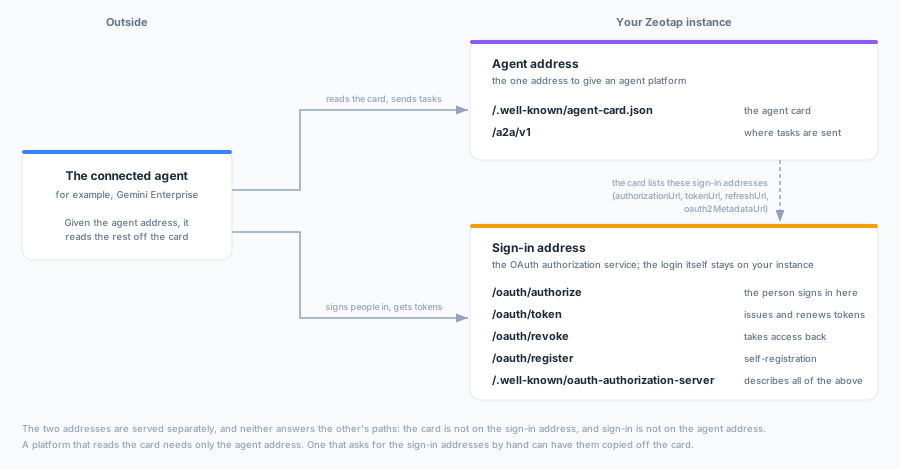
The agent card is not served from the sign-in address, but it carries the sign-in addresses: its OAuth 2.0 security scheme lists authorizationUrl, tokenUrl, refreshUrl and oauth2MetadataUrl. The card is the one place to read them from, because it always names the sign-in address your instance currently serves. So a platform that reads the card needs only the agent address, and one that asks for the sign-in URLs by hand can have them copied off the card:
curl -s https://agentic-a2a.zeotap.com/.well-known/agent-card.json \
  | jq '.securitySchemes[] | select(.type == "oauth2") | {authorizationCode: .flows.authorizationCode, oauth2MetadataUrl}'
The person still signs in on your instance’s own login page; the sign-in address sends them there and back. Substitute your own instance’s addresses throughout this page, and see OAuth for developers for what a client has to implement.
If your instance’s sign-in address changes, sign-in URLs copied off an earlier card keep working: the earlier address still answers them, with the same apps, sign-ins and tokens. Nothing needs to change until you choose to update the agent’s configuration.
Register the agent
An app is registered once and then works in every workspace its users belong to, so registering one is a decision about all of them, made by a Zeotap platform administrator:
- Open Platform admin → Connected apps and click Add connected app.
- Enter a Name. This is what the person sees when the agent asks them to sign in, so use the name they will recognise: “Gemini Enterprise”, not “GE prod”.
- Add the Sign-in return addresses, one per line: where the agent platform returns the person after they sign in. They must match exactly, character for character, what the agent platform sends. An address that is not on this list is refused, and the person is shown an error rather than being sent there. Get them from the agent platform’s own documentation, or click Use Gemini Enterprise settings.
- Pick the Customer, the organization the app is for. A conversation through it can then only run in that customer’s workspaces, even for somebody who also belongs to another customer’s. Any customer lets it run wherever the person signing in belongs, and is for first-party tools, never for a customer’s integration. Once a customer is picked, Only people in this customer’s organization can sign in limits who may allow the app to that organization’s members; anyone else is refused at sign-in, and someone removed from the organization loses access at their next request.
- Answer Where does this agent run?:
- This app can keep a secret — it runs on a server the vendor or your team controls. It is issued a secret, which it presents on every token exchange.
- This app cannot keep a secret (PKCE) — it runs in a browser, on a device, or as a command-line tool, where anything it stores can be read by whoever holds the machine. No secret is issued; each sign-in proves itself with a one-time challenge instead.
- Click Add agent.
The app’s Client ID appears in the list, and for an app that can keep a secret the secret is shown with it, once. Change customer changes the customer later, and Members only turns that limit on or off.
The secret is shown once and cannot be read again. Copy it now. If it is lost or leaks, use Rotate secret to issue a new one, but be aware that the old secret stops working the moment you confirm, and every deployment still holding it breaks until someone pastes the new one in.
Self-registration through Google Cloud Marketplace
Gemini Enterprise bought through Google Cloud Marketplace can register itself, so nobody has to hand a client ID and secret around. It finds the registration endpoint on the agent card and presents a registration signed by Google that names the Marketplace order. Two things must already be true, or the registration is refused:
- The purchase is recorded against the customer. Record the private offer against the customer’s organization under Platform admin → Procurement before sending it. The purchase must be active, or cancelled but still inside its paid term.
- The customer has Gemini Enterprise enabled. A Zeotap platform administrator turns it on for the organization under Platform admin → Gemini Enterprise.
Each Gemini Enterprise app that registers gets its own client ID and secret, and it belongs to the customer the purchase is recorded against. That customer is fixed: Change customer is not offered for a self-registered app. It starts Members only, so only people in that customer’s organization can sign in through it; a platform administrator can turn that off. On Platform admin → Connected apps, a purchase’s apps are listed together under its order.
Self-registered apps are switched off automatically, and Gemini Enterprise has to register again once the cause is fixed, when:
- the purchase ends;
- the purchase is unlinked from the customer, or moved to another one;
- the customer’s organization is deleted;
- Gemini Enterprise is turned off for the customer.
Turning Gemini Enterprise off for a customer disables every self-registered app of theirs straight away, exactly as Disable does for one app. Turning it back on does not re-enable them: Gemini Enterprise has to register again.
What the person sees
Nothing here needs setting up — it is the flow the person goes through the first time they use the connected agent.
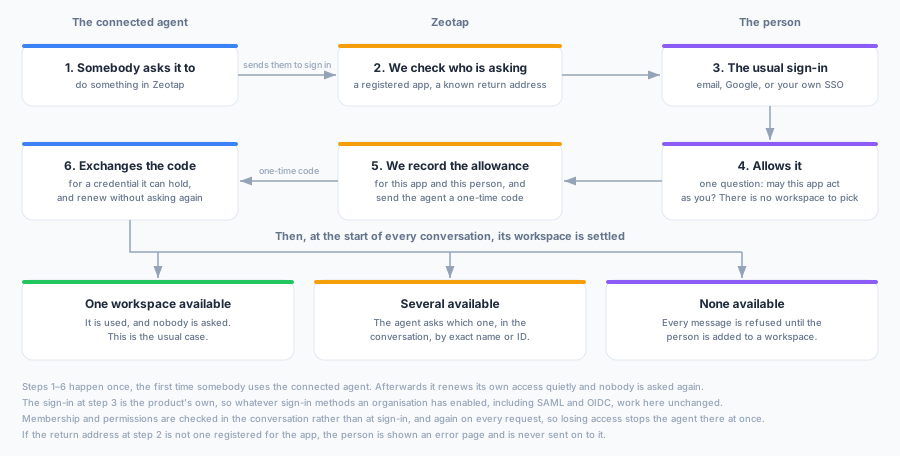
- They ask the other agent to do something that needs Zeotap. It sends them to sign in.
- They see the Zeotap login: email and password, Sign in with Google, or Sign in with SSO for your organisation’s provider. Whatever sign-in methods your organisation has enabled are available here too, because it is the same login. There is no way to create an account here.
- They see one sentence naming the app, and the customer that set it up if it has one, followed by what it will be able to do:
- Use the AI agent as you
- Stay signed in until you remove access, when the agent asks to renew its access on its own
- They click Allow, and are returned to the agent, which can now work on their behalf.
If they click Don’t allow, nothing is issued and the agent is told they declined. There is no workspace to pick: one allowance covers every workspace they work in.
Choosing a workspace
The workspace is settled at the start of each conversation. If one workspace is available it is used and nobody is asked. If several are, the agent asks in the conversation which one to work in. The reply must be a workspace’s exact name or its ID (case does not matter); a reply that matches neither is asked once more, and a second one ends the task. A connected agent that already knows can name the workspace ID in metadata.workspaceId on its first message instead.
A workspace is available when the person is a member of it, has the AI agent permissions there, and, if the app belongs to a customer, it is one of that customer’s workspaces. Membership and permissions are checked again on every request, and the workspace’s own Zeotap Agent switch every time a message is sent. A conversation stays in the workspace it started in; to work somewhere else, start a new conversation. Nobody has to sign in again.
If they cannot allow it
The consent screen checks only that a real, signed-in account is answering; there is no workspace yet to check anything against. It shows This link has expired when the sign-in link is more than ten minutes old, has already been used, or the app has been disabled, and Verify your email to an email-and-password account that is not verified yet, holding the request on the same page while they do.
Whether they may work in a workspace is decided in the conversation, by the same checks that decide whether they can open the agent in the product. So somebody who belongs to no workspace where the agent is available can still click Allow, and is then refused on every message (see Troubleshooting).
What a task looks like
Once the connection is made, work arrives as tasks: the other agent sends a request in plain language and gets results back. Most complete in one go, but three things can interrupt one, and all three are the product’s ordinary behaviour rather than anything specific to connected agents.
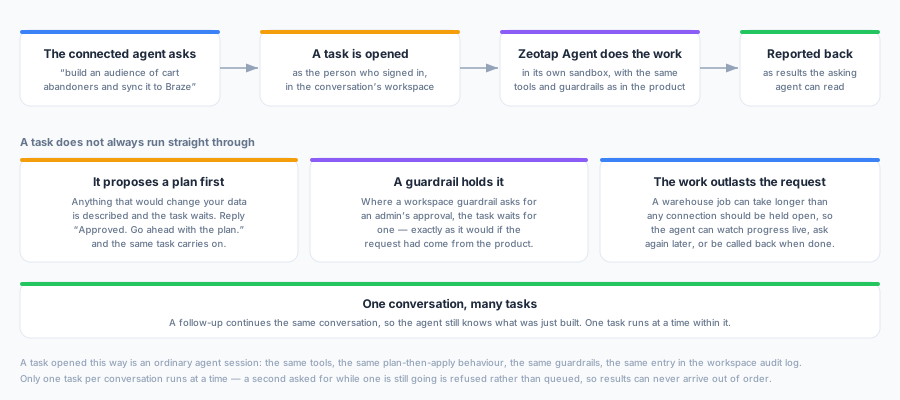
Nothing about this is weaker than using the agent in the product. It plans before it changes anything, guardrails apply, and every action is attributed to the person who signed in.
Review and remove access
Anyone can see what they have connected on their Connected apps page at /account/connected-agents, which the consent screen links to when they allow an app: each app, what it can do, when they allowed it, and when it was last used. Remove access stops it working immediately, not at the end of the hour, and the person has to sign in again from the agent if they want to reconnect it.
A platform administrator has a blunter instrument on Platform admin → Connected apps: Disable switches the app off for everybody at once. Nobody can sign in through it, nothing it holds is renewed, and the access it already holds is refused from then on. A disabled app stays in the list rather than disappearing, so it is clear it was switched off deliberately.
Recipe: Gemini Enterprise
Gemini Enterprise is the reference case, and the whole setup is four values plus the agent card.
1. Register the app. On Platform admin → Connected apps, a platform administrator clicks Add connected app, then Use Gemini Enterprise settings, which fills in Google’s two return addresses:
https://vertexaisearch.cloud.google.com/oauth-redirect
https://vertexaisearch.cloud.google.com/static/oauth/oauth.html
They are fixed by Google and identical for every customer, which is why they are a preset rather than something to look up. Choose your organisation as the Customer, leave This app can keep a secret selected, and copy the client ID and the secret. Bought through Google Cloud Marketplace? Gemini Enterprise can register itself instead, and is issued its own client ID and secret.
2. Create the Authorization resource in Gemini Enterprise. It takes exactly four values. Both URIs are on the sign-in address: copy them off your agent card, as shown above.
| Field | Value |
|---|---|
clientId | the client ID you just copied |
clientSecret | the secret you just copied |
authorizationUri | the card’s authorizationUrl |
tokenUri | the card’s tokenUrl |
3. Register the agent itself. Gemini Enterprise registers an agent from its card. Fetch yours from the agent address and paste the JSON in:
curl https://agentic-a2a.zeotap.com/.well-known/agent-card.jsonAttach the Authorization resource from step 2 to it.
4. Invoke it. The first person to use the agent is prompted to sign in and allows it. If more than one workspace is available to them, the agent then asks which one to work in. Gemini Enterprise keeps the connection alive on its own from then on.
Gemini Enterprise consumes the 0.3 rendering of the agent card, which is what /.well-known/agent-card.json returns by default. You do not need to ask for a particular version.
Troubleshooting
Fetching the agent card finds nothing. The card is served only from the agent address, not the sign-in address.
“This app could not be signed in.” The agent platform sent a client ID we do not recognise, or a return address that is not on the registered list. Compare the two lists character for character — a trailing slash or http instead of https is a different address. This error is deliberately shown as a page rather than being sent back to the agent, because an address we did not register is not an address we will send anybody to.
Signing in works, then every message is refused with “Permission denied: you are not a member of any workspace where the agent is available”. The person has allowed the app but has nowhere to work: they belong to no workspace, lack the AI agent permissions in each, or the app belongs to a customer whose workspaces they are not in. A brand-new account sees exactly this. Invite them to a workspace with a role that can use the agent, and their next message works without signing in again.
“The agent is disabled for this workspace.” The workspace has switched Zeotap Agent off on its Settings page.
Gemini Enterprise cannot register itself. Check that the purchase appears under Platform admin → Procurement as active and linked to the customer’s organization, and that Gemini Enterprise is turned on for that organization under Platform admin → Gemini Enterprise. A purchase that ended cannot register new apps.
The agent worked and then stopped. Either the connection was removed on the person’s Connected apps page, the app was disabled under Platform admin → Connected apps, or the person’s access to the workspace changed. Allowing and removing a connected agent is not recorded in any workspace’s audit log, because it belongs to the person rather than to a workspace.
It stopped working for everybody at once. Check whether the app was disabled, or whether the secret was rotated and the agent platform is still holding the old one.
Other ways in
A connected agent is the right choice when a person is driving it. For a test suite or an unattended service, where no browser can complete a sign-in, use an A2A key instead — Governance → API Keys, on the A2A Keys tab. It acts as whoever created it, is fixed to one workspace, and is presented the same way, to the agent address. See Authentication.
Next Steps
- Authentication — every credential Zeotap accepts, and which surface each one works on
- AI Agent — what Zeotap Agent can do once an agent hands it work
- Guardrails — the approvals that apply to an agent’s actions, connected or not