Relationships
Relationships define how entity types connect to each other in your data model. They enable cross-entity queries in Audiences, power the ERD visualization, and provide the structural foundation for identity resolution and orchestration.
What Is a Relationship?
A relationship is a named, typed connection between two entity types. It specifies:
- Which entity types are connected (e.g., User and Account)
- The cardinality of the connection (one-to-one, one-to-many, many-to-one, many-to-many)
- The join keys used to link records from each entity type
- The direction of the relationship (which entity “owns” the connection)
Relationship Types
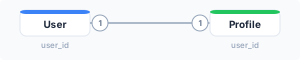
One-to-One
Each record in entity A is linked to exactly one record in entity B, and vice versa.
Example: A User has one Profile.
One-to-Many
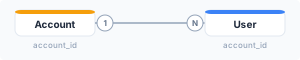
Each record in entity A can be linked to multiple records in entity B, but each record in B links to exactly one record in A.
Example: An Account has many Users.
This is the most common relationship type. Other examples:
- A User has many Orders
- An Account has many Subscriptions
- A Category has many Products
Many-to-One
Many records in the from-model map to one record in the to-model — the mirror of one-to-many, chosen when the model you are starting from is the “many” side.
Example: Many Orders belong to one User.
Pick the direction that matches how you will read the data. Starting from Orders and reaching the owning User is many-to-one; starting from the User and reaching their Orders is one-to-many. The join keys are the same either way — what differs is which model is the parent.
Many-to-Many
Records in entity A can be linked to multiple records in entity B, and vice versa.
Example: Users can purchase many Products, and Products can be purchased by many Users.

Many-to-many relationships are typically resolved through an intermediate model (a junction table):
-- Junction model: User-Product Purchases
SELECT DISTINCT user_id, product_id
FROM order_items oi
JOIN orders o ON oi.order_id = o.order_id
Creating a Relationship
Using the UI
- Navigate to Relationships in the left sidebar
- Click Add Relationship (or use the context menu on an entity type)
- Select the source entity type (the “from” side)
- Select the target entity type (the “to” side)
- Choose the relationship type (one-to-one, one-to-many, many-to-one, many-to-many)
- Configure the join keys:
- Select the attribute from the source entity that links to the target
- Select the matching attribute from the target entity
- If the attribute is a JSON column or an array, the picker continues into it so you can choose the field to join on (see Nested and array join keys)
- Give the relationship a name (e.g., “User belongs to Account”)
- Click Save
Using the API
curl -X POST https://agentic.zeotap.com/api/v1/relationships \
  -H "Authorization: Bearer $API_TOKEN" \
  -H "Content-Type: application/json" \
  -d '{
    "name": "User belongs to Account",
    "source_entity_type_id": "et_user123",
    "target_entity_type_id": "et_account456",
    "type": "many_to_one",
    "source_key": "account_id",
    "target_key": "id"
  }'
Configuring Join Keys
Join keys define how records from two entity types are matched. The source key is an attribute on the source entity, and the target key is an attribute on the target entity. Records are linked when their join key values match.
A key is usually a plain column, but it can also point inside a column — at a field of a JSON payload, or at the elements of an array. See Nested and array join keys.
Simple Join Key
The most common case — a foreign key on one entity references the primary key of another:
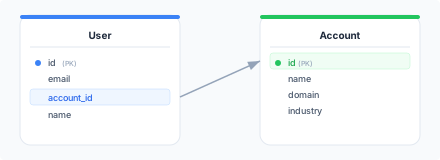
- Source entity: User
- Source key:
account_id - Target entity: Account
- Target key:
id
Shared Key
Sometimes two entities share the same key without a formal foreign key:
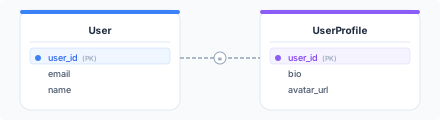
- Source key:
user_id - Target key:
user_id
Nested and Array Join Keys
A join key does not have to be a plain column. When the value you want to join on lives inside a JSON column or inside an array, write the key as a path:
| Key form | Example | What it joins on |
|---|---|---|
| Plain column | customer_id | The column’s value |
| JSON path | metadata.customer.id | A single value extracted from a JSON, VARIANT, or STRUCT column |
| Array of values | email_ids[] | Every value in the array — the record matches if any of them match |
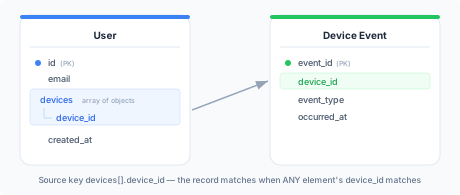
| Array of objects | devices[].device_id | One field of every element — the record matches if any element matches |
| Array inside JSON | metadata.devices[].id | An array nested inside a JSON column, then one field per element |
The [] marker means “traverse this array”. A key may contain at most one [], and it must come directly after the name of the array it applies to.
When to use each form
- Plain column — the default. Use it whenever a real column already holds the join value.
- JSON path — the identifier you join on is buried in a semi-structured payload (a
metadata,profile, or eventpayloadcolumn) and you do not want to build a separate model just to pull it out. col[]— the record carries a list of identifiers, such as a list of email addresses or device ids, and any one of them should link the record.col[].field— the record carries a list of objects and the identifier is one field of each object.
Any-element matching
An array key matches when any element matches. devices[].device_id on the source side means “this user matches a device event if any of their devices has that id”.
Three consequences are worth knowing:
- An array key implies to-many matching. One source record holds several join values, so it can link to several target records regardless of the cardinality you declared. Zeotap shows a hint in the relationship editor when an array key contradicts the selected relationship type; it does not block you, but the count you get will follow the data, not the label.
- Quantifiers still count records, not elements. In an audience, a relation condition’s
any/allquantifier applies to the related records that matched, exactly as it does for plain-column relationships. It never quantifies over array elements. - Event counts still count events. An event condition such as “performed at least 2 times” counts event records. An event that matches through three different array elements counts once, not three times.
Validation
Join keys are checked when you save the relationship, so a bad key is a clear error rather than a query that fails later. You will see a message when:
- the key does not parse — an empty path segment, more than one
[], a[]that does not follow a name, or a character outside letters, digits,_,$and-; - the base column does not exist on that model;
- the key contradicts what Zeotap knows about the column — a
[]on a timestamp column, a dot-path into a plain text column, or an element path such astags[].nameon an array of plain values; - both the source key and the target key traverse an array. At most one side of a relationship may use
[]; - a many-to-many junction key uses
[]. Junction keys must be plain columns or JSON paths.
Where Zeotap has no type information for a column — a model whose columns were never introspected, or a path that disappears into an opaque JSON payload — validation stays permissive and lets the key through.
Where path keys can be used
JSON-path keys work everywhere a relationship works — audience relation conditions, event conditions, many-to-many relationships, computed traits and related-model columns — on every supported warehouse.
Array keys are narrower on the two surfaces that build a keyed table rather than evaluate a match:
| Surface | JSON path | col[] / col[].field |
|---|---|---|
| Audience relation / event conditions | Supported | Supported on either side (one side only) |
| Computed traits | Supported | Supported on the related (source) side only |
| Related-model columns in field mapping | Supported | Supported on the related side; on the parent side only from the second hop onward |
Using an array key on the parent side of a computed trait, or on the first hop of a related-model column, is rejected with an explanatory message: the result is joined back once per entity, so matching a list of keys there would duplicate that entity’s row.
On the parent side of a later hop of a related-model column, only whole-array keys (col[]) are accepted, and on BigQuery only when the column is a real array rather than an array held inside JSON. An element-field key such as devices[].device_id cannot be expressed in that position on Snowflake, BigQuery, or Databricks. The error message points at the two ways out: put the array on the related side of the relationship instead, or address a single value with a JSON path.
Array join keys work on every supported warehouse that has an array type — ClickHouse included. Redshift is the exception: it has no ARRAY or STRUCT type, so array keys and nested-field keys are not offered on Redshift sources at all. Flatten the values into typed columns in a model and join on those instead. The single ClickHouse-specific exception sits in related-model columns: an array key on the parent side of a later hop is refused there, because ClickHouse only accepts equality conditions in join clauses. The error points at the fix — put the array on the related side of the relationship instead. JSON-path keys have no warehouse-specific restrictions at all.
Relationship Direction
Relationships in Zeotap have a direction, which affects how they’re queried in Audiences:
- Forward: “User belongs to Account” — from User to Account
- Reverse: “Account has Users” — from Account to User (automatically created)
When you create a relationship, Zeotap automatically creates the reverse relationship so you can traverse the graph in both directions.
How Relationships Are Used
Audiences
Relationships enable cross-entity audience criteria. For example:
- “Find Users whose Account has more than 100 employees” — Traverses the User-to-Account relationship
- “Find Accounts with at least one User who made a purchase in the last 30 days” — Traverses Account-to-User and User-to-Order relationships
- “Find Users who purchased a Product in the ‘Enterprise’ category” — Traverses User-to-Order and Order-to-Product relationships
Identity Resolution
Relationships help identity resolution understand the structure of your data. For example, knowing that Users belong to Accounts prevents merging users from different accounts that happen to share a phone number.
ERD Visualization
All relationships appear as connecting lines in the ERD visualization, showing the full structure of your data model at a glance.
Orchestration
Orchestrations use relationships to enrich personalization context. For example, an orchestration triggered by a User event can pull Account attributes (like company name) through the User-to-Account relationship.
Example Data Models
E-Commerce
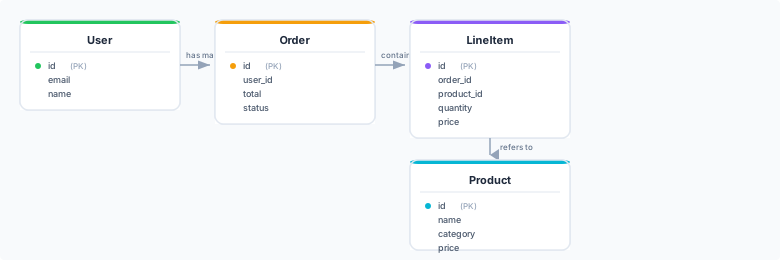
Relationships:
- User has many Orders (one-to-many, join:
User.id=Order.user_id) - Order has many LineItems (one-to-many, join:
Order.id=LineItem.order_id) - LineItem refers to Product (many-to-one, join:
LineItem.product_id=Product.id)
SaaS B2B
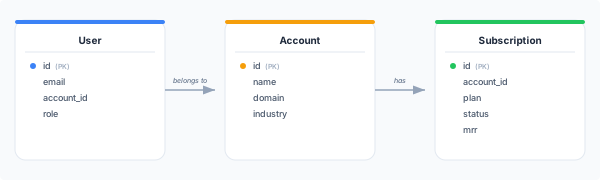
| User | Account | Subscription |
|---|---|---|
| id (PK) | id (PK) | id (PK) |
| name | account_id | |
| account_id | domain | plan |
| role | industry | status |
| mrr |
Relationships:
- User belongs to Account (many-to-one, join:
User.account_id=Account.id) - Account has Subscriptions (one-to-many, join:
Account.id=Subscription.account_id)
Managing Relationships
Editing a Relationship
To modify an existing relationship:
- Navigate to Relationships in the sidebar
- Click on the relationship line in the ERD (or find it in the relationships list)
- Update the name, type, or join keys
- Click Save
Changing join keys may affect audiences and identity resolution rules that depend on the relationship.
Deleting a Relationship
- Navigate to Relationships in the sidebar
- Select the relationship to delete
- Click Delete and confirm
Zeotap warns if the relationship is used in audience definitions, identity resolution rules, or orchestration triggers.
Best Practices
- Name relationships clearly — Use descriptive names like “User belongs to Account” rather than “User-Account”
- Use correct cardinality — Misclassifying a one-to-many as many-to-many can lead to incorrect audience counts
- Ensure join keys are indexed — For performance, make sure the columns used as join keys are indexed in your warehouse
- Avoid circular relationships — While technically possible, circular relationships (A -> B -> C -> A) can cause confusion in audience queries
- Start with core relationships — Define the most important relationships first (User-Account, User-Order) and add others incrementally
Next Steps
- Visualize your data model to see the full entity-relationship diagram
- Build audiences using cross-entity criteria
- Set up identity resolution across entity types