Managing Members
People are invited to an organization, and they reach a workspace by being in a group that holds a grant on it. There is no workspace invitation, no per-member role and no per-member removal — so this page is really two things: how somebody joins, and how a group carries them the rest of the way.
Member Lifecycle
Invited to the organization → Accepted → In the roster
      → Added to a group → Reaches every workspace that group is granted
      → Removed from the group, or the grant revoked → Reaches it no longer
The second line is where access actually lives. Joining the organization on its own reaches nothing.
Inviting People
Via the UI
Organization settings → Members carries the Invite a new member form:
- Enter the person’s email address
- Pick the groups they land in from the groups picker. It starts on No groups (add them later), and you can tick several
- Click Invite
Picking groups at invite time is the ordinary case, and it is what makes an invitation useful — the person can do something the moment they accept. Leaving it empty is legal and means they join the roster and reach nothing until a group takes them in.
The invitee receives an email with a link. They must create a Zeotap account, or sign in to an existing one, to accept it.
Via the API
curl -X POST "$API_BASE_URL/api/v1/organizations/$ORG_ID/members/invite" \
  -H "Authorization: Bearer $API_TOKEN" \
  -H "Content-Type: application/json" \
  -d '{
    "email": "analyst@mycompany.com",
    "group_ids": ["7c1f4e2a-9b3d-4f18-a0c6-2d5e8b1f9034"]
  }'
List the groups you can name with GET /api/v1/organizations/{orgId}/groups.
Inviting Several People
There is no bulk invite endpoint — invite one person per call. To onboard a team, loop over the addresses:
for EMAIL in analyst1@mycompany.com analyst2@mycompany.com; do
  curl -X POST "$API_BASE_URL/api/v1/organizations/$ORG_ID/members/invite" \
    -H "Authorization: Bearer $API_TOKEN" \
    -H "Content-Type: application/json" \
    -d "{\"email\": \"$EMAIL\", \"group_ids\": [\"$ANALYSTS_GROUP_ID\"]}"
done
Everyone in that loop lands in the same group, which is the point: one grant then decides what the whole intake can do, and changing it later is one call rather than N.
Who Can Invite
Inviting requires organization administration — membership of the Organization admins group. Anyone else sees the Members tab without the invite form. A second invite to an address that already has a live pending invitation is rejected; once the first one lapses, a new one can be sent.
Managing Invitations
Pending invitations are listed on Organization settings → Members, under the invite form, each with Resend and Cancel.
Invitation Status
| Status | Meaning |
|---|---|
pending | Sent, not yet accepted |
accepted | Accepted — the invitee is now in the roster and in the groups it named |
cancelled | Revoked before it was accepted |
An invitation also carries expires_at, set to seven days after it was created. Expiry is a timestamp rather than a status: an invitation past its expires_at stays pending in the record, and is refused on accept.
Accepting an invitation is idempotent — the post-signup verification flow can land two tabs on the accept page at once, and the loser of that race sees success rather than “not pending”.
Resending and Cancelling
Resend sends the same link again to the same address, while the invitation is still pending and unexpired. For one that has lapsed, send a fresh invitation instead — the expired one no longer blocks the address.
Cancel moves the invitation to cancelled, and its link stops working.
Who Reaches a Workspace
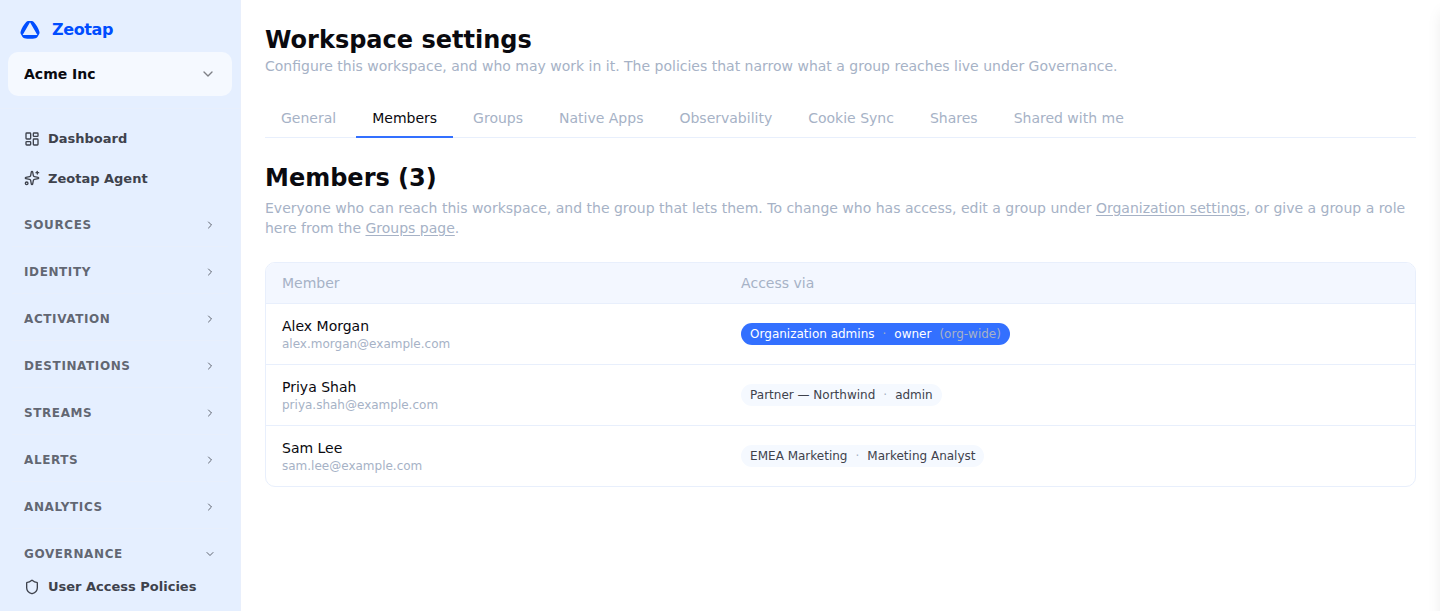
Workspace settings → Members, inside a workspace (open Workspace settings, the last item under Governance in the sidebar), lists everyone who can act there and — the part a membership list could not tell you — the group and role that let them. The list is read-only: there is nothing here to edit, because there is no membership record. Each grant chips through to the group that carries it.
An organization-wide grant is labelled (org-wide) on its chip. That is somebody reaching this workspace through Organization admins or Organization viewers, so there is nothing on this workspace’s Workspace settings → Groups tab to revoke — you change it by editing the group.
curl "$API_BASE_URL/api/v1/workspaces/$WORKSPACE_ID/members" \
  -H "Authorization: Bearer $API_TOKEN" \
  -H "X-Workspace-ID: $WORKSPACE_ID"
[
{
"account_id": "b41d9e73-0a62-4c85-9f17-8e2d3b6a0c59",
"email": "analyst@mycompany.com",
"name": "Ada Analyst",
"grants": [
{
"group_id": "7c1f4e2a-9b3d-4f18-a0c6-2d5e8b1f9034",
"group_name": "EMEA Marketing",
"system_key": "",
"role_id": "00000000-0000-0000-0000-000000000003",
"role_name": "member",
"scope": "workspace"
}
]
}
]scope is "workspace" for a grant naming this workspace and "organization" for a wildcard one.
Changing What Somebody Can Do
There are two ways, and which one you want depends on whether the change is about the person or about the team.
Change the role on the grant when the whole group should be able to do more or less here:
curl -X PUT "$API_BASE_URL/api/v1/organizations/$ORG_ID/groups/$GROUP_ID/workspaces/$WORKSPACE_ID" \
  -H "Authorization: Bearer $API_TOKEN" \
  -H "Content-Type: application/json" \
  -d '{"role_id": "00000000-0000-0000-0000-000000000002"}'
Move the person to a different group when it is about them — from their row on Organization settings → Members, as described below. A person can be in several, and their permissions are the union.
Either takes effect on their next request, and both are recorded in the workspace audit log. If neither fits, the honest answer is that the team needs a custom role that says what it can do — not a one-person exception.
Changing Somebody’s Groups From the Members Tab
Organization administrators and platform administrators can edit a person’s groups without opening each group:
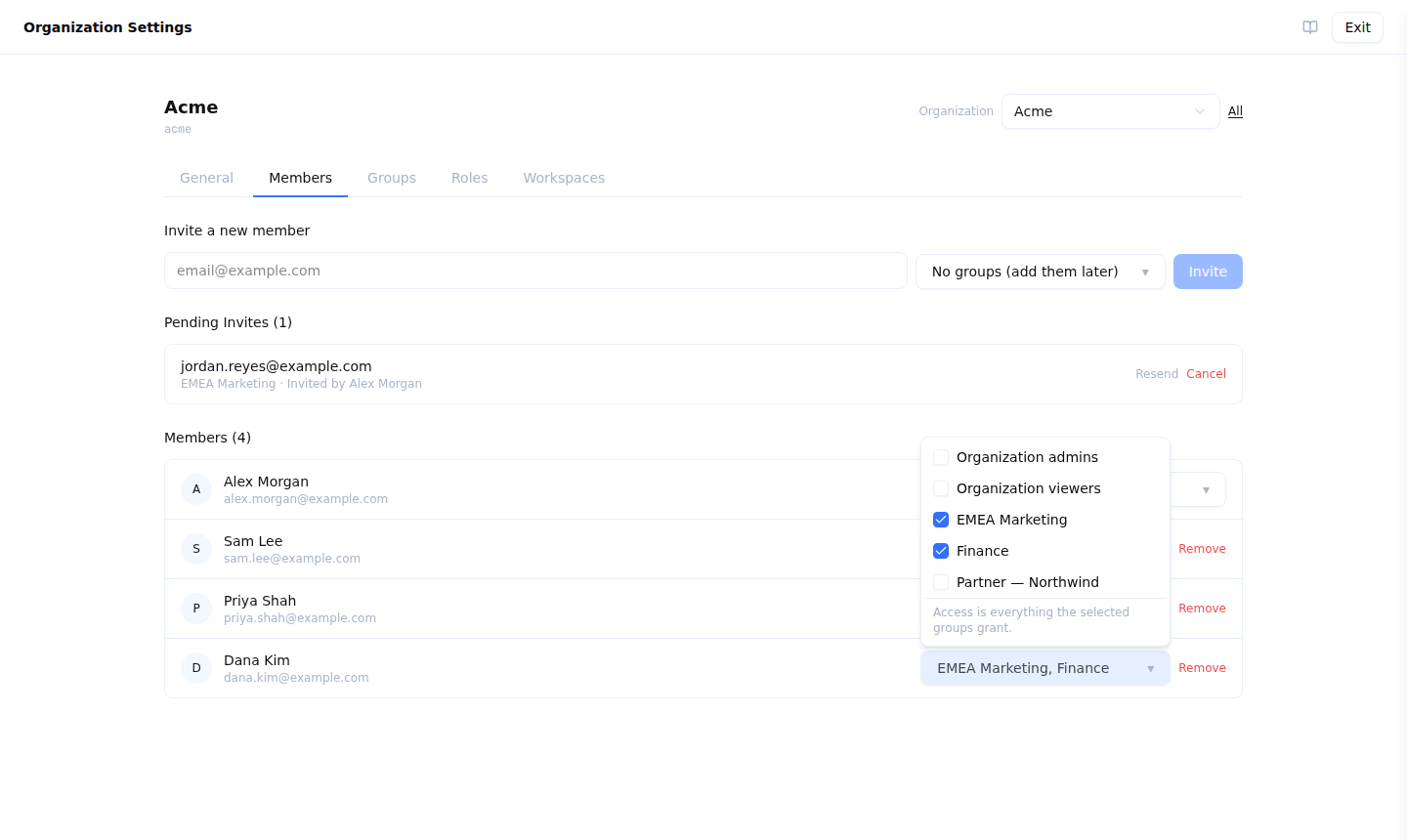
- Open Organization settings → Members
- On the person’s row, open the groups picker. It lists every group in the organization, with the ones they are in ticked
- Tick or untick groups. Each change saves immediately
When nothing is ticked the picker reads No groups, and its footer reminds you the person is In no group, so no access to any workspace.; with groups ticked it reads Access is everything the selected groups grant. Everyone who is not an administrator sees a member’s groups as plain text.
Adding somebody to Organization admins, or removing them from it, asks for confirmation first, because that group’s membership is the power to change everyone else’s. Removing the last member of Organization admins is refused, and the reason is shown under the picker.
Over the API, the same change is one group-membership call per group:
curl -X POST "$API_BASE_URL/api/v1/organizations/$ORG_ID/groups/$GROUP_ID/members" \
  -H "Authorization: Bearer $API_TOKEN" \
  -H "Content-Type: application/json" \
  -d '{"account_id": "b41d9e73-0a62-4c85-9f17-8e2d3b6a0c59"}'
Removing Access
Removing somebody’s access to one workspace means taking them out of the group that reaches it:
curl -X DELETE "$API_BASE_URL/api/v1/organizations/$ORG_ID/groups/$GROUP_ID/members/$ACCOUNT_ID" \
  -H "Authorization: Bearer $API_TOKEN"
Removing a whole group’s access to a workspace means revoking the grant:
curl -X DELETE "$API_BASE_URL/api/v1/organizations/$ORG_ID/groups/$GROUP_ID/workspaces/$WORKSPACE_ID" \
  -H "Authorization: Bearer $API_TOKEN"
Removing somebody from the organization entirely removes them from every group in it:
curl -X DELETE "$API_BASE_URL/api/v1/organizations/$ORG_ID/members/$ACCOUNT_ID" \
  -H "Authorization: Bearer $API_TOKEN"
What Happens
- The person loses access on their next request — permissions are resolved from the grants that reach them, and there are now fewer
- Resources they created — models, audiences, syncs — stay in the workspace and keep running
- They drop out of the workspace’s Members list, because that list is derived from the grants
Check the other groups. Someone in two groups that both reach a workspace still reaches it after you remove them from one; the Members list is the fastest way to see whether anything is left. Membership of Organization admins in particular reaches everything, and is the one to check first.
API keys they created keep working while the account behind the key still resolves to permissions in the workspace. Revoke the keys separately when the access should stop.
The Last Administrator
Removing the last member of Organization admins is refused with 409 last_org_admin. Add the replacement first.
Seeing What a Member Did
The workspace audit log is the record of who changed what. Every entry carries the actor, the action, the resource it touched and when — filter it by actor to follow one person. Grants are recorded there too, under the workspace they affect.
API Reference
Membership and invitations are organization-scoped — {orgId} is your organization ID. See Base URL for your instance’s API base URL and Authentication for the required Authorization header.
# The roster
GET    /api/v1/organizations/{orgId}/members
DELETE /api/v1/organizations/{orgId}/members/{accountId}

# Invitations (one per call)
POST   /api/v1/organizations/{orgId}/members/invite
GET    /api/v1/organizations/{orgId}/invites
POST   /api/v1/organizations/{orgId}/invites/{inviteId}/resend
DELETE /api/v1/organizations/{orgId}/invites/{inviteId}
POST   /api/v1/organizations/{orgId}/invites/{inviteId}/accept

# The invitee's own view, matched on their verified email
GET    /api/v1/account/invites

# Groups carry people into workspaces
POST   /api/v1/organizations/{orgId}/groups/{groupId}/members
DELETE /api/v1/organizations/{orgId}/groups/{groupId}/members/{accountId}
PUT    /api/v1/organizations/{orgId}/groups/{groupId}/workspaces/{workspaceId}
DELETE /api/v1/organizations/{orgId}/groups/{groupId}/workspaces/{workspaceId}

# Who reaches one workspace, and which groups grant that
GET    /api/v1/workspaces/{id}/members
GET    /api/v1/workspaces/{id}/groups

# The roles a grant can carry, with the IDs the calls above expect
GET    /api/v1/organizations/{orgId}/roles
Best Practices
- Grant the least privileged role — start a group on Member and change the grant as needed. It’s easier to add permissions than to discover someone had too much access.
- One group per team, not per person — a group of one is a membership row with extra steps, and it is the shape that stops scaling first. If two people need the same thing, they want the same group.
- Keep Organization admins small — it reaches every workspace in the organization, including ones that do not exist yet.
- Audit quarterly with the workspace’s Workspace settings → Members tab — it names the group behind every person, so “why does this contractor still have access?” is answerable without cross-referencing anything.
- Remove departed people from the organization, not from each group — one call, and it cannot miss a group.
- Name a custom role rather than making an exception — a combination that belongs to a job title will be wanted twice.
Next Steps
- Set up groups — the thing that actually grants access
- Define access policies for row-level access control
- Configure destination policies for data flow governance
- Organizations — the container all of this lives in