Rules
An alert rule watches a set of resources for a specific problem and raises an incident when its condition is breached. A rule is a scope (what it watches), a trigger (what kind of problem), a condition (the threshold), a severity, and the channels to notify.
Prerequisites
- At least one channel to notify
- The
alerting.writepermission to create or edit rules (alerting.readto view them)
Creating a Rule
Alerts → Rules → Add Rule opens a three-step wizard.
1 · Scope. Name the rule and choose the resource type to watch. Any resource watches every type; a specific type (Sync, Journey, Loader, Store feed, Realtime audience, Identity graph, Event forwarding, Contract, or — where Data Prep is enabled for your workspace — Prepared table, and — where anomaly monitoring is enabled — Event stream) either watches everything of that type — leave the resource list empty — or the resources you name.
2 · Trigger. Choose what kind of problem to watch for, fill in its threshold fields, and set the severity to Critical or Warning. Which triggers are offered depends on the resource type, not on which resources you named.
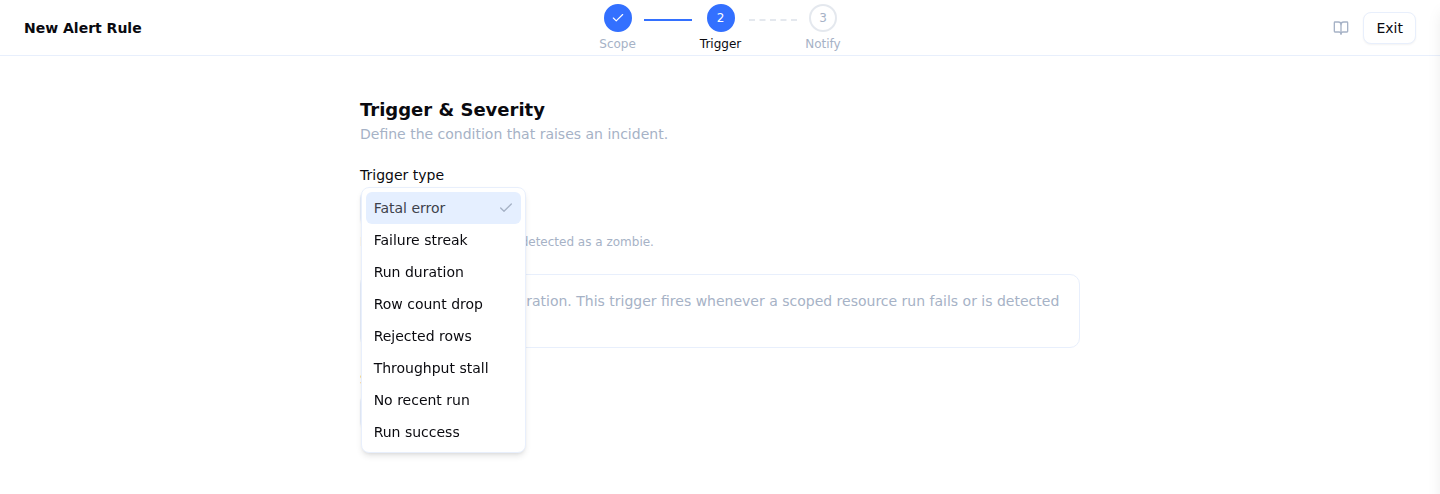
3 · Notify. Select the channels to notify, and save.
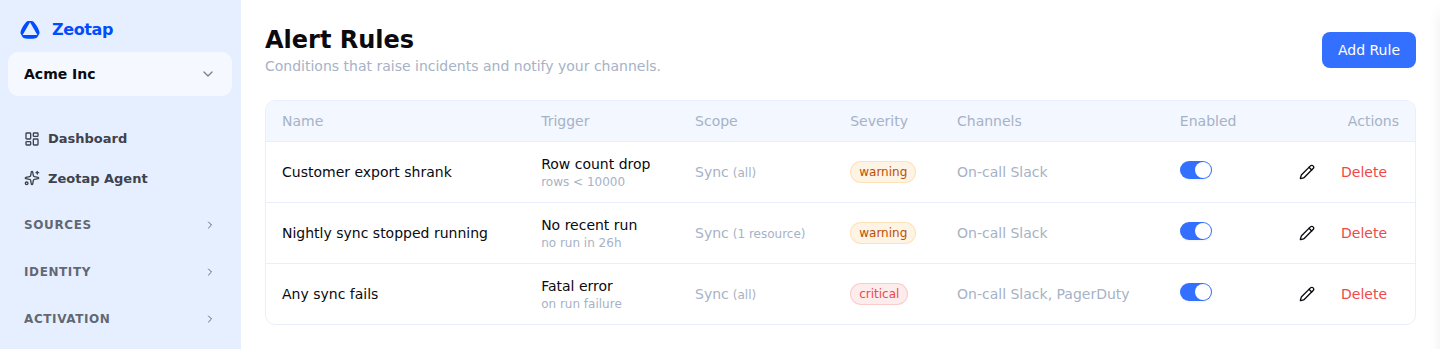
Saved rules are listed with their trigger, scope, severity and channels:
Trigger Types
Each trigger watches for a different class of problem and has its own condition fields.
| Trigger | Fires when | Condition |
|---|---|---|
| Fatal error | A run fails or is detected as a stalled (zombie) run | No configuration |
| Failure streak | A resource fails a number of times in a row | Consecutive-failure threshold |
| Run duration | A run takes longer than a threshold | Maximum duration, in milliseconds |
| Row count drop | A completed run writes fewer rows than expected | Minimum expected rows |
| Rejected rows | Too many rows are rejected in a run | An absolute count or a percentage of total rows |
| Throughput stall | Too few successful runs complete within a window | Window (hours) and minimum successful runs |
| Delivery failure | Event deliveries fail within a window | Minimum occurrences and window (minutes) |
| Contract violation | Contract violations occur within a window | Minimum occurrences and window (minutes) |
| No recent run | No run has been created for a resource within a window — a schedule that quietly stopped firing | Window, in hours |
| Run success | A run completed cleanly. Notifies rather than opening an incident | No configuration |
| Membership update held back | A realtime audience’s new membership was set aside as unusually large, so the audience keeps serving its previous membership | No configuration |
| Data tests failed | A prepared table’s data tests failed, so nothing was published and the table still holds what it held before | No configuration |
| Incremental table drifted | A reconcile run found an incremental prepared table no longer matches what a full rebuild of it would produce | No configuration |
| An input gained a column | A build found a new column on one of a prepared table’s inputs | No configuration |
| Behind its inputs | A prepared table’s inputs have been newer than its last build for longer than the window set on that table | Set on the prepared table, not on the rule |
| Configuration review found a problem | A background review of a saved audience, journey or sync found a problem nobody has been told about yet. Recovers when a later review finds it fixed, or the finding is dismissed | No configuration |
| Anomaly detected | Anomaly monitoring found activity far outside the same hours over the past week — runs, failures, event volume or deliveries | No configuration |
Which of these a rule can use depends on the resource type it is scoped to — a trigger that could never fire for a resource is not offered:
| Resource type | Triggers available |
|---|---|
| Any resource | Fatal error, Run duration, Run success, Anomaly detected, Configuration review found a problem |
| Sync | Fatal error, Failure streak, Run duration, Row count drop, Rejected rows, Throughput stall, No recent run, Run success, Anomaly detected, Configuration review found a problem |
| Journey | Fatal error, Run duration, No recent run, Run success, Anomaly detected, Configuration review found a problem |
| Loader | Fatal error, Run duration, No recent run, Run success, Anomaly detected |
| Store feed | Fatal error, Run duration, Row count drop, No recent run, Run success |
| Realtime audience | Fatal error, Run duration, Row count drop, Membership update held back, Run success |
| Identity graph | Fatal error, Run duration, Run success |
| Event forwarding | Delivery failure, Anomaly detected |
| Contract | Contract violation |
| Event stream | Anomaly detected |
Failure streak and Throughput stall read sync run history, so they are offered on syncs. Delivery failure reads the event delivery log and Contract violation reads recorded violations, so each is offered only on its own resource type. Anomaly detected and the Event stream resource type are offered only where anomaly monitoring is enabled for your workspace, since nothing else produces anomalies.
Fatal error
Fires whenever a scoped resource’s run fails or is detected as a stalled (zombie) run. No additional configuration.
Failure streak
Fires once a resource has failed a given number of times in a row.
- Consecutive failures threshold — for example,
3fires after three consecutive failures.
Run duration
Fires when a run takes longer than a threshold.
- Maximum duration (ms) — for example,
300000(five minutes).
Row count drop
Fires when a completed run writes fewer than the expected number of rows — useful for catching upstream data that has silently dried up.
- Minimum expected rows — for example,
1000.
Scoped to a Realtime audience, this reads that audience’s own membership size after a rebuild rather than a run total — so it answers “did this audience drop below 10,000 members”. It does not fire on a rebuild whose membership was held back (see below), because the audience is still serving its previous membership and the set-aside size is not what anyone is being served.
A run that did not report a count at all never breaches this rule: “we could not measure it” is not the same as “it wrote nothing”. A count that was measured and came back as zero does breach — an audience that has emptied out is exactly what this rule is for.
No recent run
Fires when no run has been created for a resource within a window. This is the trigger for a schedule that has stopped firing — distinct from a run that fired and failed, which every other trigger covers.
- No run for (hours) — for example,
2on an hourly sync.
It applies to resources that run per resource — syncs, journeys, loaders and store feeds. A realtime audience is rebuilt by a pass covering whichever audiences it was asked to, so its freshness is watched with Row count drop and Membership update held back instead.
Run success
Notifies the rule’s channels whenever a scoped run completes cleanly. It is the one trigger that raises no incident — a success is not a problem to track and recover from — so there is nothing to mute or resolve afterwards.
Useful on a nightly pipeline someone wants confirmation of, and available on every resource type.
Rejected rows
Fires when too many rows are rejected in a run. Choose one of two threshold types:
- Absolute count — fire when at least this many rows are rejected.
- Percent of total rows — fire when rejected rows exceed this percentage of total rows.
Throughput stall
Fires when fewer than the expected number of successful runs complete within a rolling window — useful for catching a pipeline that has quietly stopped running.
- Window (hours) — the rolling window to evaluate.
- Minimum successful runs — fire when fewer than this many successful runs complete in the window.
Delivery failure
Fires when at least a given number of event deliveries fail within a window.
- Minimum occurrences and Window (minutes).
Contract violation
Fires when at least a given number of contract violations occur within a window.
- Minimum occurrences and Window (minutes).
Membership update held back
Available on the Realtime audience scope. No additional configuration.
Each snapshot rebuild works out a realtime audience’s new membership and compares it with the previous one. When the change is unusually large, Zeotap sets the new membership aside rather than publishing it: the audience keeps answering from its previous membership, and someone has to review and release it before a rebuild can publish again.
This trigger exists because the rebuild itself succeeds in that case. The run reports a clean outcome, so no failure-based trigger fires — and the audience can carry on serving out-of-date membership indefinitely with nothing prompting anyone to look. Rules on this trigger recover automatically on the next rebuild that publishes the audience’s membership normally.
A companion worth pairing with it: scope Row count drop to the same realtime audience to be told when the audience’s membership itself falls below a floor you expect.
Anomaly detected
Available on Any resource, Sync (model and audience syncs), Journey, Loader, Event forwarding and Event stream, once anomaly monitoring is enabled for your workspace. No additional configuration: the anomaly monitor has already compared the resource with the same hours over the past week and decided what is unusual, so there is no threshold left to set. Scoping is what narrows the rule to the resources you care about. Event stream covers the workspace’s event volume — in total and for its busiest individual events — and watches all of it; it has no resource list.
The incident opens when an anomaly is found and recovers only when the anomaly is resolved — when the monitor sees activity back to normal, when the resource is paused or deleted, when someone dismisses the anomaly, or when anomaly monitoring is turned off for the workspace — never on the next successful run, because the anomaly may be that a sync now runs a tenth as often as it used to, and each of those rare runs still succeeds. If several anomalies are open on the same resource (for example, fewer runs and more failures), the incident recovers once the last of them resolves.
Prepared table scope
Available where Data Prep is enabled for your workspace. A Prepared table rule can watch every prepared table in the workspace (leave the table list empty) or name specific ones.
The everyday rule is Fatal error scoped to Prepared table with no tables named: any Data Prep build failure in this workspace. It covers the failures nothing inside a build could report — a build whose container was killed, and one that never started at all — because Zeotap fails those from the outside and reports them for every table the build was going to produce.
One build usually covers several prepared tables at once, because a build follows the chain of tables that feed each other. Alerts are keyed on the table, not on the build, so:
- A build in which one table failed and three succeeded raises an incident for the one that failed, and nothing for the three that did not.
- A table skipped because something it reads failed is reported as failed too, and the notification names the table that actually broke — the person watching a downstream table is usually not the person watching its input.
- An incident recovers on that table’s next successful build.
The other four triggers exist because a prepared table has bad states that no run outcome describes. In all four the build succeeded — or there was no build at all:
- Data tests failed — the tests ran, the data was wrong, and the build refused to publish it. The live table is intact and still serving; what is wrong is what was about to replace it. Tests you set to warn are recorded on the build but never fire this, because you already said they should not stop anything.
- Incremental table drifted — a reconcile compared the incremental table against a full rebuild of it and they disagree. Every build was green; the table is wrong anyway. A full refresh is the fix.
- An input gained a column — the build succeeded and its output is correct. This is a prompt to re-validate the recipe before someone wonders why the new column is missing.
- Behind its inputs — nothing failed, because nothing ran. Set the window on the prepared table itself, under Build when inputs change; a table with no window set never fires this.
Being briefly behind your inputs is normal — it is the gap between data landing and the build that follows it, and the table list shows a chip for exactly that. The Behind its inputs trigger is about that gap persisting, which is why the window lives on the table: an hourly table and a nightly one disagree about how long is too long by a factor of twenty-four. You are told once per episode, not once per check, and the episode closes when a build catches the table up.
Row count drop and Run duration also work here. Row count reads the table’s size after a full build, which is the only build that knows it — an incremental build writes a slice, so it never breaches the rule and never falsely reassures you either.
Realtime audience scope
A Realtime audience rule can watch every realtime audience in the workspace (leave the audience list empty) or name specific ones. Both offer the same triggers — naming audiences narrows which audiences are watched, never what can be watched.
A snapshot rebuild does not run per audience: one rebuild pass covers every realtime audience it was asked to, so whether it failed, whether it completed and how long it took are properties of the rebuild rather than of any single audience. A rule that names audiences still sees those outcomes, because each rebuild records the audiences it covered and a rule matches when one of its audiences is among them.
Two consequences worth knowing:
- A rebuild that skipped your audience will not alert you. Refreshing a single audience on demand produces a rebuild covering only that audience, so a rule about a different one stays quiet.
- One failed rebuild raises one incident per rule, however many audiences that rule names — the incident belongs to the rebuild, not to each audience in turn.
Row count drop and Membership update held back read an individual audience’s membership, so scoping them to specific audiences is what makes them precise. The other three read the rebuild.
Severity
Each rule raises incidents at one of two severities:
- Critical — a serious problem needing prompt attention.
- Warning — a lower-priority signal.
Severity is carried onto every incident the rule raises and shown in the incident list.
Scope Tips
- Use Any resource for a catch-all rule (for example, a critical fatal-error rule across the whole workspace).
- Scope to a specific resource type and leave the resource list empty to watch every resource of that type.
- List specific resources when only a few pipelines are critical enough to alert on.