Workspace Sharing
Workspace sharing lets one workspace hand its customer data model down to its own team workspaces, read-only, so each team builds on the same modelling without rebuilding it. A central team owns the definitions; regional and brand teams build audiences on them and run those queries on their own warehouse.
What Problem It Solves
Before sharing, every workspace was self-contained: a model, relationship or trait belonged to exactly one workspace and was invisible everywhere else. A company that wanted one canonical customer model plus separate team workspaces had to choose between rebuilding the same modelling in each workspace, which drifts, or putting everyone into one workspace, which removes the isolation between teams.
Sharing gives you both. Definitions live in one place, teams stay separated, and each team’s queries are billed to its own warehouse account.
How It Works
Two things combine.
A parent workspace. Any workspace in an organization can be given one parent workspace. A parent can share its models with its children. Children keep their own entities, members and permissions, and none of those are inherited. On its own, setting a parent grants nothing at all.
A share. A share is one root model offered to one direct child workspace, running on one of that child’s own warehouses. Everything reachable from the root travels with it: related and event models, relationships, and traits, including ones the parent adds later. Nothing is copied, so the child always reads the parent’s current definitions.
Sharing goes one hop, downward only. A child cannot pass a share on to its own children, and cannot share anything upward or sideways.
Prerequisites
- Both workspaces belong to the same organization
- The child workspace has its own connected warehouse connection, of the same warehouse type as the root model’s
- The child’s warehouse account can read the parent’s tables, granted by whoever administers that warehouse
- Any model in the shared graph writes fully qualified table names, meaning database, schema and table
- To set a parent you need to be an organization administrator — a member of the Organization admins group. To create and manage shares you need share-write permission in the owning workspace
Set a Parent Workspace
- Navigate to Organization → Settings → Workspaces. Workspaces appear as a tree, with children indented under their parents.
- On the workspace that should become a child, click Set parent…
- Choose the parent under Parent workspace and save.
Only eligible workspaces are offered. A workspace and its own descendants are left out, so you cannot create a loop.
You can also name a parent when creating a workspace. If naming it fails, the workspace is still created as a standalone one and the page tells you.
Share a Model
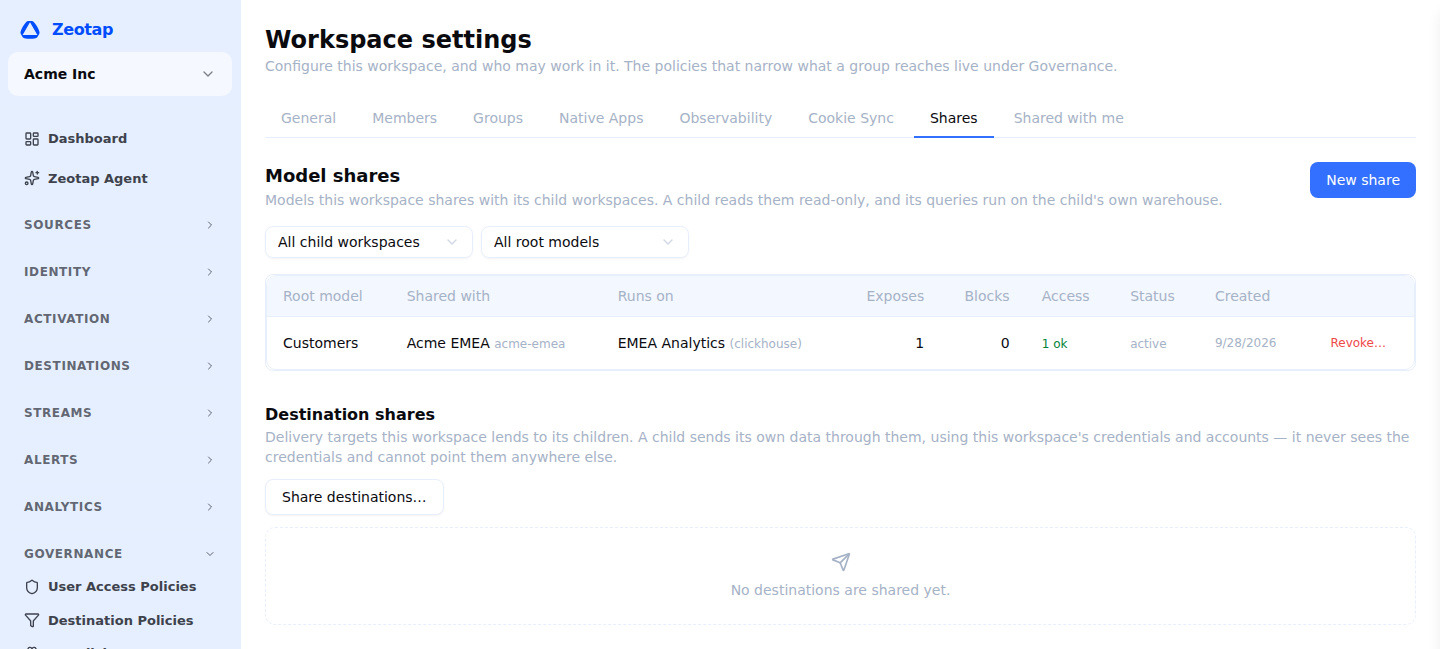
- In the owning workspace, navigate to Settings → Shares and click New share.
- Fill in the three fields:
| Field | Description |
|---|---|
| Root model | A parent-type model this workspace owns. A model shared into this workspace cannot be re-shared |
| Share with | A direct child workspace. Only direct children appear |
| Runs on | One of the child’s own warehouses. Warehouses that are not connected, or are a different warehouse type, are shown disabled with the reason |
- Click Create share.
You land on the share’s detail page. Review What the child can see and block anything that should not be shared. The warehouse access check starts on its own.
A model can be shared to a given child once, and each shared model runs on one warehouse per child.
You can also share from a parent model’s own detail page, which has a Sharing card listing the shares rooted on that model and a shortcut that opens the dialog with the root already filled in.
What the Child Workspace Sees
Shared models, relationships and traits appear in the child’s ordinary Models, Schema and Traits lists, each carrying a Shared from badge naming the owning workspace. Edit, delete and configure controls are absent rather than present and failing.
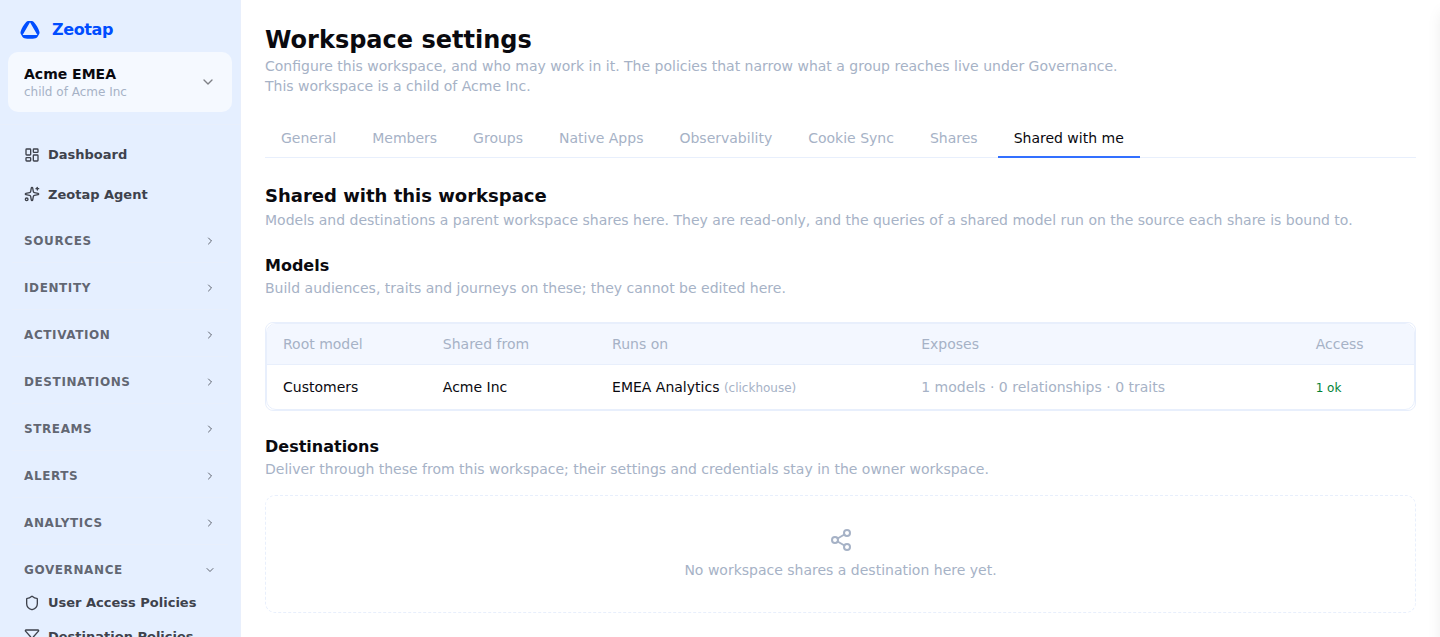
Settings → Shared with me lists every share the workspace receives, with the root model, who shared it, which of the child’s warehouses it runs on, how much it exposes, and the current access state. Each share’s detail page adds what has been built on it, and the access checks table.
Anything the parent has hidden is simply not there. Nothing indicates that a hidden item exists.
Build on Shared Models
A child workspace can treat shared models much like its own. It can:
- Build audiences and canvases on a shared parent model, filtering on shared traits through shared relationships
- Preview, estimate, look up records and sync to its own destinations
- Run journeys on shared models
- Create a relationship from a shared model to one of its own models
- Add its own traits on a shared parent model, including formulas over shared traits
- Clone a shared trait to get an independent copy
Every one of those queries runs on the child’s own warehouse account, compute and storage. The parent’s connection is never opened for the child and its credentials are never shared, so the cost lands with the team doing the work.
Two rules apply when combining your own data with shared data. A relationship you create must have at least one end you own, and every model in it must run on the same warehouse. Your own trait cannot reuse the short name of a shared trait on the same parent model.
Nothing a child builds is visible to its siblings, or to the parent. When the parent checks what depends on a shared item it sees counts by entity type, never the names of a child’s audiences or traits.
Hide Part of a Shared Model
Blocks let a parent share most of a model graph while withholding part of it.
- On the share’s detail page, click Block on any entity except the root.
- If nothing in the child depends on it, confirm.
- If something does, the dialog reports what would break, for example two audiences and one trait, and asks you to confirm deliberately before continuing.
Blocking cascades. Blocking one relationship also hides the model it points at, every trait built on that model, and every formula over those traits, in a single action. Each hidden row explains which block caused it.
Blocks are per child. You can withhold a model from one region and leave it visible to another, because each share carries its own block list. A Blocks section records who blocked what and when.
Unblock reverses it in one click. Anything that broke purely because of that block repairs itself, and a fresh access check is requested.
The root model cannot be blocked. To stop sharing entirely, revoke the share.
Warehouse Access
Being able to see a shared model is not the same as being able to read the underlying table. Shares are created without waiting on warehouse permissions, so the child’s warehouse account has to be granted read access separately by whoever administers it.
Zeotap records the answer per model and shows it on both sides:
| State | What it means |
|---|---|
| Access never checked | No check has run yet |
| Checking | A check is in flight |
| (nothing shown) | The account can read the table. This is the quiet state |
| Cannot read table | The account lacks read access. The table is named |
| Columns differ from the shared model | The table no longer matches the shared definition |
| Access check failed | The check itself could not complete |
| Access result is stale | The recorded answer predates a relevant change |
Checks run automatically after a share is created, when a model newly becomes visible, when the child changes the warehouse a share runs on, and ahead of a run whose answer is unknown. Either side can also click Check access, for a whole share or a single model. Nothing blocks while a check runs.
A recorded Cannot read or Columns differ stops a run before it starts and names the model and table, instead of surfacing a raw warehouse error. Fixing it is self-service: the child’s administrator grants the missing access and one re-check clears it. The share does not need recreating.
Warehouse error text is shown to the child on its Shared with me page, and is not exposed to the parent.
When Something Breaks
If a parent withdraws something a child built on, the child’s dependent entities are marked Broken.
A broken entity stays readable, editable and deletable. It refuses to run and is skipped by schedules, which is the deliberate difference from a run that failed and might succeed next time. It records what it lost.
Broken entities repair themselves as soon as the missing item becomes visible again, typically after an unblock. Editing the entity so it no longer needs what it lost also clears the state. If the item was genuinely deleted, editing is the only way to clear it.
Any workspace can ask what would break if it deleted one of its own entities, and gets the answer by name for its own things.
Revoke and Detach
Revoke share… on the share’s detail page removes it. As with blocking, it reports what the child has built on the share and asks for a deliberate confirmation before breaking anything.
Detaching a child from its parent requires the shares to be revoked first. The refusal links to the parent’s Shares tab.
A few deletions are refused while sharing depends on them, each naming what to do instead:
- A model that is the root of a share cannot be deleted or have its entity type changed
- A warehouse connection that shares run on cannot be deleted
- A workspace with children cannot be deleted
The parent also cannot quietly break a child by editing. Unlike blocks and revocations, an edit that would break a child’s work cannot be forced through. Block or delete the entity deliberately instead.
Permissions
| Permission | What it allows | Owner | Admin | Member |
|---|---|---|---|---|
workspace_hierarchy.read | See a workspace’s parent and children | Yes | Yes | Yes |
workspace_hierarchy.write | Assign, replace or remove a workspace’s parent | Yes | Yes | No |
model_shares.read | List shares this workspace owns, and shares granted to it | Yes | Yes | Yes |
model_shares.write | Create shares, and add or remove blocks, in the owner workspace | Yes | Yes | No |
model_shares.delete | Revoke a share, in the owner workspace | Yes | Yes | No |
Setting a parent also requires organization administration, as described above. Any of these keys can be granted to a custom role.
Requesting a warehouse access check needs warehouse-write permission in the workspace making the request.
Limits
Sharing covers models, relationships and traits. The following are not supported today:
- Re-sharing. A share names a direct child only, and a child cannot pass it on. A model cannot reach a third level of a hierarchy by any route
- Sharing other entity types. Audiences and syncs are not shareable. Sources are intentionally never shared, since every child brings its own warehouse. Destinations are shareable, but through a separate mechanism — see Destination Sharing
- Column-level control. You can hide a whole model, relationship or trait, not individual columns of a shared model
- Golden records and identity graphs. A golden-record model cannot be part of a share, and an audience a child builds on a shared model cannot use an identity graph
- Realtime events on a shared model, along with profile stores, store feeds, deletion rules, audience templates and field-mapping presets
- Access policies written by the parent for a child. A child can put its own access policies on a shared model to restrict its own members (see Access Policies), but the parent cannot set policies that a child must follow
- Cloning a shared model. Cloning a shared trait is supported and gives you your own copy
- Reusing a sibling’s blocks. Onboarding a new child means connecting its warehouse, creating its share, then applying its blocks
Value suggestions shown on a shared model come from the owning workspace’s stored list, and a child cannot refresh them. Per-account suggestions, which would respect row-level security and column masking applied to the child’s own warehouse account, are planned.
Next Steps
- Destination Sharing for lending a child your delivery connections
- Organizations for grouping workspaces and managing members
- Set up RBAC to control who can manage shares
- Workspace setup for connecting a warehouse
- Models for the modelling a share is built on