Scheduling
Scheduling determines when and how often a reverse ETL sync runs. Zeotap supports interval-based schedules for regular cadences, calendar-anchored schedules for month-end and nth-weekday recurrences, cron expressions for precise timing, and manual-only mode for on-demand execution.
Schedule Types
Interval-Based
The simplest scheduling option. Choose a fixed interval, and Zeotap runs the sync at that frequency.
| Interval | Use Case |
|---|---|
| Every 15 minutes | Real-time-ish activation (ad audiences, live dashboards) |
| Every 30 minutes | Near-real-time CRM updates |
| Every hour | Standard operational syncs |
| Every 6 hours | Regular enrichment updates |
| Every 12 hours | Twice-daily reporting syncs |
| Every 24 hours | Daily batch syncs |
How it works: After each reverse ETL sync run completes, Zeotap schedules the next run at the current time plus the interval. If a run takes longer than the interval, the next run starts immediately after the previous one finishes (runs never overlap).
Cron-Based
For precise timing control, use a cron expression. Cron scheduling lets you specify exact times, days of the week, and days of the month.
Cron Syntax
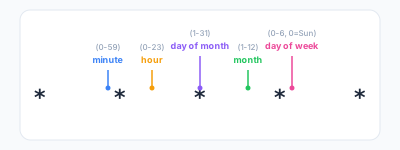
Common Cron Expressions
| Expression | Description |
|---|---|
0 * * * * | Every hour, on the hour |
*/15 * * * * | Every 15 minutes |
0 9 * * * | Daily at 9:00 AM |
0 9 * * 1-5 | Weekdays at 9:00 AM |
0 0 * * * | Daily at midnight |
0 9,17 * * * | Twice daily at 9 AM and 5 PM |
0 0 1 * * | First day of every month at midnight |
0 6 * * 1 | Every Monday at 6:00 AM |
30 8 * * 1-5 | Weekdays at 8:30 AM |
0 */4 * * * | Every 4 hours |
0 9 L * * | Last day of every month at 9:00 AM |
0 9 * * 5L | Last Friday of every month at 9:00 AM |
0 9 * * 1#1 | First Monday of every month at 9:00 AM |
0 9 L */3 * | Last day of every third month — January, April, July, October |
0 9 L 3,6,9,12 * | Last day of every calendar quarter |
Cron Special Characters
| Character | Meaning | Example |
|---|---|---|
* | Every value | * * * * * = every minute |
, | List of values | 0 9,17 * * * = 9 AM and 5 PM |
- | Range of values | 0 9 * * 1-5 = Mon through Fri |
/ | Step values | */15 * * * * = every 15 min |
L | Last day of the month (day-of-month field) | 0 9 L * * = the 28th, 29th, 30th or 31st, whichever ends the month |
L-N | N days before the last day (day-of-month field) | 0 9 L-1 * * = the second-to-last day |
L | Last occurrence of a weekday (day-of-week field) | 0 9 * * 5L = the last Friday |
# | Nth occurrence of a weekday (day-of-week field) | 0 9 * * 3#2 = the second Wednesday |
Named values (MON, JAN) and the Quartz ? and W characters are not supported — use numeric fields.
The two day fields are combined with AND, not OR. Standard cron ORs day-of-month and day-of-week when both are restricted; Zeotap ANDs them, and has always done so. 0 9 L * 5 therefore means “the last day of the month, if it is a Friday” — roughly twice a year — not “the last day, or any Friday”. 0 9 L * 1#1 asks for a day that is both the last of the month and the first Monday, which never exists, so it parses, saves, describes itself plausibly and never runs.
Restrict one day field and leave the other * unless you specifically mean the intersection. There is no “last business day of the month” expression — 0 9 L * 1-5 silently skips every month that ends on a weekend.
Zeotap refuses to save an expression that can never run at all (0 9 L * 1#1, 0 0 30 2 *), so the outright-impossible cases fail at save time rather than at tick time. An expression that runs rarely — 0 9 L * 5, the last day of a month when it happens to be a Friday — is accepted, because that may well be what you meant.
Calendar-Anchored
Some recurrences cannot be written as a fixed interval at all, because the gap between them changes: “the last day of every month” is 28, 29, 30 or 31 days later depending on where you are in the year, and “the first Monday of the month” moves with what weekday the month begins on.
These are what the L and # characters above express, and the schedule picker builds them for you: choose Recurring, set the unit to Months, and pick how the day is anchored.
| Anchor | Runs on | Cron it produces |
|---|---|---|
| Last day of the month | The final day, every month | 0 9 L * * |
| A day of the week | The first / second / … / last chosen weekday | 0 9 * * 1#1 |
| A day of the month | A fixed day number | 0 9 15 * * |
Setting Repeat every above 1 skips months. The step counts from January and restarts each year, so “every 3 months” on the last-day anchor gives you the last day of January, April, July and October — a month after each calendar quarter ends. Only the divisors of 12 (1, 2, 3, 4, 6, 12) produce an even cadence; “every 5 months” fires in January, June and November and then jumps back two months. For true calendar quarters, use a month list in the custom-cron editor: 0 9 L 3,6,9,12 *. The picker warns you when the step you have chosen is uneven.
A day the month does not have is skipped, not moved. A schedule on day 31 does not run in February, April, June, September or November, and the fifth Tuesday of the month exists only in some months. Neither is shifted to the nearest valid day — the run simply does not happen. Use Last day of the month (or the Last weekday occurrence) whenever you need a run in every month. The picker warns you when the anchor you have chosen skips months.
Timezone
Cron expressions are evaluated in the workspace’s configured timezone, which defaults to UTC. To change it:
- Go to Settings > Workspace
- Set the Timezone to your preferred timezone
- Every schedule in the workspace that does not pin its own timezone will use it
An individual schedule can override the workspace default by prefixing its expression with CRON_TZ=<zone>, using an IANA zone name:
CRON_TZ=Europe/Berlin 0 9 L * *The timezone is part of what a calendar anchor means — the last day of the month ends at a different instant in Berlin than in Los Angeles — so pin it explicitly on schedules whose exact firing instant matters.
Manual Only
No automatic schedule is set. The reverse ETL sync only runs when you explicitly trigger it via the UI or API.
When to use manual mode:
- One-time data migrations
- Ad-hoc data pushes
- Testing and development
- Reverse ETL syncs that should only run in response to external events
Triggering a manual run:
In the UI:
- Navigate to the reverse ETL sync detail page
- Click Run Now
Via the API:
curl -X POST https://agentic.zeotap.com/api/v1/syncs/{sync_id}/trigger \
  -H "Authorization: Bearer $API_TOKEN"
Schedule Configuration
Using the UI
When creating or editing a reverse ETL sync, the schedule step presents:
- Schedule type — Choose between Interval, Cron, or Manual
- Interval selector — (If interval) Choose from predefined intervals
- Cron expression — (If cron) Enter a cron expression
- Preview — Shows the next 5 scheduled run times based on your configuration
Using the API
# Interval schedule
{
  "schedule": {
    "type": "interval",
    "interval_minutes": 60
  }
}

# Cron schedule
{
  "schedule": {
    "type": "cron",
    "cron_expression": "0 9 * * 1-5"
  }
}

# Manual only
{
  "schedule": {
    "type": "manual"
  }
}
Run Behavior
Concurrency
Reverse ETL sync runs for the same sync never overlap. If a scheduled run time arrives while the previous run is still executing, the new run is queued and starts immediately after the previous run completes.
Missed Runs
If a reverse ETL sync is paused and then resumed, missed scheduled runs are not retroactively executed. The sync resumes from the next upcoming scheduled time.
Run Duration
The total run duration depends on:
- Query execution time in the warehouse
- Number of records to process
- Destination API rate limits and latency
- Network conditions
For large reverse ETL syncs (100,000+ rows), consider scheduling during off-peak hours to avoid warehouse contention and destination API throttling.
Failure Handling
If a reverse ETL sync run fails:
- The failure is recorded in the run history
- The reverse ETL sync remains active — the next scheduled run proceeds as normal
- If multiple consecutive runs fail, Zeotap sends an alert to workspace administrators
- After a configurable number of consecutive failures, the reverse ETL sync may be automatically paused
Best Practices
Choosing the Right Frequency
Consider these factors when setting a schedule:
| Factor | Recommendation |
|---|---|
| Data freshness needs | If users need real-time data, use 15-30 minute intervals. For daily reports, daily is sufficient. |
| Data volume | Larger datasets take longer to query and sync. Allow enough time between runs for completion. |
| Destination API limits | Some destinations have daily or hourly API rate limits. Space reverse ETL syncs to stay within limits. |
| Warehouse costs | Each reverse ETL sync run executes a query in your warehouse. More frequent syncs = more compute costs. |
| Business hours | If data is only used during business hours, schedule syncs to refresh before the workday starts. |
Staggering Syncs
If you have multiple reverse ETL syncs running against the same source, stagger their schedules to avoid overloading the warehouse:
# Instead of all at the top of the hour:
Sync A: 0 * * * *    (every hour at :00)
Sync B: 0 * * * *    (every hour at :00)  ← concurrent load
Sync C: 0 * * * *    (every hour at :00)  ← concurrent load

# Stagger by 10 minutes:
Sync A: 0 * * * *    (every hour at :00)
Sync B: 10 * * * *   (every hour at :10)
Sync C: 20 * * * *   (every hour at :20)
Monitoring Schedule Health
Keep an eye on:
- Run duration trends — If runs are getting slower, the dataset may be growing and the query needs optimization
- Overlapping runs — If runs frequently overlap (next run queued because previous is still running), increase the interval or optimize the query
- Failure rates — A sudden increase in failures may indicate a destination API issue or credential expiration
Next Steps
- Create a reverse ETL sync with a schedule
- Monitor sync runs to track execution history
- Troubleshoot issues with scheduling and runs