Test Scenarios
A test scenario chains a test event with the reads that should follow it and checks each one. It answers questions like “when this event arrives, does the person’s realtime attribute move, do they join the audience, and does the realtime sync send them?” in one place, and you can run it again after every change.
A scenario is a small graph of steps on a canvas. It runs entirely in your browser, under your own session, against the same reads the Debugger and the playgrounds use. Nothing runs on a server or on a schedule.
Prerequisites
- Real-Time enabled for your workspace. A platform admin enables it.
- The Access live event debugger permission (
events.debug). Owners, admins and members hold it by default. - An event source to send through.
- For Profile API steps, Stores enabled for your workspace and a store to read.
A step that needs a feature your workspace does not have is shown disabled in the steps panel, with what it needs. A template containing it is disabled too, and a scenario that already holds one cannot run until you remove the step.
Running your first scenario
- Navigate to Streams → Test scenarios in the left sidebar, right after Debugger.
- Under Or start from a template, pick one (see Templates), or click New scenario for an empty canvas.
- The editor opens with the steps laid out on the canvas: the steps panel on the left, the inspector on the right.
- Click each step that shows a warning and complete it in the inspector. A template leaves the event source, store and realtime sync for you to pick unless Zeotap could choose one for you.
- Click Run.
Each step card shows a status, how long it took and a one-line result as the run proceeds. Steps with no incoming arrow start at once; a step starts when every step before it finished successfully, and independent branches run in parallel.
Running one step
Select a step and the button reads Run step: it runs that step alone, reading the steps before it from the last run’s outputs. Run all beside it runs the whole scenario. A step run on its own fails up front, naming the step, when one of the steps it reads from has no output yet.
Reading a run
| Status | Meaning |
|---|---|
| OK | The step finished. For a lookup this includes “not found”: read what it answered, not just the status. |
| Failed | The step itself failed: a request error, a poll condition that never held, a stream match that never arrived, an assert that did not pass. The card says which. |
| Skipped | A step before it did not finish successfully. Nothing is wrong with the skipped step itself. Follow the arrows back to the first failed step. |
| Cancelled | You stopped the run while the step was in flight. |
Select a step to see its last output in the inspector. The run log at the bottom of the editor traces the whole run: every call a step made is a line that opens to the request sent and the response received, with its status and duration. You can copy the whole log as text.
When a lookup does not find what you expected, the usual cause is that the event never reached that part of the platform, not that the read is broken. Check the send first, then the stream, then the reads.
Steps
Drag a step from the steps panel onto the canvas, then draw an arrow from the step it should follow.
| Step | What it does |
|---|---|
| Send event | Sends a track, identify, page, screen or group call, or a raw JSON payload. Send through ingest uses the source’s write key: the same path an SDK takes, so the event reaches stores, audiences, journeys and syncs like real traffic. The alternative sends through the test-event proxy the Debugger uses, which publishes straight to the source and reports contract violations. |
| Wait | Pauses before the next step, in milliseconds. |
| Watch stream | Waits for one event on the live stream that matches the message id, user id, anonymous id or event name you give, and fails if none arrives in time. Only events that arrive after the step starts count. |
| Profile API | Reads a store entry as the Profile API serves it, optionally with the audiences it lists. Not found is an answer, not a failure. Needs Stores. |
| Membership API | Asks the Membership API which realtime audiences a user id or anonymous id is in, with how complete each verdict’s evidence is. Turn on Include attribute values to read every realtime attribute’s value beside the verdicts. |
| Realtime attributes | Reads a person’s current realtime attribute values, as an attribute’s Lookup tab does. An empty value means nothing is in the lookback, never zero. A value is warming up after its attribute is activated or edited, until one lookback has passed, and may undercount until then. |
| Sync deliveries | Asks a realtime sync whether it sent this person, as the sync’s Deliveries tab does. Only this run (on by default) ignores deliveries from before the run started, so yesterday’s delivery cannot pass today’s run. With nothing delivered, it is a negative test: was this person kept out? |
| Assert | Checks values from earlier steps: equals, contains, exists, greater than and so on. Fails when any check fails. |
Passing values between steps
Step settings can read the scenario’s variables and the outputs of earlier steps:
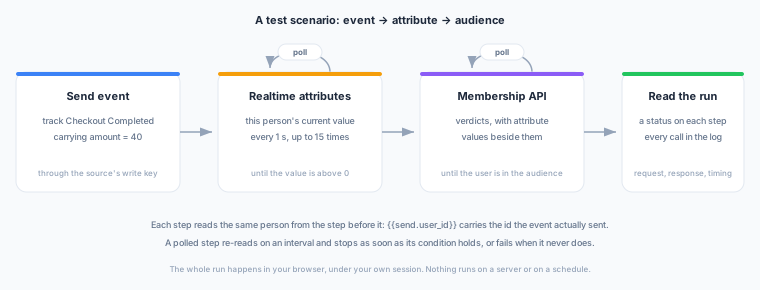
{{vars.user_id}}reads a scenario variable. Every new scenario has auser_idvariable set to a throwaway id. With no step selected, the inspector shows the scenario’s name, description and variables; edit them there.{{send.user_id}}reads a field of an earlier step’s output, by the step’s short name.{{profile.attributes.plan}}and{{membership.member_of}}work the same way.
A step can only read steps that come before it along the arrows. A reference that does not resolve fails the step and names the reference, so nothing is ever sent with a missing value in it.
Polling
The four lookups (Profile API, Membership API, Realtime attributes and Sync deliveries) can poll: read again every interval, up to a number of attempts. Set Stop early when… to stop as soon as a condition holds, such as “every 1 s, up to 10 times, until the user is in the audience”. If the condition never holds, the step fails. Without a condition, every attempt is recorded, which shows how a value changed over time. You pick the field from a list of what the step answers with.
Templates
| Template | What it checks |
|---|---|
| Event → profile and membership | Sends a track event, waits a second, then reads the user from the Profile API and the Membership API at once, polling until each answers. |
| Identify → verify the trait | Sends an identify call with a trait, then checks the Profile API serves it. |
| Does this event flip a membership? | Sends an event and polls the Membership API until the user is in the audience you name. |
| Event → audience → sync delivery | Sends an event, waits for the user to join the audience, then polls a realtime sync until it has sent them. |
| Event → realtime attribute | Sends an event carrying the value a realtime attribute reads, then polls the attribute until this user has a value. |
| Event → attribute → audience | Sends an event, waits for the realtime attribute to count it, then polls the Membership API until the audience built on that attribute takes the user in, showing the values beside the verdict. |
Where it can, the template fills in a sensible default, such as your first realtime sync and the audience it sends, or an active realtime attribute and the event source it reads from.
Saving and sharing
By default, nothing saves automatically (see Auto-save to change that). Click Save (or press Ctrl+S / ⌘+S) to keep your changes; the header says Unsaved changes until you do, and leaving the editor asks before discarding them.
- In this browser. Every scenario starts here, saved only in the browser you are using.
- In the workspace. Click Save to workspace to move the scenario there, so it survives a different browser and your colleagues can open it. Anyone with the debugger permission can save a scenario to the workspace. Members can edit or delete only the scenarios they created; owners and admins can edit or delete any.
History in the header lists the last 10 saves, kept in this browser. Restore loads one as unsaved changes; save to keep it.
Auto-save
To keep every change without pressing Save, open History and turn on Auto-save in this browser. The setting is remembered in the browser you are using, for every scenario.
- Every change you make, and every change Zeotap Agent applies, is kept in History under Auto-saved edits, labelled with what it did, for example Added step send or Copilot applied 3 changes. Restore any of them to go back to that point. The last 100 changes are kept.
- A scenario in this browser is saved as you go.
- A scenario in the workspace is not saved to the workspace automatically, so a mistake never reaches your colleagues. Your edits are kept in this browser until you click Save. If you open the scenario again without having saved, the editor offers to restore them.
Using Zeotap Agent
Click Copilot in the editor header and describe what you want to check: “after my Checkout event, check the user is in the VIP audience”. Zeotap Agent reads the scenario and its last run, and proposes changes as a card you Apply. It can also explain why a run failed. It never runs the scenario: apply the change, then click Run yourself.
Tips and caveats
Sending through ingest is real traffic. In a production workspace, a test event reaches stores, audiences, journeys, syncs and their destinations exactly as a real one does. Use a throwaway user id, and prefer a test workspace for anything that activates.
- Assert “greater than”, not an exact total. Realtime delivery is at least once, so a redelivered event can count twice in a count or sum. Poll and assert that a value is greater than zero (or than its value before the send), never that it equals an exact number. Latest, smallest and largest are not affected.
- The user id carries over between runs. A scenario’s
user_idvariable stays the same from run to run, so a count or sum on a re-run already holds the earlier runs’ value, and a “greater than 0” check passes at once. Change the variable to start from a fresh person. - A sync sends on a change. Someone who was already in the audience before the run has nothing new to send. Start from a fresh user id to test a delivery.
- Give later steps longer. A realtime sync sends after the membership changes, so poll its deliveries for longer than the membership.
Next Steps
- Debugging — the live event stream and single test events
- Membership Playground — a one-off membership check
- Realtime Attributes — what an attribute counts and when it is warming up
- Realtime Syncs — how a sync decides to send someone