Subscriptions
Before any message reaches a person, Zeotap asks two questions about them:
- Can we reach this address? An address that bounced, complained or was blocked is unreachable. This is suppression.
- May we contact this person about this? A person says yes or no to each topic you send about. Their answer is their subscription.
Both answers live on one record per address, and both are checked on every Engagement send, for every channel: email, SMS, WhatsApp and push. Nothing about either is kept in your delivery provider, so changing provider changes neither.
Subscriptions is part of the Engagement module. Ask your account team to enable Engagement for a workspace.
Open Subscriptions from the sidebar. It has five tabs:
| Tab | What it holds |
|---|---|
| Topics | Every topic, with its channels and default |
| Preferences | One person’s answers: choose a channel, enter an address and open that person’s record |
| Imports | Every import starts here, under Import; the history of every import of subscription decisions |
| Suppression | Every unreachable address and why |
| Seed lists | The addresses test sends go to |
Each tab needs its own permission. A member without it sees the tab with a line saying they have no access, for example No access to preferences.
Topics and subscriptions
A topic is something you send about: a weekly newsletter, product updates, offers. Each workspace starts with a general topic and an “Opt-in confirmation” topic, which carries only the confirmation messages described below and cannot be chosen for a campaign. Every promotional campaign and every promotional orchestration send is filed under a topic, chosen in the field Subscription Topic of the campaign wizard, the new journey form and the Send message tile. On email, SMS, WhatsApp and push, a promotional campaign or orchestration send step cannot be saved until its topic is chosen. A promotional message that names no topic is not sent to anybody, because without one there is no way to know who asked not to receive it.
A campaign or orchestration in transactional mode, for messages a person is owed such as a password reset or an order receipt, names no topic. It is sent even to people who opted out, and it is still never sent to an address that cannot be reached.
Each topic has, in the order the topic form asks for them:
| Field | What it is |
|---|---|
| Name | Shown to people in the preference centre |
| Key | Stable identifier used by the API and agents |
| Description | One line on what these messages contain |
| Channels | Channels this topic covers, picked from a dropdown |
| Default Subscription State | Whether people start subscribed or unsubscribed: Subscribed sends to anybody who has not opted out, Unsubscribed sends only to people who said yes |
| Double Opt-In | Require confirmation before a subscription counts |
| Confirmation message | Message sent to confirm the subscription, one for each channel the topic covers; asked for only when Double Opt-In is on |
| Order | Position in the preference centre list |
With Double Opt-In on, people who join the topic are sent the confirmation message and are only sent the topic once they confirm. A request nobody confirms lapses after 72 hours. Double Opt-In is not available on push.
Changing a topic’s default asks you to confirm, with Switch to Subscribed? or Switch to Unsubscribed?.
A subscription is one person’s answer about one topic, on one channel. A person can also stop a whole channel at once, which covers every topic on it. To see one person’s answers, open Subscriptions → Preferences, choose the channel and enter the address.
Create a topic with New topic under Subscriptions → Topics. A topic’s key cannot be changed after it is created. Open a topic’s row to see its page, where you can edit or archive it. Once a topic is archived, nothing new can be filed under it and it can no longer be edited. Messages already filed under it go only to people who said yes to it: its default no longer applies, and anybody who opted out stays opted out. To bring topics over from another platform, open Subscriptions → Imports, choose Import, then Import from another CEP: each subscription group you pick becomes a topic, with a Default Subscription State of Subscribed or Unsubscribed that you choose for each group.
Topics are not lists. A list of people in Zeotap is an audience; a topic is what a message is about.
A topic’s wording exists in one language only: every person sees the same name and description, whatever language they read.
What the word suppression means
Several different things can keep a message from somebody. Only the first two are this page.
| What | The question it answers | Where you set it |
|---|---|---|
| Suppression | Can this address be reached at all? | Subscriptions → Suppression |
| Subscription | May this person be contacted about this topic? | The person, on their preference page; Subscriptions → Topics for the topic itself |
| Frequency cap | Has this person had enough messages lately? | Destination filters |
| Holdout | Is this person kept out to measure a send? | Holdouts, for the workspace-wide holdout, and the campaign for its own |
| Audience priority | Which of several overlapping audiences gets this person? | Priority lists |
| Your provider’s own lists | Will the provider refuse this address? | Your provider account; Zeotap neither reads nor writes them |
| Suppression audience | Which people should an ad platform not target? | An audience sync to an ad platform; unrelated to sending messages |
What happens before a message is sent
Every message a campaign, an orchestration’s send step, a triggered send, a test send or a confirmation sends is checked just before it is handed to your delivery provider. The questions are asked in this order, and the first one that stops the message decides:
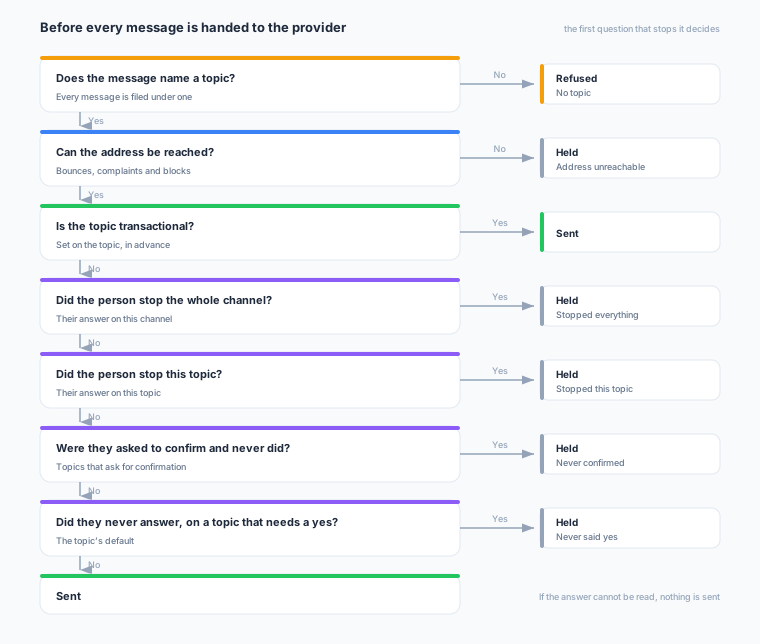
An ordinary audience sync to a messaging destination such as Twilio, SendGrid or Firebase is not an Engagement send. It needs no topic and is not checked for consent, and is sent exactly as it was before Engagement was enabled: an address that cannot be reached is still held back. The same is true of an orchestration step that sends to a destination rather than sending a message.
If the check cannot be answered, for example because the record cannot be read at that moment, nothing in that batch is sent. A message is never sent on the assumption that a person agreed.
Merging two profiles never changes anybody’s answers: answers belong to the address they were given for. An opt-out on one email address does not stop messages to the same person’s other addresses or phone numbers.
Test sends are checked the same way. A seed address is an ordinary address: if it bounced, or the colleague behind it stopped everything, the test send skips it and says why. Subscriptions → Seed lists shows how many addresses on each list a test send would skip.
Promotional email through Brevo is refused, when the campaign is saved and when it is sent, because Brevo adds an unsubscribe header of its own to every email. Send promotional email through another email destination. Transactional email through Brevo is sent as usual.
Everything that may stop a message
The checks above are the first two of six steps that may stop a message:
| Step | What it stops | |
|---|---|---|
| 1. Deliverability | An address that cannot be reached | |
| 2. Consent | A person who stopped the topic or the channel, or has not confirmed | |
| 3. Frequency cap | A person who has had enough messages lately | |
| 4. Quiet hours | A message at night in the person’s time zone | Not available |
| 5. Holdout | A person kept out of a campaign to measure it | |
| 6. Message priority | All but one of several messages due to the same person | Not available |
A transactional campaign or orchestration skips consent, frequency caps and the holdout; deliverability still stops it. A campaign triggered by an event passes the same steps as a scheduled run of that campaign, and if its frequency cap or holdout cannot be checked the message is not sent. An orchestration’s send step passes no holdout, and skips frequency caps when Bypass frequency caps is on. Test sends and confirmation messages skip frequency caps and the holdout.
Withheld, on a report
A person the check stopped is withheld. Each campaign’s Insights tab shows, for the sends you are viewing, how many people the campaign was for (Selected), how many were sent, withheld and failed, and why each withheld person was held back. Failed counts the people a send could not send for any other reason, such as a batch the provider refused. Delivery shows the same counts for the chosen channel over the last 30 days, one row per day, topic and reason:
| Shown as | What it means | Who can change it |
|---|---|---|
| Address unreachable | The address bounced, complained or was blocked | A workspace member, on Subscriptions → Suppression; a complaint can never be removed |
| Stopped everything | The person stopped this whole channel | Only the person |
| Stopped this topic | The person stopped this topic | Only the person |
| Never confirmed | The topic has Double Opt-In on and the person never confirmed | Only the person, by confirming |
| Never said yes | The person never answered, and the topic’s Default Subscription State is Unsubscribed | The person, or whoever owns the topic, by changing its default |
| No topic | The message named no topic, so nobody was sent it | Whoever wrote the message, by choosing a topic |
| Warehouse copy out of date | Your warehouse’s copy of the subscription record left the person out, but their own record would have allowed the message | Nobody needs to: the copy catches up, and the next send reads it again |
Before you launch, the campaign wizard shows two estimates, each with the time it was read: In the audience, how many people the audience selects, and Can be contacted, how many of them may be contacted about the campaign’s topic. The second needs your warehouse to hold a copy of the subscription record and reads Unavailable without it; the check at send time does not need the copy.
The preference centre
Every promotional email carries two links of ours, and only ours:
- Unsubscribe: the one-click unsubscribe mail clients show beside the sender. It stops the topic the message was sent under, and the page it leads to offers stopping everything on the channel as a separate choice.
- Preferences: the person’s preference page, listing every topic on that channel with their current answer, and saving what they change.
These pages show your workspace’s name, and the logo and colour set on the General page of your workspace settings, and nothing else: their layout, wording and language cannot be changed.
Each link is unique to the person and the message and works without signing in. An address Zeotap has never heard of gets the same page as any other, so the page never reveals whether somebody is on file.
Placing the unsubscribe link in a template
To put the link where you want it in an email, type / and choose Unsubscribe link under System Variables, or write the tag yourself. In HTML mode it is offered in the email body. In drag-and-drop mode it is offered in a text block, a link’s URL, a button’s or an image’s Link URL, a raw HTML block and a menu’s link URLs; it is not offered in a button label, an image’s alt text, a social profile URL or a content block.
<a href="{{ preference_centre_url }}">Unsubscribe or manage your emails</a>When the message is sent, the tag becomes that person’s own preferences link. A promotional message that places the tag gets no second link in its footer; a promotional message that does not place it gets the link added to its footer.
Transactional email carries no unsubscribe link. A transactional campaign or journey message whose template places the tag is refused when it is saved, with the code transactional_preference_tag_refused.
An email template saved without the tag shows No unsubscribe link in the editor, and under its name in Content → Templates a crossed-out link icon that reads No unsubscribe link when you point at it. It is still saved: the warning is there so you place the link before the template is used, because a promotional send that has no unsubscribe link at all is refused when it is launched. The same warning comes back from the API as warnings on the saved template, with the code template_unsubscribe_missing. SMS, WhatsApp and push templates are never warned.
Your provider’s own unsubscribe link is not added to messages. When a person unsubscribes through your provider anyway, for example through its own footer on mail sent outside Zeotap, the provider reports it and Zeotap records it as a stop.
Why an address is unreachable
Subscriptions → Suppression shows every unreachable address, why, what the provider said and when.
| Shown as | What happened | Lapses |
|---|---|---|
| Hard bounce | The provider refused delivery permanently | No |
| Invalid address | The provider says the address cannot exist | No |
| Number disconnected | The carrier says the number is no longer in service | No |
| Device unregistered | The push provider says the app was uninstalled or the device turned notifications off | No |
| Complaint | The person marked a message as spam | No, and it can never be removed |
| Blocked | The receiving server kept refusing the sender | Yes, after the hold set in your bounce policy |
| Held | Temporary failures passed your bounce policy’s threshold | Yes, after the hold set in your bounce policy |
| Operator | A member of your workspace added it, with their reason | No |
| Imported | It came from a list you imported | No |
A complaint also records that the person stopped the channel, on that address only.
When the carrier reports that a number now belongs to someone new, the number is held as Number disconnected and every subscription decision on it on that channel is removed, recorded as carrier reassigned in the subscription log.
A change to your bounce policy applies within five minutes. A temporary failure reported for an address that is already held does not lengthen the hold. The longest hold allowed is 400 days by default; a longer one is refused. Switching the policy off stops counting temporary failures, and switching it back on starts every count from zero.
Adding or removing an address asks for a reason, which is kept in the workspace audit log without the address itself.
Importing a suppression list
To suppress addresses you already know cannot be reached, open Subscriptions → Imports, choose Import, then Import a suppression list. Pick the channel and a CSV file with one address per row. A header row is optional; if there is one, the address column is found by its name.
- A file can hold up to 200,000 rows and 32 MB. Split a longer list into several files. Importing the same file twice does no harm.
- A row that cannot be read is skipped and the readable rows are imported. The result lists each refused row with its line number, its value and the reason, so you can fix those rows and import them again.
- If the file itself cannot be read, or it is over either limit, nothing is imported.
- Every imported address is listed on Subscriptions → Suppression, marked Imported.
Importing decisions
To bring subscription decisions over from another platform, open Subscriptions → Imports, choose Import, then Import a file. Each import’s progress and result are listed on the same tab. Say where the file came from, the list, what a blank answer meant there, and the topic and channel.
- An import can hold up to 200,000 rows. Split a longer file into several imports.
- Before anything is written, the dialog counts what the file would do and lists every row it cannot use with its row number, the address and the reason.
- The valid rows are imported and the refused ones are left out. If the file cannot be read at all, nothing is imported.
- An import only fills in people with no answer yet, and importing opt-ins needs an attestation of how they were obtained.
- Every figure an import reports counts rows of the file.
- An import that runs too long stops and is marked as timed out. Turning Engagement off for the workspace stops an import that is still running.
STOP replies to SMS
When a workspace has a Twilio SMS destination and a warehouse, Zeotap sets up STOP capture for it: each number the destination sends from, its From number or every number of its Messaging Service, has its incoming messages sent to Zeotap. With Twilio’s Advanced Opt-Out on, a person who replies STOP is recorded as having stopped SMS from you on that number.
- A number whose incoming messages already go to an address of your own is left as it is, and STOP replies to it are not captured. The destination’s setup says so.
- Without a warehouse connected to the workspace, STOP capture is not set up and no number is changed. Connect a warehouse source, then save the destination again.
Where an answer came from
Every answer records where it came from, when the person gave it, and the evidence behind it:
- The person: their preference page, the one-click unsubscribe, or confirming a topic.
- Your systems: the subscriptions API, with the method and evidence your system sends.
- A member of your workspace: recording somebody’s opt-out on their behalf, with a reason. A member can opt somebody out, never in.
- An import: decisions from a previous platform. An import only fills in people with no answer yet, and importing opt-ins needs an attestation of how they were obtained.
- Your delivery provider: an unsubscribe, a spam complaint or a STOP reply it reports.
- Zeotap: a confirmation nobody answered in time is recorded as an opt-out.
An opt-out a person made themselves can only be reversed by that person. Imports, the API and members of your workspace cannot opt them back in.
The full history of every answer, with its evidence, is written to your own warehouse.
Zeotap Agent
Zeotap Agent can read topics and a person’s answers, and can ask the same check a send would run, but it can never opt anybody in or out. If asked to, it says who can.