Guardrails
Guardrails are the rules that decide what the AI agent is allowed to do in your workspace on its own, what it has to ask a human about first, and what it may never do at all.
You configure them on the AI Policies page under Governance in the sidebar.
How Guardrails Work
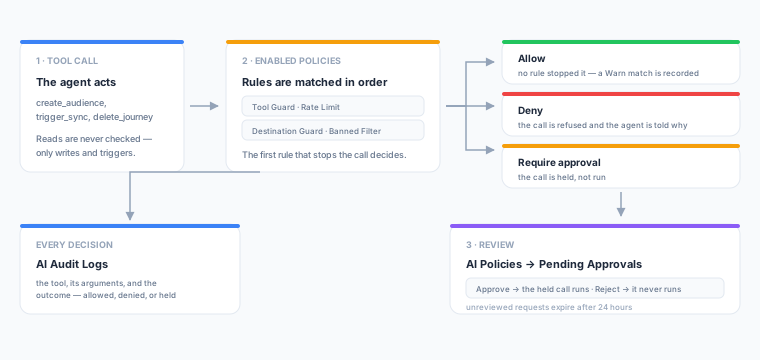
A policy is a named, switchable set of rules. Each rule has three parts:
| Part | What it does |
|---|---|
| Type | What the rule looks at — the tool being called, how often it is being called, the columns in a filter, or the destination being written to |
| Condition | The specific values that make the rule match, such as which tools or which destination types |
| Action | What happens when it matches — Deny, Require Approval, or Warn |
When the agent calls a tool, every enabled policy is checked, and every rule inside it, in order. The first rule that stops the call decides the outcome — whether it denies the call or holds it for approval, checking stops there and the remaining rules are not consulted. If no rule stops it, the call goes ahead.
What Guardrails Cover
Guardrails apply to tools that change something or start something — creating an audience, updating a model, triggering a sync, deleting an orchestration. Tools that only read data are never gated, so the agent can always look at your workspace and answer questions about it.
The rules apply to AI-initiated actions from any client: the agent chat inside Zeotap, and any external MCP client connected with an API key. They do not apply to changes you make yourself in the UI or through the REST API — those are governed by RBAC and recorded in the workspace audit log.
Guardrails constrain the agent, not your team. A person who can delete an audience in the UI can still do so while a policy stops the agent from doing it for them.
Actions
| Action | Effect |
|---|---|
| Deny | The call is refused. The agent is told which rule stopped it and reports back rather than retrying. |
| Require Approval | The call is held, not run. A reviewer approves or rejects it — see Approval Workflow. |
| Warn | The call goes ahead and evaluation continues to the next rule — nothing is blocked and nobody is asked — but the match is recorded on the audit entry, which shows a warning count against the outcome and the reason for each one when you expand the row. Use it to watch a rule in the log before you let it bite. |
Rule Types
Tool Guard
Matches on the name of the tool being called. This is the most direct rule type and the one the default policies use.
| Setting | Description |
|---|---|
| Guarded Tools | One or more tool names. Pick from the grouped list or type your own. |
Names match exactly (trigger_sync), or you can end a pattern with * to match a family of tools (delete_* matches delete_journey, delete_identity_graph, and so on). Matching ignores case.
Example: hold every deletion for approval with the single pattern delete_*.
Rate Limit
Limits how many times a tool can be called within a rolling time window.
| Setting | Description |
|---|---|
| Max Calls | How many calls are permitted inside the window |
| Window (seconds) | The length of the window |
| Tools | Which tools to count. Leave empty to apply to every tool the guardrails see. |
The count is kept per tool, so a limit of 5 per hour on two tools allows 5 calls of each, not 5 between them. The rule matches once a call would take the tool past the limit.
Tool names in a Rate Limit rule are matched exactly — delete_* and other wildcards work only in Tool Guard. List the tools individually here.
Example: at most 5 trigger_audience_sync calls per hour.
Banned Filter
Matches when an audience filter references a column or an operator you have put off limits. The whole filter tree is inspected, including conditions nested inside event and relation conditions, so a banned column cannot be hidden a few levels down.
| Setting | Description |
|---|---|
| Banned Columns | Columns the agent may not filter on. Pick from your models’ columns or type a name. |
| Banned Operators | Operators the agent may not use, such as contains on a sensitive field |
Column and operator names are matched ignoring case.
Example: deny any agent-built filter that references ssn or date_of_birth.
Destination Guard
Matches on the destination type a call is writing to.
| Setting | Description |
|---|---|
| Guarded Types | One or more destination types, chosen from the destinations Zeotap supports |
Types are matched ignoring case, and the rule only applies to calls that name a destination type.
Example: require approval before the agent creates anything pointed at your ad platforms.
Default Policies
Every new workspace starts with two policies, both enabled:
| Policy | Rule | Action |
|---|---|---|
| Delete Protection | Tool Guard on delete_* | Require Approval |
| Sync Protection | Tool Guard on trigger_sync and trigger_audience_sync | Require Approval |
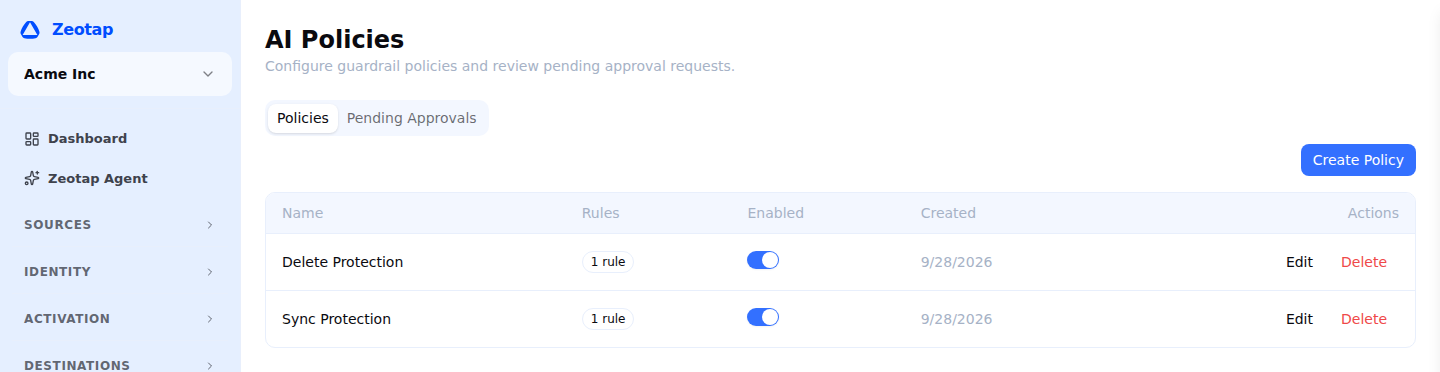
They are ordinary policies: edit them, switch them off, or delete them. They are created once, when the workspace is created, so a policy you delete does not come back.
A workspace with no enabled policies places no limits on the agent beyond the scopes on its API key. Deleting both defaults leaves deletions and sync triggers unguarded.
Creating a Policy
- Navigate to AI Policies under Governance in the sidebar
- On the Policies tab, click Create Policy
- Give the policy a Name — it has to be unique within the workspace
- Click Add Rule, then choose a Type and an Action
- Fill in the rule’s settings — the fields change with the type you picked
- Add further rules if you want them evaluated in the same policy, in the order you add them
- Click Create
The policy takes effect immediately, on the agent’s next tool call. Use the Enabled switch in the policies table to turn a policy off without deleting it, or Edit to change its rules.
Approval Workflow
When a call matches a Require Approval rule:
- The call is held — nothing is created, changed, or triggered yet. The agent is told the request is pending and carries on with the rest of the conversation.
- The request appears on the Pending Approvals tab of the AI Policies page, and the count shows against AI Policies in the sidebar. Workspace Owners and Admins are also emailed.
- A reviewer clicks Review and sees which tool was called and the exact arguments it was called with, and can add a note explaining the decision.
- Clicking Approve runs the held call. Clicking Reject discards it — the action never runs.
- Requests that nobody reviews expire after 24 hours. They drop off the Pending Approvals tab and can no longer be approved — if the action is still wanted, ask the agent for it again.
Ask the agent whether a request has been resolved and it will check for you; a rejected request comes back with the reviewer’s note, so telling it why you rejected something is worth the extra sentence.
Audit Log
Every guardrail decision is recorded, whichever way it went. Go to Governance → Audit Logs and open the AI Audit Logs tab.
| Column | What it holds |
|---|---|
| Timestamp | When the call was made |
| Agent | Which agent or session made it |
| Tool | The tool that was called |
| Outcome | Allowed, Denied, Pending approval, Approved, or Rejected |
| Input | Expand to see the full arguments the tool was called with |
Pending approval is written when a rule holds a call; a second entry with Approved is written if a reviewer later lets it run. Because guardrails only evaluate tools that change something, read-only tool calls do not appear here.
This log covers what the agent was asked to do. For configuration changes made by people, through the UI or the REST API, see the workspace audit log on the neighbouring tab.
Permissions
| Permission | Allows | Owner | Admin | Member |
|---|---|---|---|---|
policies.read | Viewing policies | Yes | Yes | Yes |
policies.write | Creating, editing, and deleting policies | Yes | Yes | — |
approvals.read | Viewing approval requests | Yes | Yes | Yes |
approvals.write | Approving and rejecting requests | Yes | Yes | — |
audit_log.read | Viewing the AI audit log | Yes | Yes | Yes |
Members can see what the guardrails are and what the agent has been doing, but cannot change the rules or resolve an approval. See RBAC for assigning these to custom roles.
API Reference
# Policies
GET    /api/v1/workspaces/{id}/policies
POST   /api/v1/workspaces/{id}/policies
PUT    /api/v1/workspaces/{id}/policies/{policyId}
DELETE /api/v1/workspaces/{id}/policies/{policyId}

# Approvals
GET  /api/v1/workspaces/{id}/approvals
POST /api/v1/workspaces/{id}/approvals/{approvalId}/review

# AI audit log
GET /api/v1/workspaces/{id}/ai-audit-log?limit=50&offset=0
A policy is created with a name and a rules array, where each rule carries a type, an action, and a condition shaped to the type:
{
  "name": "Production Safety",
  "rules": [
    {
      "type": "tool_guard",
      "action": "require_approval",
      "condition": { "tools": ["delete_*", "trigger_sync"] }
    },
    {
      "type": "rate_limit",
      "action": "deny",
      "condition": {
        "max_calls": 5,
        "window_seconds": 3600,
        "tools": ["trigger_audience_sync"]
      }
    }
  ]
}
The remaining condition shapes are banned_filter (banned_columns, banned_operators) and destination_guard (guarded_types).
To review a request, post {"status": "approved"} or {"status": "rejected"}, optionally with a note.
Next Steps
- AI Agent — what the agent can do inside those boundaries
- MCP Server — the tools guardrails are evaluated against, and the scopes that gate them
- Audit Log — the companion record of changes made by people