Agent Connectors
Agent connectors let the AI agent work with the other tools your team uses — your engagement platform, CRM, product analytics, data warehouse and work trackers — through each vendor’s own hosted MCP server. With Braze connected, for example, you can ask “How did last week’s Braze campaigns perform for the audience we synced on Monday?” and the agent reads both sides.
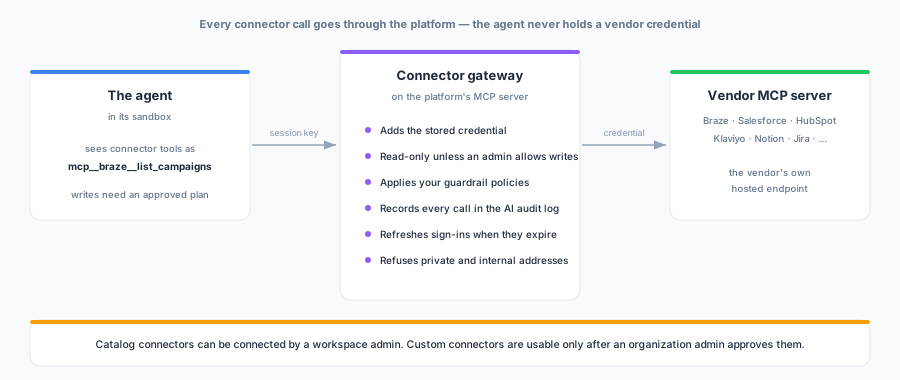
How a connector call works
The agent never talks to a vendor directly and never holds a vendor credential. Every connector call goes through a gateway on the platform, which:
- adds the credential you stored for the connection;
- exposes only read-only tools unless the connection is set to read-write;
- applies your workspace’s guardrail policies;
- records the call in the AI audit log, under the name the agent sees, for example
mcp__braze__list_campaigns; - refreshes an expired sign-in, and refuses any address on a private or internal network.
Writes still need your approval. On a read-write connection, every tool that can change data in the connected system runs only after you approve a plan that names it — the same rule as the agent’s own changes to your workspace.
Connecting a connector
Go to Workspace settings → Agent connectors, pick a connector from the catalog and click Connect.
| You are asked for | When |
|---|---|
| Region or instance (for example a Salesforce My Domain or a Snowflake account host) | The vendor runs separate endpoints per region or per tenant |
| Sign in with OAuth | The vendor supports it. A window opens on the vendor’s site for you to sign in and approve access |
| Client ID and secret of your own OAuth app | The vendor requires an app registered in your account (Salesforce, HubSpot, Slack, Asana, Box, BigQuery, Snowflake, Databricks). Add the redirect URI shown in the dialog to that app |
| API key or token | The vendor offers token access (for example Mailchimp Transactional or monday.com) |
New connections are read-only. Switch a connection to read-write in the connections table when you want the agent to be able to act in that system.
Under Advanced you can rename a connection and choose its tool namespace — the name the agent’s tools appear under. Use it to tell two connections to the same vendor apart, for example braze_us and braze_eu.
The catalog
The catalog lists official, vendor-hosted MCP servers. Each entry is pinned to the endpoint its vendor documents:
| Category | Connectors |
|---|---|
| Engagement & messaging | Braze, Klaviyo, Customer.io, Mailchimp Transactional |
| Advertising | Meta Ads (vendor beta) |
| CRM & support | Salesforce, HubSpot, Attio, Intercom |
| Product analytics | Amplitude, Mixpanel, PostHog |
| Data platforms | BigQuery, Snowflake, Databricks |
| Commerce & payments | Stripe |
| Work management & collaboration | Atlassian (Jira & Confluence), Notion, Slack, Linear, Asana, monday.com, Airtable, Box |
Some vendors need an admin on their side to switch MCP on first. The connect dialog says so and links to the vendor’s setup guide.
Custom connectors
A remote MCP server that is not in the catalog can be requested with Request connector. Give its endpoint (it must be https, on a public host, using the Streamable HTTP transport), how it authenticates and why the agent needs it.
A custom connector needs an organization admin’s approval. A connector is a path for workspace data to leave the platform, so nobody can connect a custom one until an admin of your organization approves it under Organization settings → Agent connectors. Once approved, every workspace in the organization can connect it. If an admin later revokes it, every connection that uses it stops working on the agent’s next call.
Permissions
| Permission | Lets a role | Default roles |
|---|---|---|
agent_connectors.read | See the workspace’s connections and the catalog | Owner, Admin, Member |
agent_connectors.write | Connect, change and remove connections, and request custom connectors | Owner, Admin |
agent_connectors.use | Let the agent call connected connectors in that person’s conversations | Owner, Admin, Member |
Good practice
- Start with read-only and switch to read-write only for the connections where you want the agent to act.
- Content a connector returns comes from outside your workspace. The agent treats it as information, never as instructions. It also will not send customer data from your workspace into a connected system unless you ask it to.
- Use Check connection & list tools to see exactly which tools the agent will see on each connection, and which of them can change data.